Get acquainted with the range of controls for solving simulations and analyzing the results.
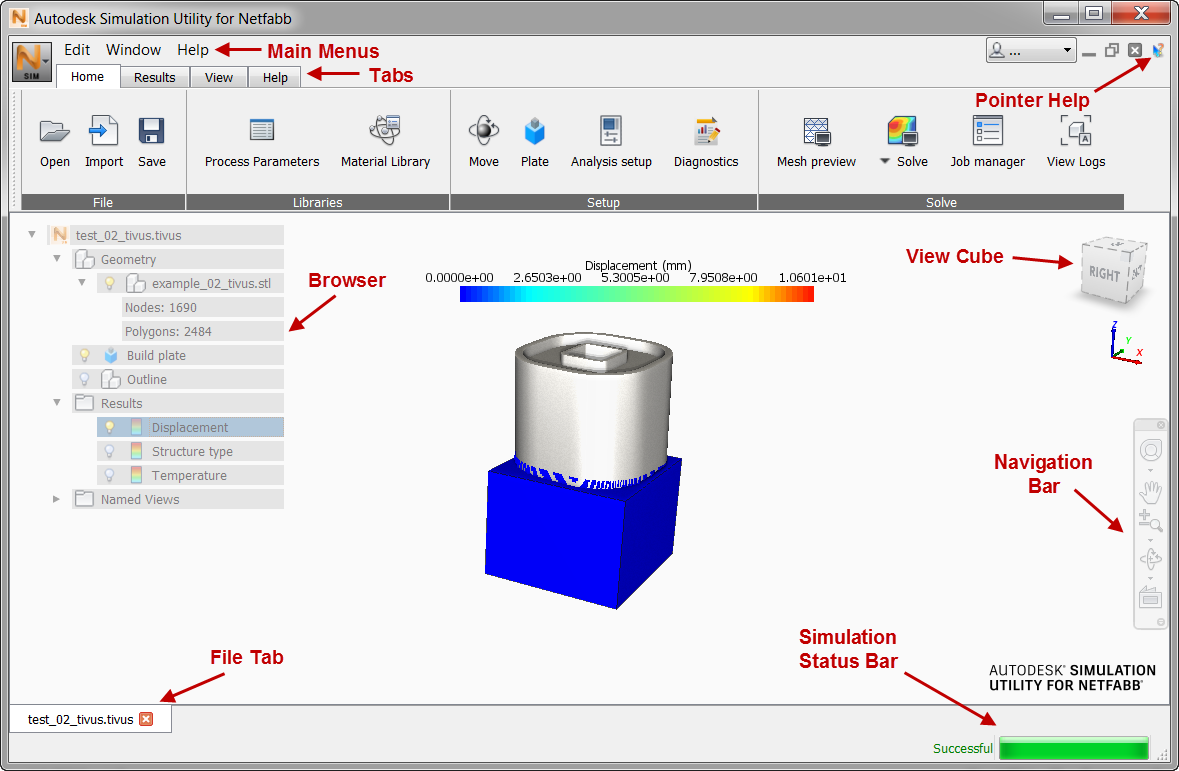
- Main Menu is used for project settings, management of files and windows, and access to the Help and product information.
- Tabs provide access to the simulation controls, which are arranged generally in the order that you use them during a simulation run. In other words, you start on the Home tab, then move to the Results tab and the View tab.
- Pointer Help is used to access brief tooltips about interface controls. When you click the icon and the cursor changes to a question mark, click on a control for which you want information.
- Browser displays geometric details of the part, the simulation results, and named views of the part.
- View Cube and Navigation Bar provide intuitive tools for controlling the part view.
- File Tab identifies the file displayed in the window; if you open multiple files or create other windows of the current file, each file or view is represented by an additional tab here.
- Simulation Status Bar displays the progress of a simulation or a preview after you click Solve or Mesh preview.
The following sections explain the menus, tabs, and controls of the user interface.