 For the analysis of a part you have five options. A standard analysis, an analysis of upskins and downskins, of the center of gravity, the wall thickness and the analysis of the part’s shadow area.
An analysis of a selected part can be obtained by a click on the analysis icon in the toolbar, in the Extras menu or in the Extras submenu of the context menu of a part. You get a submenu where you can choose from the three kinds of analyses.
The analysis opens a window in the tabsheet providing information on the part. The content depends on which analysis you have chosen. Information on all of your analyses is listed together. In the project tree, a folder Part analysis is added as sub element to the part. All analyses are added to that folder. You can add an indefinite number of analyses.
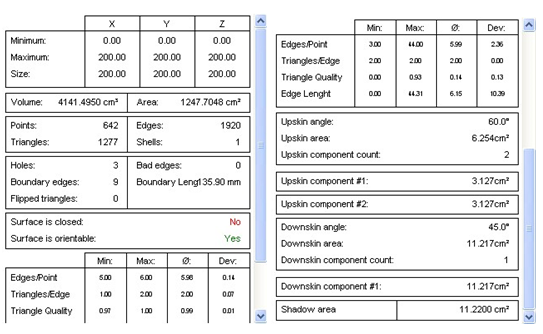
The analysis of parts is displayed in the tabsheet. Left: The standard analysis. Right: The results of the upskin and downskin analysis and of the shadow area analysis are below the standard analysis.
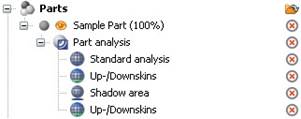
A group of analyses in the project tree.
You can remove single analyses with a double-click on the red X next to the analysis in the project tree. If you want to remove the whole group of analyses, use the red X next to the group Part Analysis or right click on it and remove it in the context menu.