Use Relief > Calculate > Merge High and Relief > Calculate > Merge Low to merge a new relief with the active relief layer, so only the:
- highest points are kept; or
- lowest points are kept.
Note: The
Merge High
 button and
Merge Low
button and
Merge Low
 button on the
Relief Editing toolbar and on the
Shape Editor panel are shortcuts for these menu options.
button on the
Relief Editing toolbar and on the
Shape Editor panel are shortcuts for these menu options.
button and
Merge Low
button on the
Relief Editing toolbar and on the
Shape Editor panel are shortcuts for these menu options.
To merge a new relief with the active relief layer:
- Create a circle and a rectangle vector and centre them in the model.
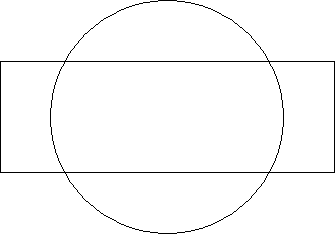
- Flood fill the circle vector in blue.
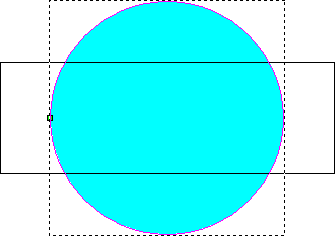
- Double-click the blue circle. The Tool Settings: Shape Editor panel is displayed.
- Select Round to create a rounded profile for the blue circle.
- In the
Relief Combine Mode area, select
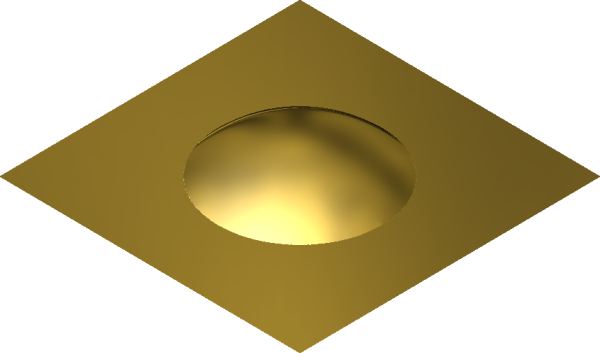
Add. The rounded shape is added to the active relief layer, and displayed in the 3D view.
- Click Apply.
- Click Cancel to close the Shape Editor.
- In the 3D view, flood fill the rectangle in red.
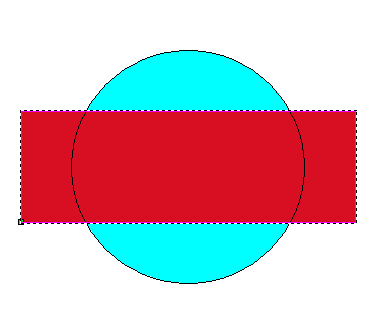
- Double-click the red rectangle to display the Tool Settings: Shape Editor Tool panel. The window in the Shape Editor panel is red.
- Enter a Start Height of 2.
- Select
Merge High. The plane is merged with the rounded shape so that only its highest points are kept.
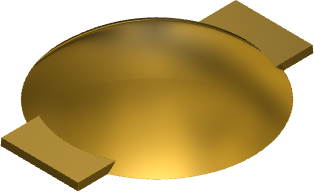
- Select
Merge Low. The plane is now merged with the rounded shape so that only its lowest points are kept.
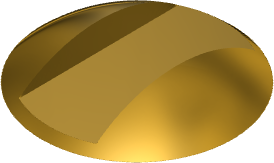
Note: The availability of this feature is license dependent.