Select this menu option to add a new relief to the content of the active layer.
Note: The
Add Relief
 button on the
Relief Editing toolbar and on the
Shape Editor panel is a shortcut for this menu option.
button on the
Relief Editing toolbar and on the
Shape Editor panel is a shortcut for this menu option.
button on the
Relief Editing toolbar and on the
Shape Editor panel is a shortcut for this menu option.
To add a shape to the currently active relief layer:
- Create a circle and a rectangle vector and centre them in the model.
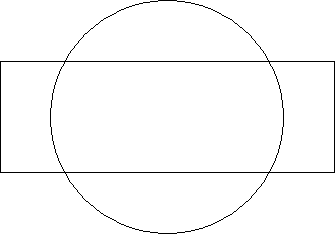
- Flood fill the circle vector in blue.
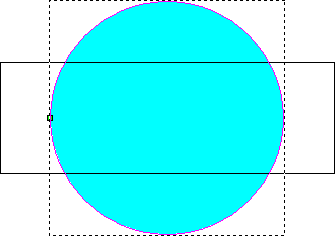
- Double-click the blue circle. The Tool Settings: Shape Editor panel is displayed.
- Select Round to create a rounded profile for the blue circle.
- In the
Relief Combine Mode area, select
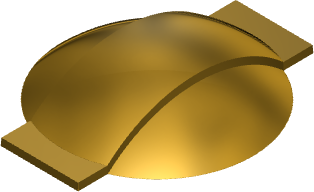
Add. The rounded shape is added to the active relief layer, and displayed in the 3D view.
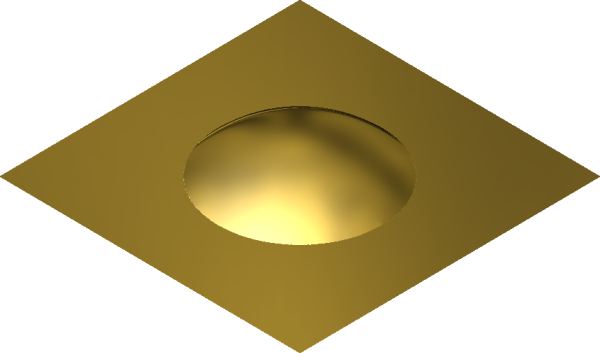
- Click Apply.
- Click Cancel to close the Shape Editor.
- In the 3D view, flood fill the rectangle in red.
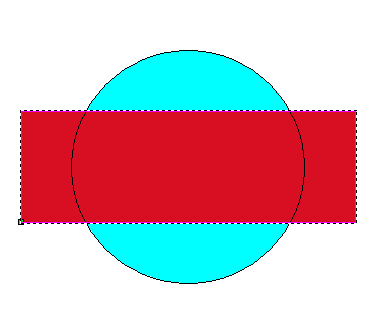
- Double-click the red rectangle to display the Tool Settings: Shape Editor Tool panel. The window in the Shape Editor panel is red.
- Enter a Start Height of 2.
- Select
Add. The plane is added to the rounded relief on the active relief layer to create a new relief.
Note: The availability of this feature is license dependent.