You use the buttons on the Physique rollout to link a mesh to a biped, a bones hierarchy, or a spline; to reinitialize the Physique parameters on a mesh; to open the Bulge Editor; and to load or save Physique (PHY) files.
-
Select an object that has the Physique modifier applied to it. >
 Modify panel > Physique rollout
Procedures
To attach a mesh to a biped using Physique:
-
 Select or create a biped.
 - Go to the
 Motion panel. On the Biped rollout, click to turn on
  (Figure Mode).
 -
 Position the biped inside your character mesh.
 - Select the mesh. Attention: If the mesh is made of multiple objects, select all of them.
- Go to the Modify panel. Use the Modifier List to apply Physique to the mesh.
- On the Physique rollout, click to turn on
 (Attach To Node). In a viewport, pick the biped's pelvis object.
 3ds Max opens the Physique Initialization dialog.
- Click Initialize, accepting the default settings.
By default, the Object Bounding Box option is selected: Physique sizes envelopes to approximate the biped limbs.
- Experiment with animating the biped, and adjust envelopes around problem areas. Use the Envelope sub-object level to edit the newly created envelopes.
To attach a mesh to a bones hierarchy using Physique:
- Select or create a bones hierarchy.
- Position the bones hierarchy inside the mesh. Tip: When you use a bones hierarchy with Physique, use frame 0 as your "figure mode." Don't include frame 0 in your animation. Use it as a place where you position the bones and fit them to the mesh.
- Select the mesh.
- Go to the Modify panel. Use the Modifier List to apply Physique to the mesh.
- Click to turn on (Attach To Node). In a viewport, pick the root bone in the bones hierarchy.
3ds Max opens the Physique Initialization dialog.
- Click Initialize, accepting the default settings.
- Experiment with animating the bones, and adjust envelopes around problem areas. Use the Envelope sub-object level to edit the newly created envelopes.
To add a bone after you've already used Attach To Node:
-
 Link the bone to the biped, then click
  (Reinitialize).
 - Select the mesh, then go to the Modify panel. On the Physique rollout, click (Reinitialize).3ds Max opens
the Physique Initialization dialog.
- On the dialog, in the Initialize group at the upper left, click to turn on Initial Skeleton Pose. The toggle Include New Bone becomes available. Click to turn on Include New Bone, and then click Initialize.
To save Physique data:
- On the Modify panel
 Physique rollout, click
  (Save Physique File).
 3ds Max opens a file save dialog.
- Enter a name for the new Physique file, and then click Save.
To load Physique data:
- On the Modify panel Physique rollout, click
 (Open Physique File).
 3ds Max opens a file open dialog.
- Choose the Physique (PHY) file to open, and then click Open.
3ds Max opens a Physique Load Specification dialog.
- Use the dialog to choose the kind of data to load, and then use the lists to match links in the PHY file with links in the scene. Attention: The number of links selected from the file (left column) must match the number of links in the active Physique modifier (right column).
- Click OK.
Physique updates the links you chose with the data that was saved.
Interface
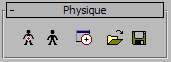
- Attach to Node
-
Attaches the mesh objects to the biped or to a bones hierarchy.
Attention: Put the biped in Figure mode and fit it to the mesh character before you click Attach To Node.Turn on Attach To Node, then in a viewport, click the biped's pelvis or the root node of a bones hierarchy.
Note: If you click a biped's center of mass instead of its vertex, Physique corrects this by attaching to the pelvis instead.After you select a node in the viewports, the Physique Initialization dialog is displayed. Accept the default values in this dialog, then click Initialize. Physique traverses the biped or bone hierarchy, and creates an envelope for each link it finds. (It can include additional bones that are linked to the biped.) The envelopes control Physique's influence on the vertices of the mesh. When the hierarchy is animated, the mesh vertices move along with it.
- Reinitialize
-
Displays the Physique Initialization dialog and resets any or all of the Physique attributes to the default values. For example, reinitializing with the Vertex Settings option selected reestablishes the relationship of a vertex and its original position relative to the Physique deformation spline. Settings for vertex-link assignments, bulges, and tendons can be reset from this dialog.
-
 Bulge Editor
 -
Displays the Bulge Editor, which is a graphical alternative to the Bulge sub-object level for creating and editing bulge angles.
- Open Physique File
-
Loads a saved Physique (.phy) file, which stores envelope, bulge angle, link, tendon, and vertex settings.
When you click Open Physique File to load a .phy file, the Physique Load Specification dialog is displayed. Select the links you want to import in the list on the left of the dialog, and apply them to the links you select in the list on the right of the dialog.
Any aspect of your Physique work can be loaded into any other character. You can choose from Link Settings, Bulges, Tendons, and Envelopes. You can also apply links from the file to differently named links in the current scene. For example, save and reload a .phy file to copy a bulge angle created on one character to a link on another character.
Tip: A bulge created on a bones hierarchy can be loaded and applied to Physique links created using a biped.Note: Loading a . phy file will not overwrite locked vertices. If you want to overwrite them, you must either go to the Vertex sub-object level and unlock them, or reinitialize and turn on the option Vertex - Link Assignments. - Save Physique File
-
Saves a Physique (.phy) file, which contains envelope, bulge angle, link, and tendon settings.