Exposure parameters per slice stack, available for printjob file generation during export
Slice properties are individual parameters like laser power that are written into printjob files. In machine-specific slicing, toolpath generation, and printjob file export, these parameters are set through the build configurations. Slice stacks generated through the Slicing sections, however, have no exposure instructions initially. They are purely geometric instructions about drawing lines and polygons, and their properties are defined separately.
Jump to:
- Setting slice properties during export
- Setting slice properties in the project tree
- Modifying slice properties
- Slice property reference
Setting slice properties during export
When exporting to certain formats (buildfiles for SLM, LSR, NSP, AI, or ILT), a section in the export dialog is available to adjust these. The export loads built-in defaults that you can modify here for this instance of exporting, and are not saved when you close the dialog.
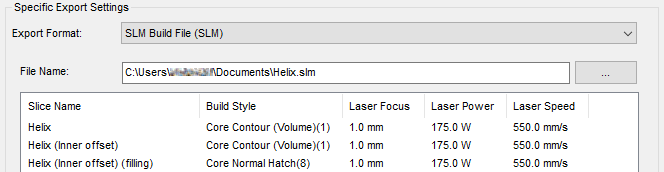
Example: Slice properties set for export to SLM buildfile. (The parameter Build Style here is format-specific and only available in this export dialogue.)
Setting slice properties in the project tree
Setting the properties through the project tree registers them ahead of export, and any properties set this way also override their respective defaults that the export formats would have.

Slice properties defined in the tree appear as nodes under their slice entries (left), and propagate to the export where defined (right).
Modifying slice properties
During export
- Prepare slice stacks for contours, hatchings, support, and any others needed for your build.
- Select all stacks.
- From the main menu, choose .
- Choose the desired output format.
- In Specific Export Settings, double-click the slice to modify.
- In the <format> Export Settings dialog, adjust the properties as required by your build.
- Click
OK.
The adjustment is now saved to the properties you modified.
- Click OK to export the printjob file with the modified properties.
In the project tree
- Prepare slice stacks for contours, hatchings, support, and any others needed for your build.
- Right-click a slice stack you want to adjust the properties of and choose where <property> is "Laser speed", for example.
- Adjust the value for the property, then click OK.
Properties added through the project tree are saved in the FABBPROJECT file and can be adjusted at any time.
Slice property reference
| Property | Project tree | SLM | LSR | NSP | AI | ILT |
|---|---|---|---|---|---|---|
|
Tag |
Yes | |||||
|
WaitFor |
Yes | |||||
|
Mark speed |
Yes | Yes ("Laser Speed") | Yes ("Deposition speed") | Yes ("Deposition speed") | Yes ("Laser Speed") | Yes ("Laser Speed") |
|
Jump speed |
Yes | Yes | Yes | |||
|
Premark delay |
Yes | Yes ("Deposition delay") | Yes ("Deposition delay") | |||
|
Postmark delay |
Yes | Yes ("Jump delay") | Yes ("Jump delay") | |||
|
Polygon delay |
Yes | Yes | Yes | |||
|
Jump delay |
Yes | |||||
|
Pipeline delay |
Yes | |||||
|
Laserindex |
Yes | Yes | ||||
|
Power |
Yes | Yes | Yes | Yes | Yes | Yes |
|
Laser focus |
Yes | Yes | Yes | Yes ("Focus shift") | ||
|
Laser diameter |
Yes | Yes ("Radius", 0.5×diameter) | Yes ("Radius", 0.5×diameter) | |||
|
Build style |
Yes | |||||
|
Point distance |
Yes | |||||
|
Exposure time |
Yes |