Click File tab > Options > Manage Installed Plugins to display the Plugin Manager dialog where you can manage the plugins that are installed on your PC.
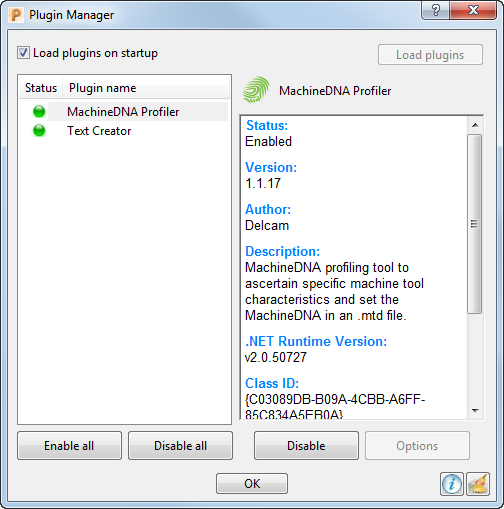
This dialog contains the following:
Load plugins on startup — Select to load plugins when you start PowerMill . Plugins are not loaded if this option is deselected.
Load plugins — Click to load plugins after you start PowerMill
Status — The symbol system indicates the status of each plugin:
-
 — the plugin is available and enabled.
 -
 — the plugin is available but disabled.
 -
 — the plugin requires a newer version of PowerMill to run. PowerMill can load the plugin and display its details.
 -
 — the plugin is unavailable. PowerMill cannot load the plugin, so no plugin details can be displayed. This happens if the plugin is corrupt, or has not been registered correctly.
Plugin name — The column displays the name of each plugin.
Plugin summary —Select a plugin to display its information in the right-hand pane.
Enable all — Select to enable all plugins.
Disable all — Select to disable all plugins.
Enable/Disable — Select to enable or disabled a selected plugin.
Options — Select to display a selected plugin's Options dialog. If a plugin does not have an Options dialog, this option is unavailable.
 Information — Click to display the Plugin Log.
 Clean up log — Click to remove all items in the Plugin Log.
For more information, see Using Plugins.