Use this sample study type with Generative Design in Revit to place a randomized set of family instances on a selected face given a base family type, density, and randomization seed.
The left image shows an outcome in Generative Design. The right image shows the outcome when it's integrated into the Revit model.
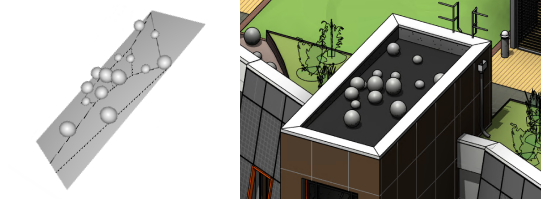
With this sample study, you can explore placement of family instances on faces. Examples include placing art objects outside a building model or placing flowers in a sloped bed in a landscape model. A version of this sample is also available in Dynamo Player.
In this topic
- Goals
- Accessing the study type
- Preparing the model
- Inputs
- Outputs
- Geometry visualization
Goals
This study is intended to be used with the Randomize method. However, you can choose another generation method.
Accessing the study type
In the Create Study dialog, the study type is available from the Autodesk Samples folder.
To open the study type in Dynamo, navigate to this folder:
- %PROGRAMDATA%\Autodesk\AECGD\Revit\Samples <release>\<language-locale>
If you can't find the study type in that location, you can download it using the following link. The ZIP file contains the DYN file and its Dependencies folder. Unzip (extract) its contents to a folder on your computer.
Preparing the model
- A face where the family instances will be placed.
- A family instance to be placed randomly on the selected face.
Inputs
When creating a study, you can specify the following inputs.
Select
- Select face: In the Revit model, select the target face.
- Select base family type: In the drop-down, select the family to be placed randomly on the selected face.
Choose variables
- Density: The study varies how densely the family instances will be placed. A higher number results in a denser placement of family instances.
- Randomization seed: This value drives the generation of the randomized family instance placements for each outcome.
If you want these values to vary in the study, select the check boxes. To use a constant value, clear the check box and use the slider to set the value.
Outputs
Each outcome displays the following outputs:
- Results: The number of family instances on the face.
Geometry visualization
When viewing the outcome in the Details pane of the Explore Outcomes dialog, you can drag the 3D view to see the elements from different angles. To see it in a 3D view of the model, you must integrate the selected outcome into the model.
Known issues and limitations
This sample doesn't take obstructions into account. If you are working with a room that has obstruction elements, try the Randomize Object Placement sample study. With certain family instances, such as the flower vase, outcome previews may appear inaccurate. When placed in the model, the elements will appear normally.