You can open or create documents from the Civil 3D Start tab. The following icons are displayed on the Prospector tab in Toolspace when you are working in a drawing that is stored in Forma Data Management:
 : The drawing is open for edit and is locked by you.
 : The drawing is open read-only and is locked by someone else.
 : The drawing is open read-only and is not locked by anyone else.
To open documents from the Start tab
- On the Start tab, do one of the following:
- Click on the Open button to display the Select File dialog box. Use this method to open DWG, DWT, DWS and DXF files.
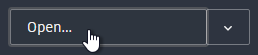
- Click on the down arrow to display additional options for opening sheet sets or sample drawings.
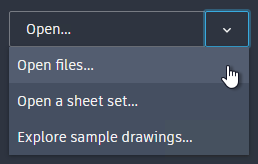
- Click on the Open button to display the Select File dialog box. Use this method to open DWG, DWT, DWS and DXF files.
When you open a drawing, it is locked. When a drawing is locked, multiple users cannot edit it at the same time.
To create new documents from the Start tab
- On the Start tab, do one of the following:
- Click on the New button to start a new drawing using the QNEW command.
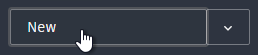
- Click the down arrow to display additional options for selecting the template to use and to create a sheet set.
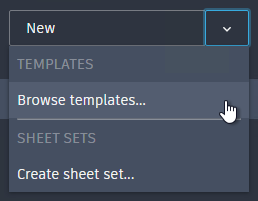
- Click on the New button to start a new drawing using the QNEW command.
To open documents from the Forma Data Management page of the Start tab
You can open documents that are stored in Forma Data Management from the Forma Data Management page of the Start tab.
- On the Start tab, click Forma Data Management to display the Forma Data Management page.
At the top of the Forma Data Management page, the Forma Data Management account name and project are displayed.
- To change accounts or projects, click on the account name and project to display a menu where you can switch projects or accounts.
- In the table, navigate to the folder you want to access. Click on a folder in the project to open it.
- To open a document, do one of the following:
- Click on the document you want to open.
Note: If a lock icon
 appears next to a document, it means the document is already locked by someone else and it will open read-only.
- Click on the more icon
 and click on Open or Open Read-only.
- Click on the document you want to open.
To open documents from the Recent page of the Start tab
You can open recently-used documents from the Recent page of the Start tab.
The Recent page provides access to recently-used documents that are stored in Forma Data Management, as well as documents that are stored locally.
- On the Start tab, click on Recent to display the Recent page.
- To open a document, do one of the following:
- Click on the document you want to open.
Note: If a document is already locked by someone else, it will open as read-only.
- Click on the more icon and click on Open or Open Read-only.
- Click on the document you want to open.