Use the Forma Data Management page to access the documents in your Forma Data Management projects.
On the Start tab in Civil 3D, click Forma Data Management in the navigation pane to display this page.
Account and Project Selection
The account name you are working in and the project name appear as a path at the top of the right pane.
Click the path to display a menu where you can switch projects or accounts.
Folder and Document Selection
You can navigate within the folders in the project by clicking a folder name that is displayed in the Name column.
Click the project icon  or a folder in the folder path to return to a higher-level folder.
Folder and Document Information
 Select Columns
- Opens a list for selecting which columns to view in the folder. The available columns are described in the following sections.
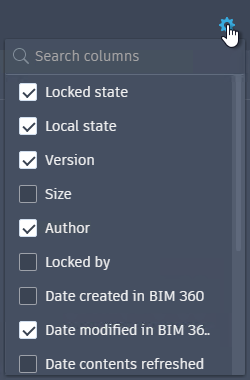
- Name
- Displays the names of the documents and subfolders in the selected folder.
- Click a subfolder to open it and display its contents in the table.
- Click a document to open it in Civil 3D.
This column cannot be hidden using the column selector.
Note: Only documents that you can open directly in Civil 3D (DWG, DWT, DXF and DWS) are displayed on this page. You can see other file types by opening the connected drive in Windows Explorer. - Locked State
- Displays the locked state of the documents. If the document is not locked, no icon is displayed in the Locked State column.
-
 : The drawing is locked by you. When you open a document to edit it, the document is locked and this icon is displayed in the Locked State column.
 : The drawing is locked by someone else.
- If the drawing is not locked, no icon is displayed.
-
- Local State
- Displays the state of documents on your local connected drive.
- New: The document is new and has not yet been uploaded to Forma Data Management. Documents show a state of New when you first save them or copy them to your local connected drive.
- Online: The document exists in Forma Data Management but has not yet been downloaded to the connected drive. Documents are not downloaded to your local drive until you open them in Civil 3D or manually download them by right-clicking a file in Windows Explorer and selecting Sync. When a document is downloaded, it has a Local State of Synced.
- Synced: The document has been uploaded to Forma Data Management and also exists locally.
- Modified: The document has been modified locally and the changes have not yet been uploaded to Forma Data Management.
- Stale: The document has been cached locally, but is not in sync with the latest updated version in Forma Data Management. This can occur if the document was edited and uploaded to Forma Data Management from a different computer. The document will be updated to Synced if you open it or download it.
- Conflict: The document contains changes both locally and in Forma Data Management. To resolve this, the next time pending actions are processed, Desktop Connector will move your local changes to the recycle bin, and will download the latest version from Forma Data Management and the Local State will be changed to Synced.
Note: There is a delay before changes made in the Forma Data Management web interface and changes that other team members make to the project documents are reflected in the connected drive. For information about the refresh rates, see Access Forma Data Management On Your Desktop in the Forma Data Management Help. - Version
- Displays the number of times the document has been saved. A document is given the version V1 when it is first uploaded or saved to Forma Data Management. Saving a document increments the version by one.
Tip: In Forma Data Management, you can compare versions and restore a previous version. For more information, see Documents in the Forma Data Management Help.
- Size
- Displays the size of the document.
- Author
- Displays the name of the person who last saved the document.
- Locked By
- If the document is currently locked, this column displays the name of the person who has locked it.
- Date Created in Forma Data Management
- Displays the date and time that the document was saved to or uploaded to Forma Data Management.
- Date Modified in Forma Data Management
- Displays the date and time that the document was last modified and synced to Forma Data Management.
- Date Contents Refreshed
- Displays the date and time that the documents were last refreshed from Forma Data Management by Desktop Connector.
For information about Desktop Connector refresh rates, see Access Forma Data Management On Your Desktop.
- Date Permissions Refreshed
- Displays the date and time that permissions were last refreshed from Forma Data Management by Desktop Connector.
- Date Created on Disk
- Displays the date and time that the document was first saved or uploaded to the folder.
- Date Modified on Disk
- Displays the date and time that the document was most recently modified.
- Date References Refreshed
- Displays the date and time that the files that are referenced by the document were last refreshed from Forma Data Management by Desktop Connector.
- Date Locked
- If the document is currently locked, this column displays the date and time it was locked. If the document is not currently locked, this column does not display a date and time.
- Has References
- Displays Yes or No depending on whether the document has references to another file such as an xref or a data shortcut.
 Refresh Folder
Refreshes the current folder from Forma Data Management.
 More
More
- Displays commands for opening documents. Click the icon
 and then click Open or Open Read-Only.