Reservoir
The Motion Mixer Reservoir is similar to the Motion Flow Graph, in that it acts as a holding area where clips can be listed, giving you a palette of motions to choose from.

- Select a biped. >
 Motion panel > Biped Apps rollout > Mixer > Motion Mixer dialog > (Reservoir)
 - Default menu: Graph Editors menu > Motion Mixer > Motion Mixer dialog > (Reservoir)
- Alt menu: Animation menu > Motion Editors > Motion Mixer > Motion Mixer dialog > (Reservoir)
As you add clips to objects in the Motion Mixer window, you see them appear on a track and they are automatically added to the Reservoir. If you add new clips directly to the Reservoir, they are available and held for future use.
Interface
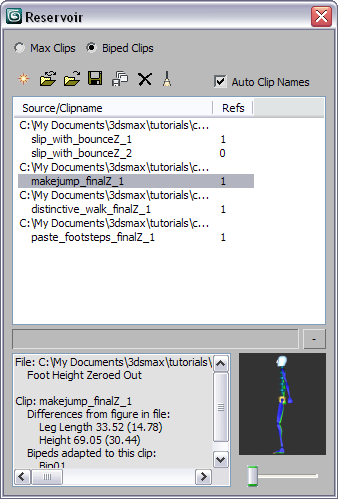
The Reservoir comprises four parts:
The Reservoir toolbar, where all the commands are located. You can choose between listing biped clips and non-biped clips.
The Source/Clipname list, where motion clips ( BIP files and XAF files) are listed. Instances are grouped together in one listing, while adaptations are listed separately.
The Clip status window, where you can gather information about the clips used in the Motion Mixer.
The Motion Preview, where you can see what a motion looks like before you use it.
Note: The Motion Preview is available only when you choose the Biped Clips option.
Reservoir toolbar
The commands on the main Reservoir toolbar allow you to manage the clips you have in the Motion Mixer and also build up a collection of clips that you may want to use in the future.

Max Clips/Biped Clips
Choose to switch between a list of biped and non-biped motion assets. The Max Clips option displays XAF files while Biped Clips displays BIP files.
 New Entry
Opens a dialog where you can choose BIP or XAF files to load into the Reservoir. You can highlight multiple files to load by holding down the Ctrl key while you click.
 Reload Files
Reloads selected BIP or XAF files listed in the Reservoir.
 Load File
Opens a dialog where you can choose a new BIP or XAF file to replace the selected entry.
 Save File
Allows you to save a highlighted clip from the Reservoir. The Save As dialog is displayed and you can specify a name and location for the clip you are saving.
 Batch Save
Opens the Save Reservoir Items dialog, where you can choose the clip or clips to save.
 Delete
Removes a highlighted clip from the Reservoir. All instances of the clip are also removed from the Motion Mixer.
 Clean
Clean
Similar to Delete, but only removes clips from the Reservoir that are not used in the Motion Mixer.
 Auto Clip Names
Names the clip based on the name of the motion file. Turn off to name a clip yourself.
Source / Clipname list
The Source / Clipname List displays all the clips you have in the Motion Mixer Reservoir. Four pieces of important information can be gathered from this list:
- Drive location where the clips are stored.
- Which clips are currently being used in a mix.
- How many times each instance of a clip appears in the Mixer ( Refs).
- Which clips are simply being held in the reservoir, as opposed to being used in the Mixer.
As you add clips to a track, from the Tracks menu or by right-clicking a track, they are automatically added to the Reservoir. If the clip is a new adaptation, the name of the clip is assigned an incremental suffix, such as 1 or 2.
The Refs (Reference) column tells you how many times a clip instance has been used in the Motion Mixer, or if it has not been used at all. If an instance shows a Refs value of 1 or more, it means the instance has been used that many times. If an instance shows a Refs value of zero, it means the clip was once used by one or more bipeds, but is not currently used on any tracks.
If a clip has been added to the reservoir, but has never been placed in the Motion Mixer, only the source path will be listed and no Refs value is displayed.
[Clip Status window]
The Clip Status window appears at the lower left of the Reservoir and gives you information about how a particular clip has been used. You can get file information, such as the source location of the BIP or XAF file. Clip information is also displayed, like the name of the clip reference as it appears in the Motion Mixer. Information about the biped structure is also listed along with the bipeds to which the clip has been adapted.
[Motion Preview]
The Motion Preview at the lower right side of the Reservoir shows a thumbnail of the selected clip. Moving the slider across the bottom gives you an idea of what the motion looks like before you add it to a track.