Hierarchy Right-Click Menu
Provides ready access to commands for working with controllers, locking and unlocking tracks for use with containers, navigating the Hierarchy list of the Controller window, loading and saving animation files, and more.
- Track View > Select an item in the Track View controller window and right-click. > Hierarchy right-click menu
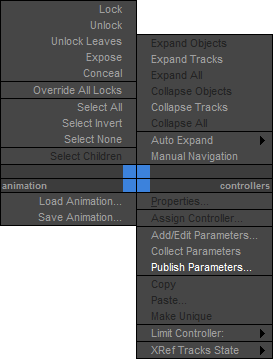
Alt +right-click with quad menu tools to expand and collapse selected tracks individually.Alt +right-click menu displays commands related to the item currently located under your mouse cursor.Upper left quadrant
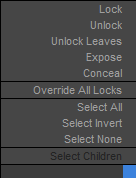
Lock / Unlock / Unlock Leaves / Expose / Conceal / Override All Locks
These commands are intended for use primarily with the Container feature, and as such are documented in the Container section. For details, see Locking and Unlocking Tracks.
Select All
Selects all tracks that are visible in the Hierarchy list. Collapsed items are not selected.
Select Invert
Inverts the current Hierarchy list selection.
Select None
Deselects all visible object tracks in the Hierarchy list. Does not apply to selected objects in the scene (object icons remain highlighted).
Select Children
Selects all objects descending from the selection by highlighting their icon in the Hierarchy list. Collapsed children are also selected.
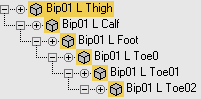
Upper right quadrant
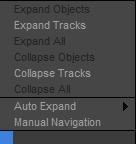
Expand Objects
Expands only the object branch for all descendants of the selected object. The expanded branches are not selected.
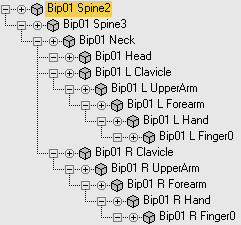
Expand Tracks
Expands all branches of the selected item.
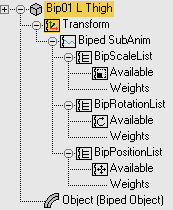
Expand All
Expands all branches for all descendants of the selected object.
Collapse Objects
Collapses only the object branch for all descendants of the selected object.
Collapse Tracks
Collapses all branches of the selected item.
Collapse All
Collapses all branches for all descendants of the selected object.
Auto Expand
Expands the Hierarchy list automatically based on submenu selection choices. Submenu choices are: Selected Objects Only, Transforms, XYZ Components, Limits, Keyable, Animated, Base Objects, Modifiers, Materials, and Children.
Manual Navigation
Turns off Auto Expand. Allows you to manually decide when you will collapse and what you will expand. A small minus button in a circle to the left of an item lets you collapse it. This button disappears when Auto Expand is on and Manual Navigation is off.
Alt +right-click.Lower left, animation quadrant
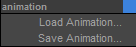
Load Animation
Loads XML animation data from files to the highlighted track or tracks. For more information, see Saving and Loading Animation.
If any of the highlighted tracks has child tracks, animation is loaded to those tracks as well.
Save Animation
Saves XML animation data from the highlighted track or tracks to disk files. For more information, see Saving and Loading Animation.
If any of the highlighted tracks has child tracks, animation is saved from those tracks as well.
Lower right, controllers quadrant
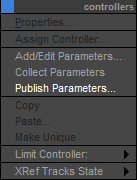
Properties
Displays the property dialog of a controller, if available. Not all controller use this dialog, and it is unavailable in these cases.
Assign Controller
Displays the Assign Controller dialog, which offers a list of the available controller for that selection.
Add/Edit Parameters
Opens the Parameter Editor dialog, where you can add or edit custom attributes.
This option works in conjunction with the Publish Parameters option: 3ds Max lets you XRef parameters settings by publishing them as custom attributes.
Collect Parameters
Opens the Parameter Collector.
Publish Parameters
Publishes the highlighted parameters as custom attributes.
When you choose Publish Parameters, a selection cursor with a rubber-band line appears in viewports.
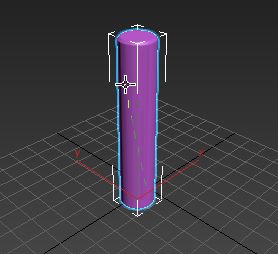
Click the parent object to choose which parameters to publish. When you click the parent object, a pop-up menu displays two choices.
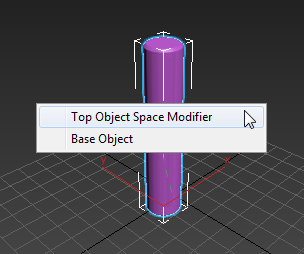
To publish parameters from modifiers applied to the object, choose Top Object Space Modifier. To publish the object's creation parameters, you can choose Base Object.
After you publish parameters, scenes that XRef this object can adjust the published parameters on the object's Custom Attributes rollout.
Copy
Makes a copy of the controller held in the clipboard.
Paste
Pastes the copied controller to another object or track. Copies can be pasted as instances or as unique copies.
Make Unique
Changes an instanced controller into a unique one. Changes made to instanced controller are reflected in all versions of the controller, unique controllers can be individually edited without affecting anything else.
Limit Controller submenu
If the highlighted track has a Limit controller, sets conditions for the Limit controller.
XRef Tracks State submenu
If the highlighted track belongs to an XRef'd object, these options choose which value and controller to use in the local scene.
Use XRefed Uses the original, source value and controller for the track. Choosing this option discards the local setting.
Use Local Uses the local value and controller for the track.