Search 3ds Max
Lets you search for actions, tools, and settings.
To open the Search bar:
- Press
Xwhile no menus are open - From the main menu, choose Help > Search 3ds Max Commands
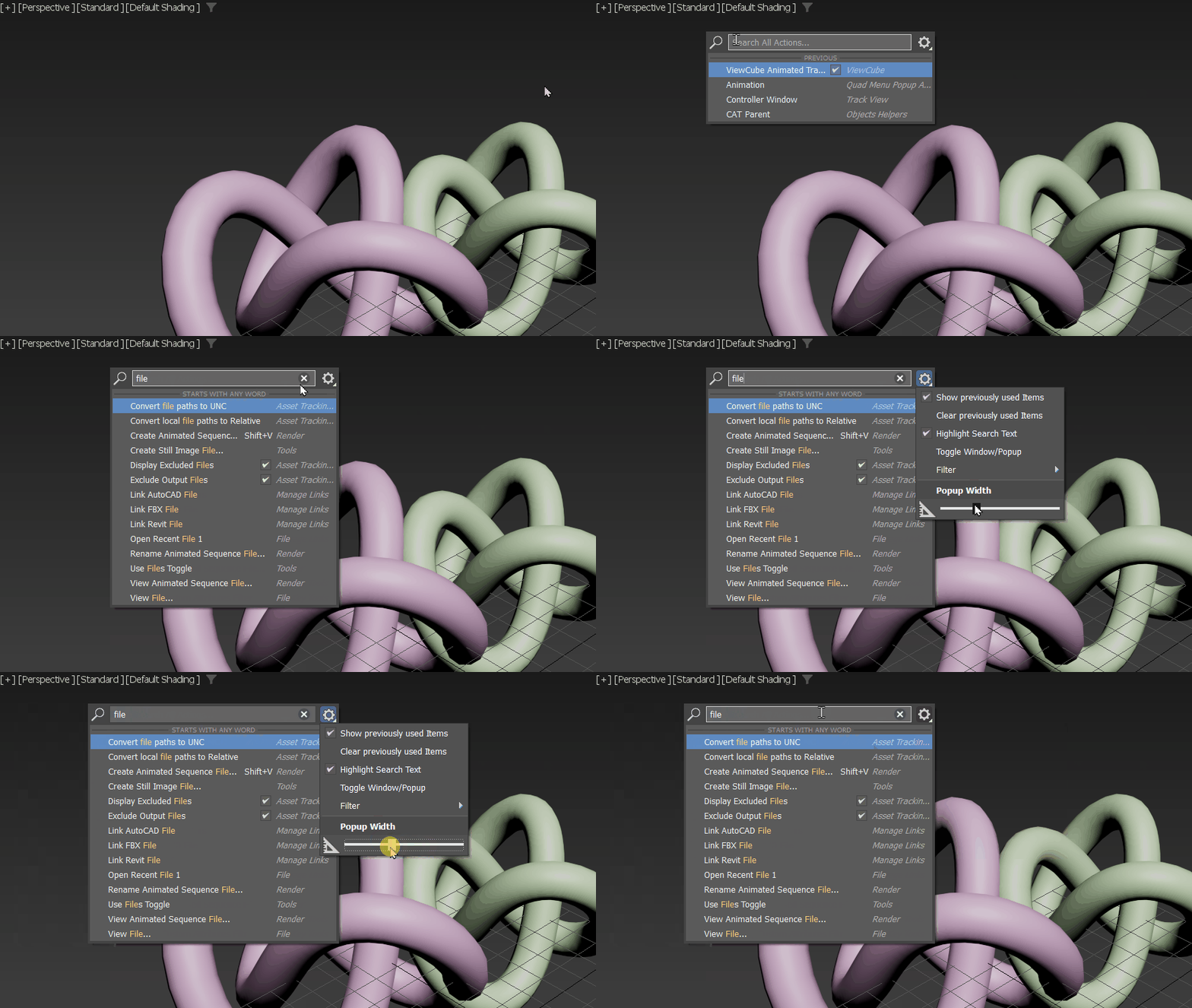
Press x to make a dialog appear at the cursor location.
The 3ds Max Search bar lets you locate specific tools, functions, and settings without having to navigate through multiple menus and options. As you type, the dialog auto completes with a list of similarly named actions. Choose the action from this list to apply the action and close the dialog.
Procedures
To open the search dialog:
- From the menu, choose Help > Search 3ds Max Commands
- Press
Xto open the Search bar at the cursor location.
To search for an action:
Type in the first few letters of the action.
The dialog displays a list of actions whose name matches the string. The Search prioritizes search results by actions that begin with the typed letters in the Starts With section, followed by any combination that contains the entered text string in the Starts with any word list.
In the example below, the entered string " tar " first shows words that begin with Tar, like Tar get, and followed by "Find Tar get".
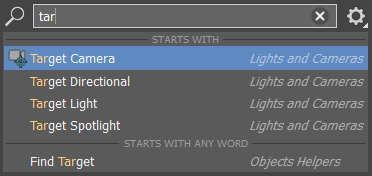
Searching for the phrase "tar"
The search shows your last 5 used items by default when you open it, and the results filter as you begin typing to match your search string. You can configure the stored defaults with the Clear previously used items option in the Search settings
 (see Search Settings, below).
To clear the search string
Click the X icon at the right end of the search field.
To close the Search
Click in an empty area of the Viewport, or press Esc.
To choose an item
Click the name of the item in the Search list or use the arrow keys to move up or down through the list.
Search settings
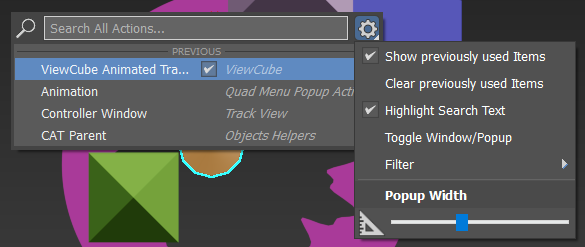
The Search settings
Click the gear icon next to the Search field to expand the Search settings. #### Show previously used items
Check to show the history of last five used actions. This option is on by default.
Clear previously used items
Removes the list of last used actions.
Highlight Search Text
Shows the entered search characters in a different color than the search results.
Toggle Window/Popup
Switches from the pop up dialog to a window.
Popup Width
Lets you adjust the length of the Search pop up, which is better for searches with longer item names, for example Create Standard Camera from View.