Viewport's General Menu
Use this menu to adjust general options for viewport display and configuration.
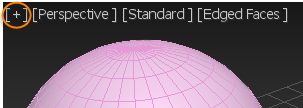
General menu
Interface
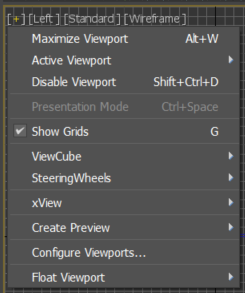
Maximize Viewport / Minimize Viewport
Choose to maximize or minimize the viewport.
Keyboard shortcut: Alt+W
Active Viewport
Choose the active viewport from a submenu list of currently visible viewports.
Disable Viewport
Prevents the viewport from updating with changes made in other viewports. While the disabled viewport is active, it behaves normally. However, when you change the scene in another viewport, the view in the disabled viewport does not change until you activate the viewport again. Use this control to speed up screen redraws when you are working on complex geometry.
While a viewport is disabled, the text “<<Disabled>>” appears to the right of the viewport label menus.
Keyboard shortcut: D
Presentation Mode
Changes any floating viewport into full-screen, without borders.
Keyboard shortcut: Ctrl + Spacebar
Show Grids
Toggles display of the home grid. Does not affect other grid display.
Keyboard shortcut: G
ViewCube
Displays options for ViewCube display.
SteeringWheels
Displays options for SteeringWheels display.
xView
Displays the xView submenu. See Using xView for more information.
Create Preview
Displays the Create Preview submenu.
Configure Viewports
Displays the Viewport Configuration dialog.
2D Pan Zoom Mode (Camera, Perspective, and Spotlight views with Nitrous display only)
Choose this to turn on 2D Pan Zoom. While 2D Pan Zoom mode is active, a check mark appears next to this menu item, the  button becomes active, and the 2D Pan Zoom Viewport menu appears to the right of the other viewport label menus.
ViewCube submenu
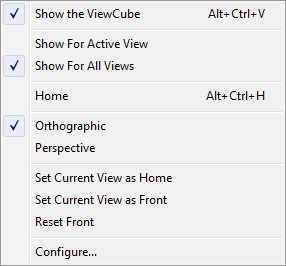
This submenu provides options for displaying and using the ViewCube.
Show the ViewCube
Toggles display of the ViewCube.
Keyboard shortcut: Alt+Ctrl+V
Show for Active View
Displays the ViewCube only in the active viewport.
Show for All Views
Displays the ViewCube in all viewports, whether active or not.
Home
Displays the Home view of the model.
Keyboard shortcut: Alt+Ctrl+H
Orthographic
Changes the view to an Orthographic view.
Perspective
Changes the view to a Perspective view.
Set Current View as Home
Defines the current view in this viewport as the Home view for the scene.
Set Current View as Front
Defines the current view as the Front view of the model.
Reset Front
Restores the Front view to the original Front view of the scene.
Configure
Displays the ViewCube panel of the Viewport Configuration dialog.
SteeringWheels submenu
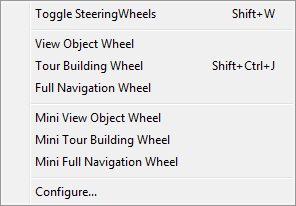
This submenu provides options for displaying and using SteeringWheels.
Toggle SteeringWheels
Toggles SteeringWheels display for this viewport.
Keyboard shortcut: Shift+W
View Object Wheel
Displays the View Object wheel.
Tour Building Wheel
Displays the Tour Building wheel.
Full Navigation Wheel
Displays the Full Navigation wheel.
Mini View Object Wheel
Displays the mini version of the View Object wheel.
Mini Tour Building Wheel
Displays the mini version of the Tour Building wheel.
Mini Full Navigation Wheel
Displays the mini version of the Full Navigation wheel.
Configure
Displays the SteeringWheels panel of the Viewport Configuration dialog.
Create Preview submenu
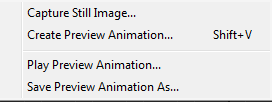
Capture Still Image
Creates a snapshot of the active viewport in a Rendered Frame window , where you can save it as an image file.
Create Preview Animation
Displays the Make Preview dialog, enabling you to create an AVI file or custom file type preview of the animation in the current viewport.
Play Preview Animation
Displays the Windows-standard Media Player to view the current preview animation.
Save Preview Animation As
Saves the _scene.avi preview animation under another filename.
Float Viewport submenu
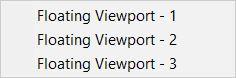
Floating Viewport - 1 (2,3)
Opens a floating viewport window. The window functions just as the regular viewport and is fully configurable. The viewport is not dockable, but can be moved for use on another monitor if your have multiple monitors. A maximum of three viewports can be floating at the same time.
Ctrl + Spacebar to quickly make a floating viewport full screen and borderless, or return back to original size.Procedures
To toggle display of the home grid in the active viewport, do one of the following:
- Click or right-click the General viewport label ([+]), and then click Show Grids.
- Press
G.
To customize the General Viewport Label menu:
- From the Menu bar, choose Customize > Customize User Interface....
- From the Custom User Interface dialog, click the Menu tab.
- From the Menu panel, click the drop-down menu on the top right and choose Viewport Menu Label Bar.
- In the Menu window, add and remove commands as required under Views - General Viewport Label Menu.