Visualize 3DGS data
Arnold can read imported 3DGS data, like environments and backgrounds, making it easy to visualize your data directly in 3ds Max. You can use Arnold or ActiveShade to visualize output that is an accurate representation of your imported data.
Apply the Gaussian Splat Shader to a 3DGS object
A special Gaussian Splat shader has been developed by Arnold. When applied to your object, it allows it to be relit by scene lights. 3ds Max lights do not affect the 3DGS object unless the shader is applied. Without it, the 3DGS object is lit with the data that was contained in the Gaussian Splat when it was imported.
To apply the Gaussian Splat shader:
Load a PLY, SPZ, or LCC file in 3ds Max. See Importing 3DGS files.
Open the Slate Material Editor.
In the top left corner of the window, enter Gaussian Splat in the search field.
Double-click the Gaussian Splat shader node to select it.
Ensure that Diffuse Tint is set to white.
Set Diffuse Weight to 1.0.
Ensure that Emission Tint is set to black.
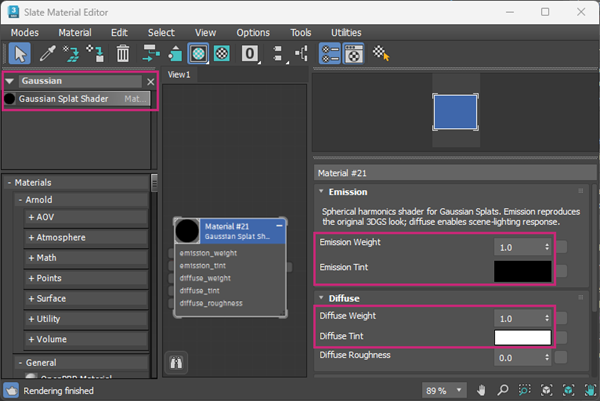
Apply the Gaussian Splat shader to your 3DGS object.
Tip: You may need to increase light intensity to see any effect on your 3DGS data. If you've added an Arnold light to your scene, select it in the Modifier stack and enter a value greater than 1.0 for the Intensity parameter.
Render with Arnold
To visualize 3DGS data using Arnold render view:
Do one of the following in the menu bar to render using Arnold:
- Select Arnold > RenderView
- Select Rendering > Render
- Click the Render Production icon
 on the Render flyout on the main toolbar.
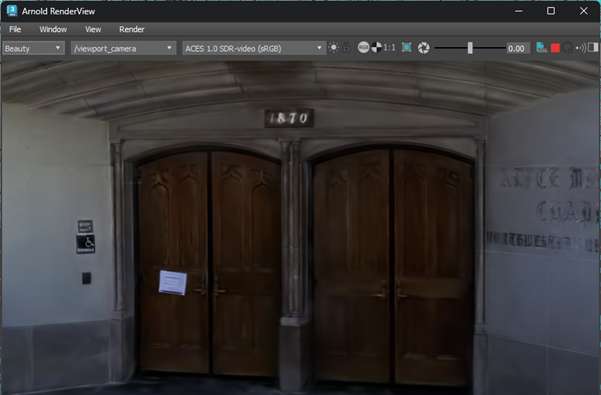
Your data appears in the Arnold RenderView window.
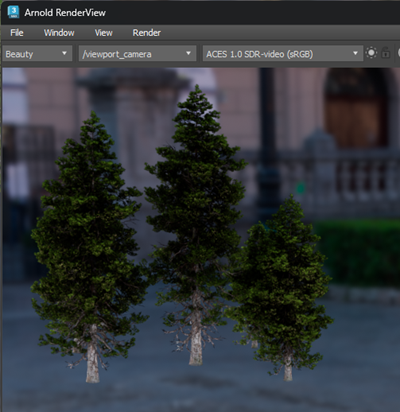 Note: The quality of the Arnold render depends on the density of the 3DGS data.Note: Relighting a Gaussian Splat with a scene light in 3ds Max can increase rendering times, as the lighting system needs to calculate how it affects each point of the object.
Render with ActiveShade
To visualize 3DGS data using ActiveShade:
Load a PLY, SPZ, or LCC file in 3ds Max. See Importing 3DGS files.
In the viewport menus, select ActiveShade - using Arnold from the Shading menu. Your data updates directly in the viewport.
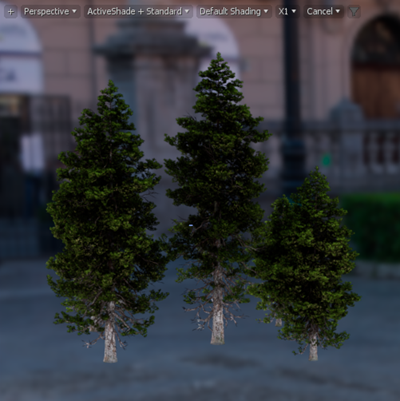
Render different types of 3DGS files
3DGS render output depends on the type of file that is loaded:
PLY and SPZ files: In PLY and SPZ files, the points are all part of the same object in 3ds Max, so all of the 3DGS data is included in the render.
LCC files: Any data that is outside of the camera range is not included in the render. The following image shows a 3DGS environment, with the segment we want to focus on outlined in blue:
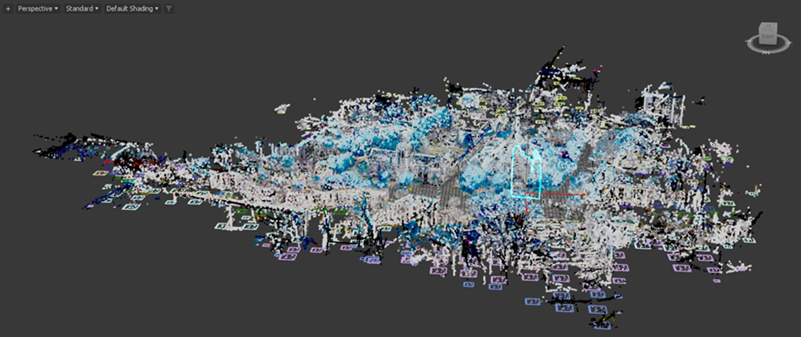
Scene provided by: Xgrids
Zooming in on one building lets us render a single set of doors instead of the entire scene:
Scene provided by: Xgrids