3D Gaussian Splat (3DGS) in 3ds Max
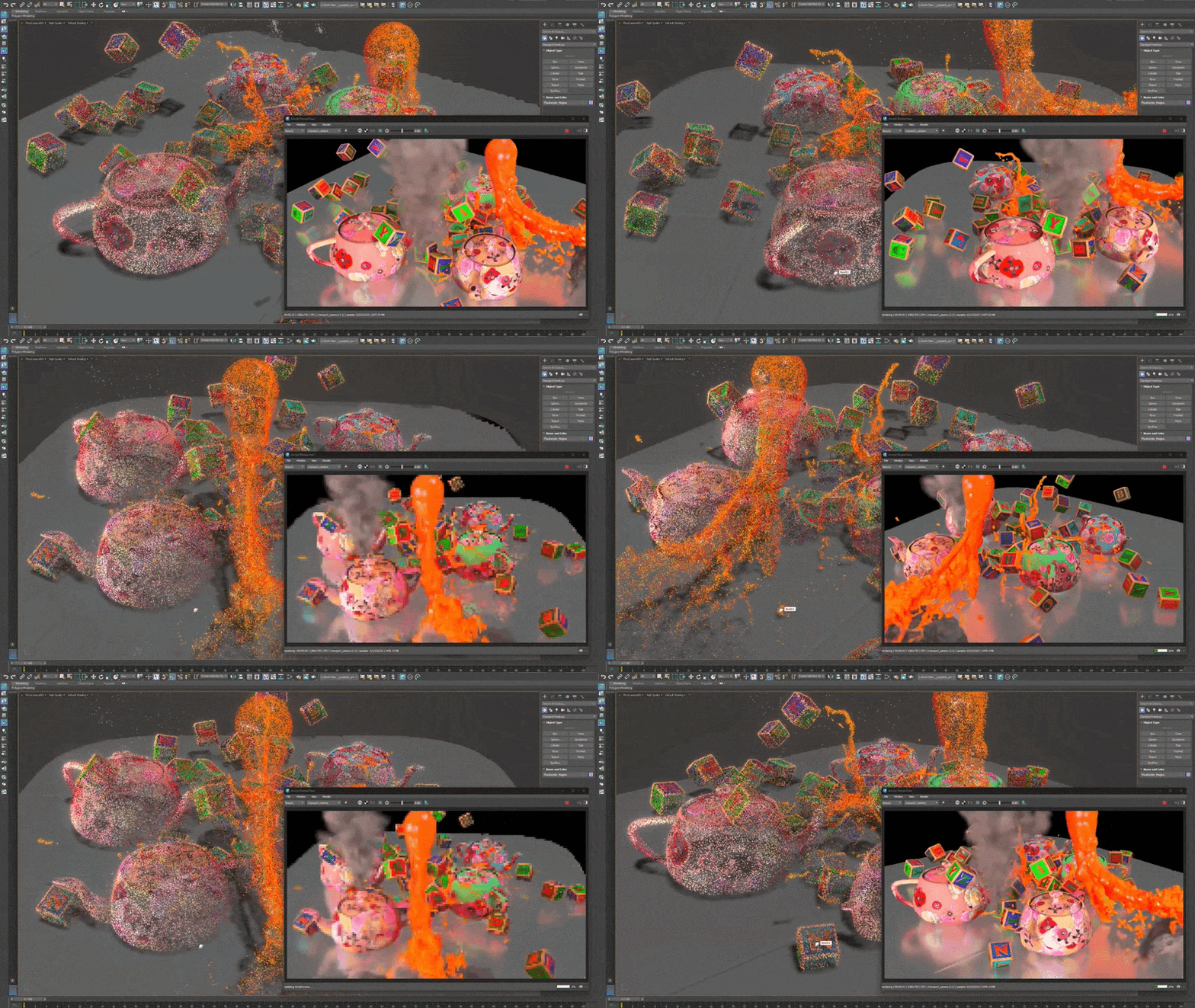
3D Gaussian Splat (3DGS) is a lightweight data format that is used in many industries to generate hyper-realistic 3D environments from real-world data. This popular data format gives a diverse group of 3ds Max users, including those in VFX, Arch Viz, Advertising, and Marketing, access to fast rendering, simple editing, and hyper-accurate output.
The Gaussian Splat shape uses point-based scene representations composed of millions of oriented volumetric splats instead of traditional polygonal geometry. Gaussian splats are often generated from photogrammetry, neural rendering, or radiance field reconstruction workflows and provide an efficient way to represent highly detailed real-world captures. Each splat is represented as an anisotropic 3D Gaussian distribution defined by:
- Position: Center of the splat in 3D space
- Scale: Ellipsoid size along each axis
- Orientation: Rotation of the ellipsoid
- Color/Radiance: Emitted or reflected appearance
- Opacity: Transparency contribution
3DGS support lets you seamlessly load 3DGS data, edit the data with familiar tools, and visualize output using supported renderers like Arnold.
3DGS data can be loaded in 3ds Max as an environment or a representation of individual objects. This flexible format can be adopted in any workflow, letting you work in a mixed environment of polygons, splines, and 3DGS data. To get started, simply import a PLY, SPZ, or LCC 3DGS file.
For more information on getting started with 3DGS in 3ds Max, see Importing 3DGS files, 3DGS (PLY, SPZ, LCC) files, and Visualize 3DGS data.
To import a file, select:
File > Import > Import... > Select a 3DGS file to import
Note: Ensure that Files of Type is set to All Formats in the Select File to Import window.
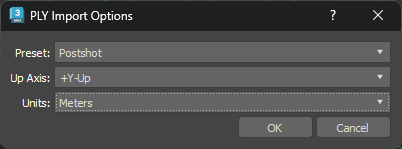
A different Import Options window appears for each of the supported 3DGS file types. The following example shows the PLY import options.
Interface
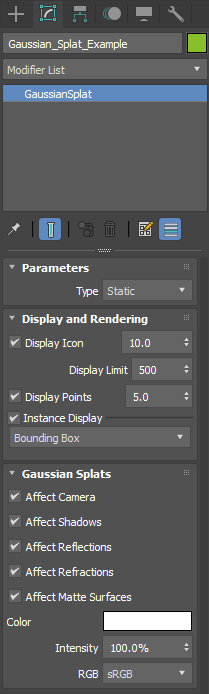
The following Gaussian Splat parameters appear when you import 3DGS data. The object automatically loads as a Gaussian Splat object, which is like the Editable Point object without editing parameters.
Parameters
Parameters rollout
- Type: All 3DGS files load in Static mode. Currently, 3ds Max does not support animated or 4D Gaussian Splats
Display and Rendering rollout
Display Icon: Toggles the visibility of the 3DGS display icon. You can adjust the physical size of the icon using the numeric field.
Display Limit: Limits the number of points that are allowed to display instanced geometry. For example if Display Limit is set to 1000, the first 1000 points are allowed to display instanced geometry.
Display Points: Toggles the visibility of the 3DGS points in the viewport. You can adjust the physical size of the points using the numeric field. You may want to change the display point size of your 3DGS data if the points are very small on import. Making the points larger can help you visualize your data, especially in less dense areas.
Instance Display: Toggles the visibility of instances in your scene.
- Note: Gaussian Splat objects do not support instances. Instance Display only affects Gaussian Splat objects if they are converted from a Points object with instanced geometry back to a Gaussian Splat. For more information see Point Instance Modifier.
Gaussian Splats rollout
The following parameters are turned on by default, letting your 3DGS data work with the renderer:
- Affect Camera
- Affect Shadows
- Affect Reflections
- Affect Refractions
- Affect Matte Shadows
Color: Lets you change the tint of the 3DGS data by performing rough color adjustments on the selected Gaussian Splat object at render time. When you select a Color, it's mixed into the 3DGS color channel information. For example, a full white Color selection has no effect on the Gaussian Splat colors. A 50% gray Color selection dims the splat color luminance by half.
Intensity: Lets you adjust the intensity of the 3DGS data.
RGB: Sets the color space that the 3DGS data is displayed in.
Convert a Point object to a Gaussian Splat object
If you've converted a Gaussian Splat object to a points object (such as Editable Point) to make edits, you can do the following to convert it back to a Gaussian Splat:
Right-click the point object in the Modifier stack and select Convert To > GaussianSplat.
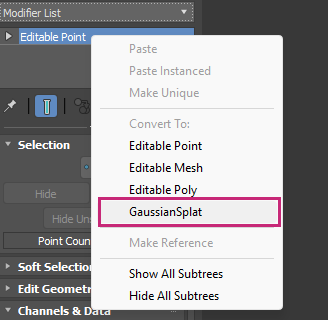 Note: This option only appears if there are Gaussian Splat channels in the points object data.