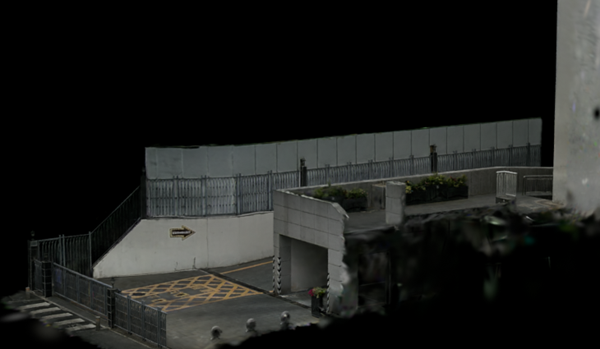
Edit 3DGS data
You can edit 3DGS data directly in 3ds Max. In the following example, we make some basic edits like converting to editable points, using the Attach function, and cleaning up points using the Hide, Unhide All, and Hide Unselected parameters.
The LCC file used in this example is taken from an Xgrids sample file. The file has already been segmented and contains two points objects, which are each represented by a display icon in the scene:
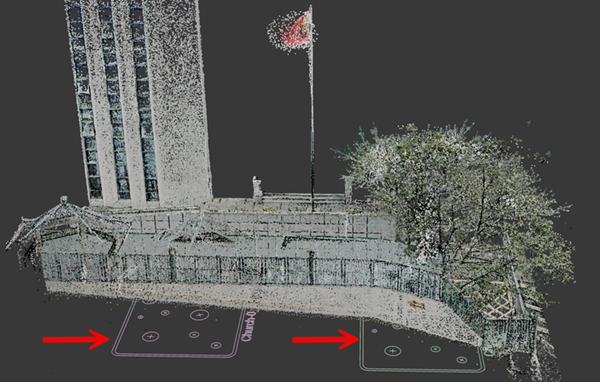
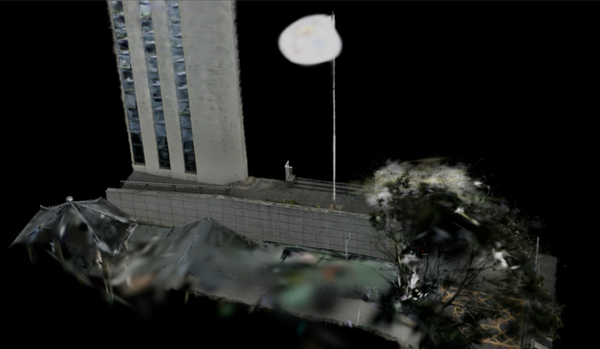
When we perform an initial render, we can see some ghosted artifacts like a tree, the tops of several buildings, and a flagpole that need to be removed to make the scene more production ready.
Turn a Gaussian Splat object into an Editable Point object:
Editable Point objects are still Gaussian Splat objects, but converting them to editable points allows you to select and edit your 3DGS data at the point sub-object level.
Select one of the Gaussian Splat objects.
Do one of the following to turn the Gaussian Splat object into an Editable Point object:
- Right-click the Gaussian Splat object and select Convert To: > Convert to Editable Point from the Quad menu.
- Right-click the Gaussian Splat object in the Modifier stack and select Editable Point.
Now one of the objects has been converted to an Editable Point object, letting us use the Editable Point parameters to make edits.
Attach Editable Point objects
The Attach function lets you pick another Gaussian Splat object in your scene and bring its data into an existing Editable Point object as points. For example, if you use the Attach function on geometry, the vertices are converted to points. If you use the Attach function on another points object, it consumes this data as Editable Points.
Select the Editable Point object.
Select the other Gaussian Splat object.
In the Editable Point parameters, select Attach in the Selection rollout.
Click Attach again to exit Attach mode.
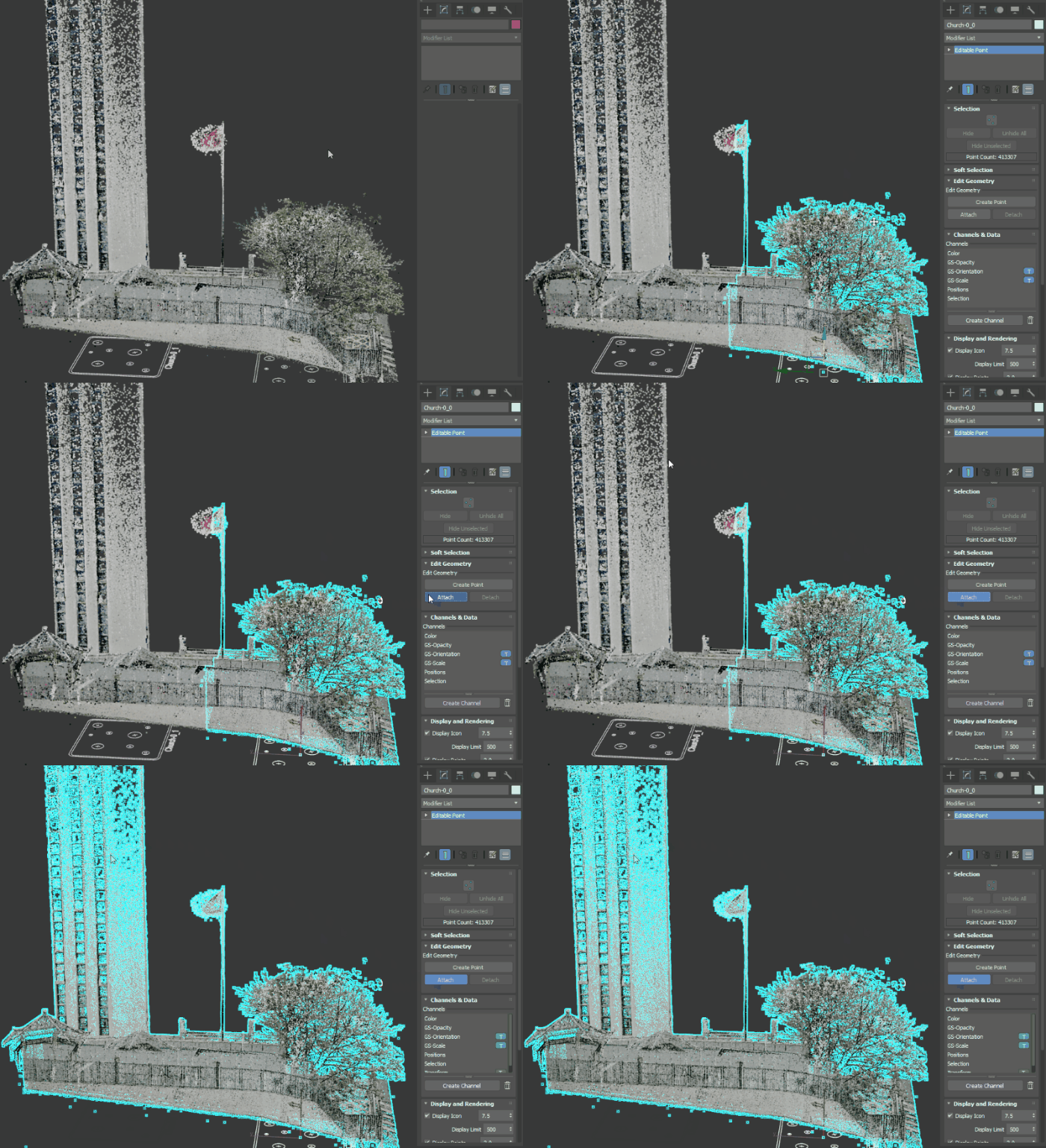
Now both objects are combined into one object.
Lasso select and delete points
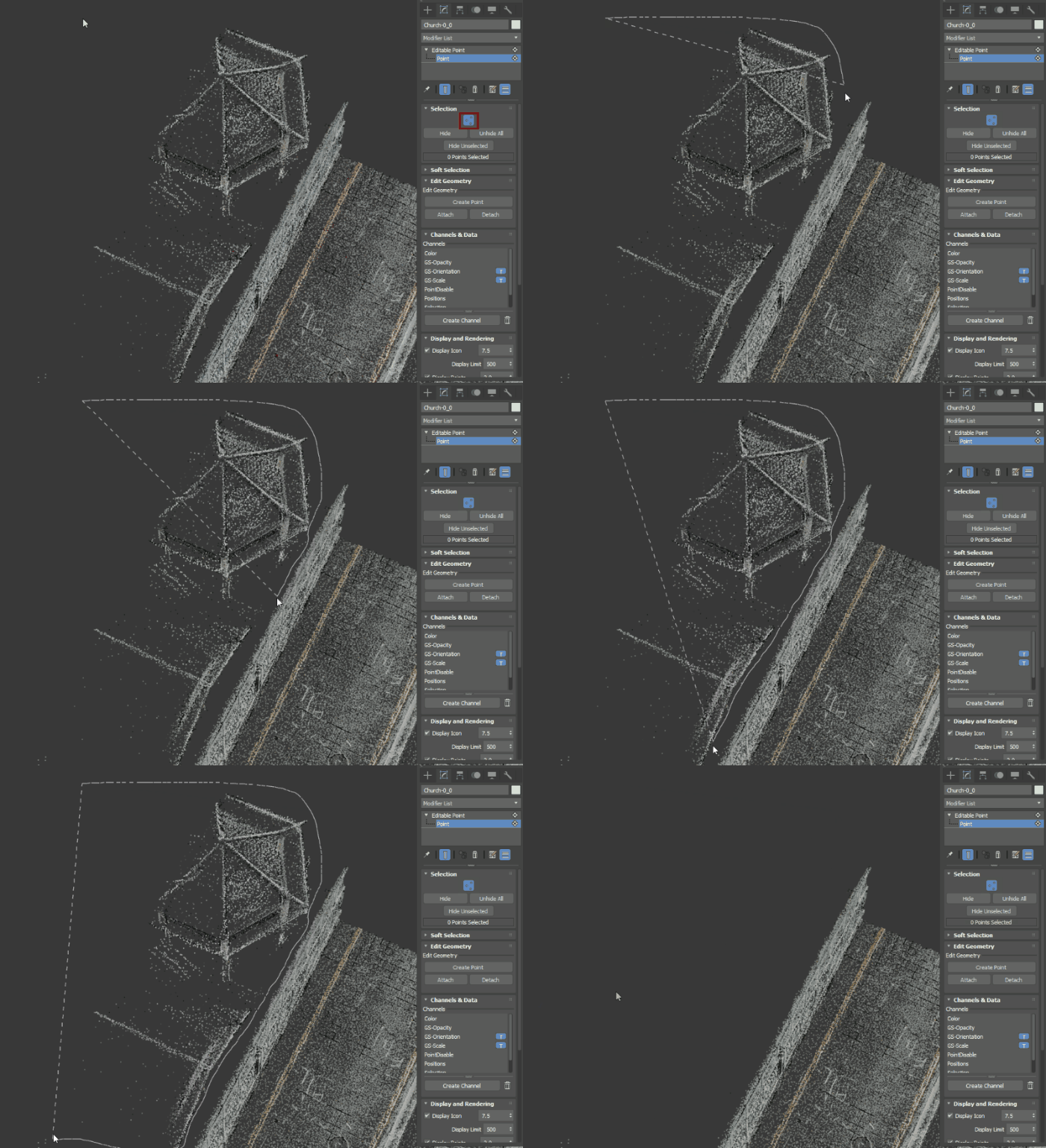
There are some ghosted artifacts in the 3DGS data like a tree, a part of a pergola, and a roof that we want to remove. We can use the Lasso tool to select and quickly delete points.
With the Editable Point object selected in the Modifier Stack, click the Points sub-object button
 in the Selection rollout.
This step ensures that you can select points.
in the Selection rollout.
This step ensures that you can select points.From the Main Toolbar, select the Lasso tool
 .
.Use the Lasso tool to select areas of the scene to delete.
Tip: If you want to add or remove points from your initial selection, hold the Ctrl key (add) or the Alt key (remove) while making another Lasso selection.Click Delete.
The points are removed from the scene.
Use Hide and Unhide All to isolate flagpole points
We want to remove the flagpole from our scene, but its location in the middle of the scene makes it difficult to select only the points on the bottom half of pole. We can use Hide, Unhide All, and Hide Unselected to make this process easier.
Lasso select the area next to the flagpole base.
In the Editable Point parameters, select Hide in the Selection rollout.
With the points hidden, we can zoom in and select only the points we want to delete.
Click Delete to remove the points on the bottom half of the pole.
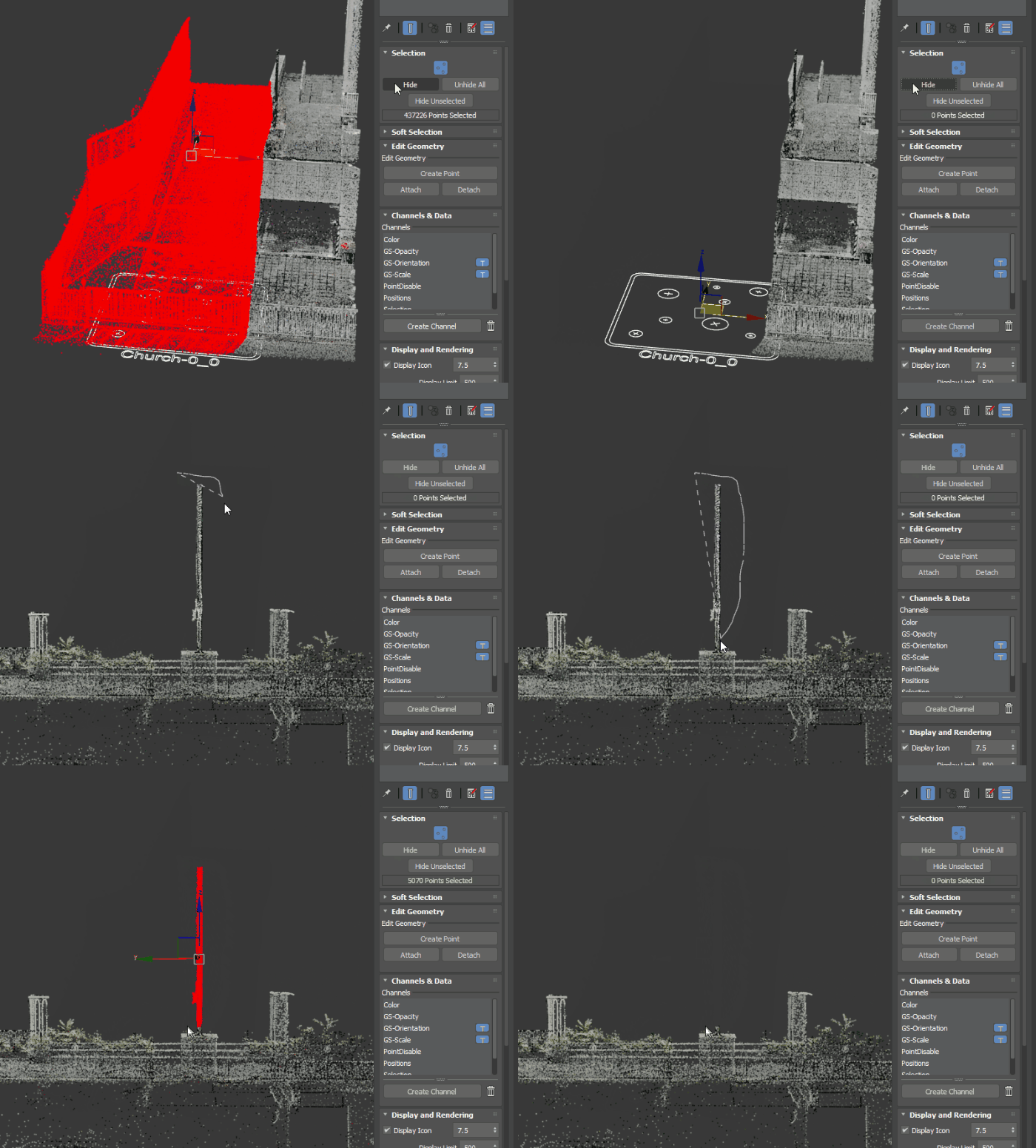
In the Editable Point parameters, select Unhide All in the Selection rollout to show all the points in the scene.
Tip: You can also select only the points you want to be visible and select Hide Unselected in the Selection rollout.
Now all the ghosted artifacts are removed from the scene.