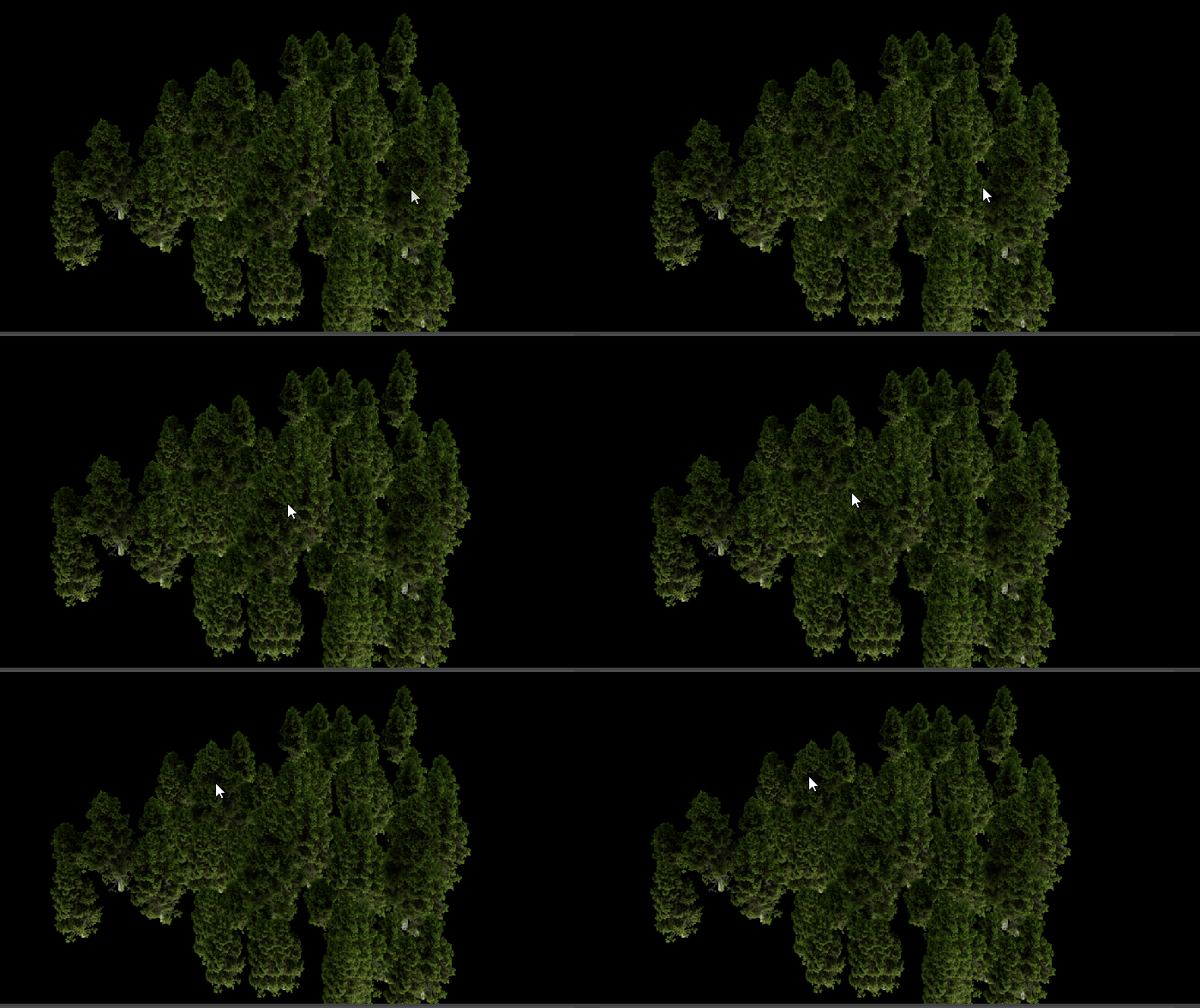
Create a forest using 3DGS data and the Turn to Point and Point Instance Modifiers
The following example begins with a 3DGS object that contains five trees. We can leverage the power of the Turn to Point and Point Instance modifiers to edit the 3DGS data, creating a forest full of trees.
Detach objects
If you load a single Gaussian Splat or polygon object that has multiple parts that you may want to scatter, it's important to first break it apart into separate parts. Once you perform a detach operation for each part, you can individually instance them.
- To detach an object, see Create separate 3DGS objects using detach.
Create points using the Turn to Point modifier
You can use the Turn to Point modifier to quickly turn a polygon object into a points object. In this example, we transform a plane into a points object, so it can be used as the footprint for the forest.
Create a plane object and position it next to the existing group of trees.
Plane001 is created.
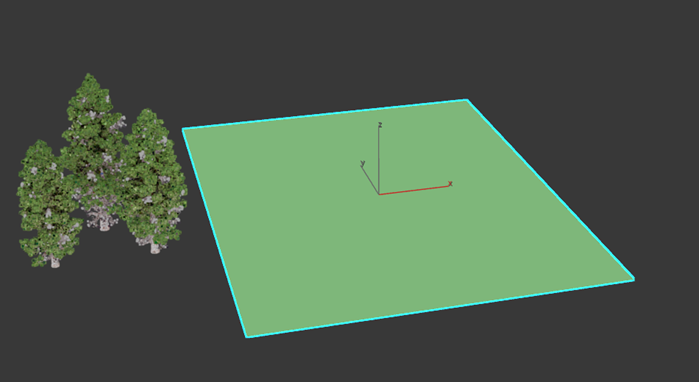
Ensure Plane001 is selected.
In the Modify panel, select Turn to Point from the Modifier List.
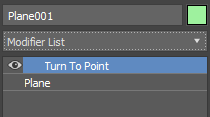
The Turn to Point modifier is applied to Plane001, and all the existing vertices on the plane are turned into points. Turn to Point applies points at the vertices, and now Plane001 is a point object.
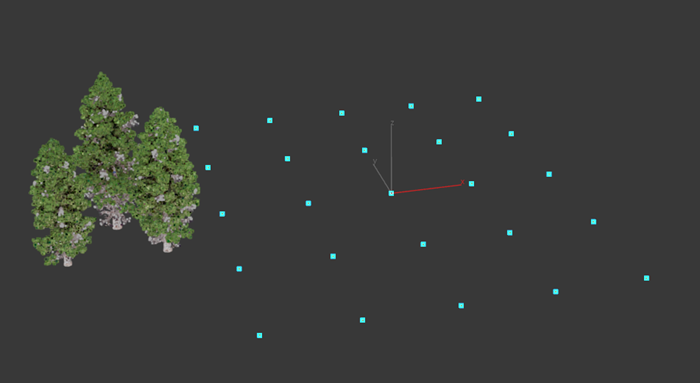
Scatter trees using the Point Instance modifier
We can use the Point Instance modifier to reference a single tree object and place instances at points on Plane001.
Ensure Plane001 is selected.
In the Modify panel, select Point Instance from the Modifier list.
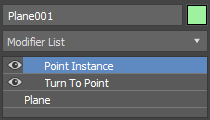
In the Point Instance parameters, click the Pick button to enter pick mode.
This mode lets you click any object in your scene to be instanced and adds it to the Instances list.
Select each of the tree objects in the Scene Explorer or the viewport.
As you select an object, it is added to the Instances list.
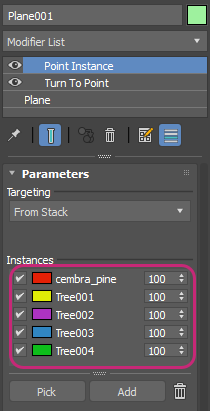
Click Pick again to exit pick mode.
In the Display and Rendering rollout of the Turn to Point modifier, set Instance Display to Bounding Box. The trees are now represented by bounding boxes and are displayed in the viewport.
We can see that one instance is applied to each point, creating a grid. Notice that each object is represented by a color that appears next to it in the Instances list. This color is also assigned to instances in the viewport. For example, all the Tree001 instances are represented as yellow bounding boxes in the viewport.
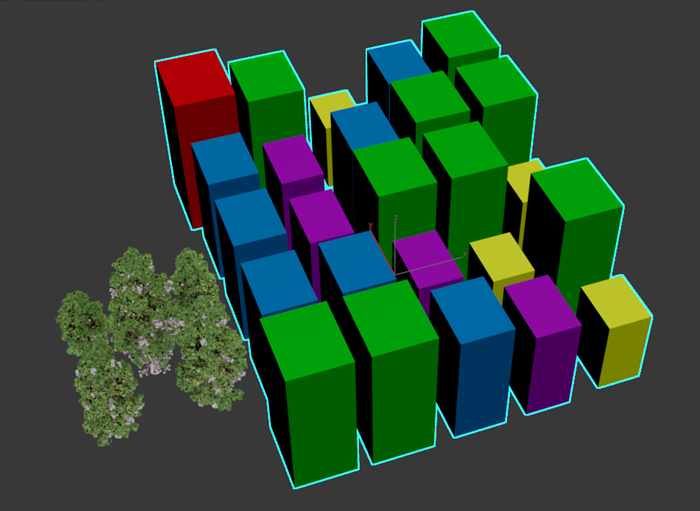
Each of the bounding boxes represents a render time instance. If we render our scene with Arnold, we see the rendering of the Gaussian Splats, as trees appear at each of the points. For more information on rendering, see Visualize 3DGS data.
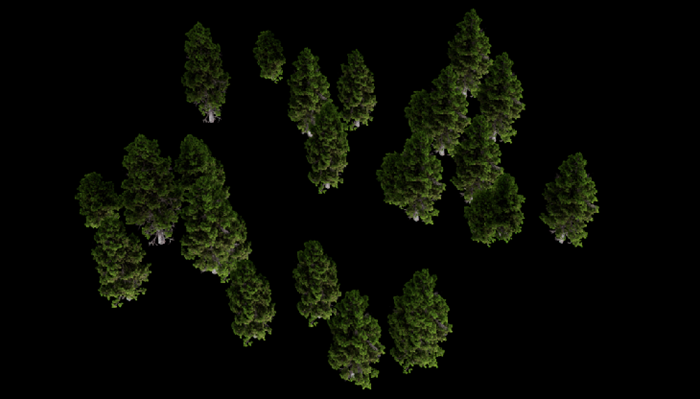
Adjust the density of the trees
If we want our forest to be more densely populated with trees, we can select different parameters in the Turn to Point modifier rollouts.
In the Modifier stack, select Turn to Point.
Select Surface (Count) from the drop-down list.
Set Total Count to 80.
Now 80 instances are randomly distributed in the viewport.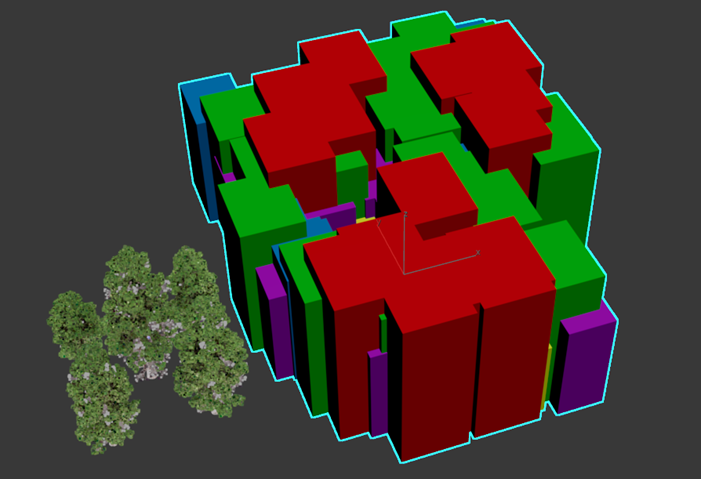
To add more variation to the instances, we can adjust their scale using the Point Instance modifier parameters.
In the Modifier stack, select Point Instance.
Select cembra_pine from the Instances list.
We can see many red bounding boxes in the viewport, which means cembra_pine has many instances in the scene. If we want to see fewer instances, we can adjust the probability matrix. Lowering this value lowers the chance that the object is used in instancing.
Enter 20 in the probability matrix field, which is located next to the reference name in the Instances list.
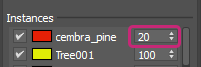
Now there are fewer red bounding boxes in the scene.
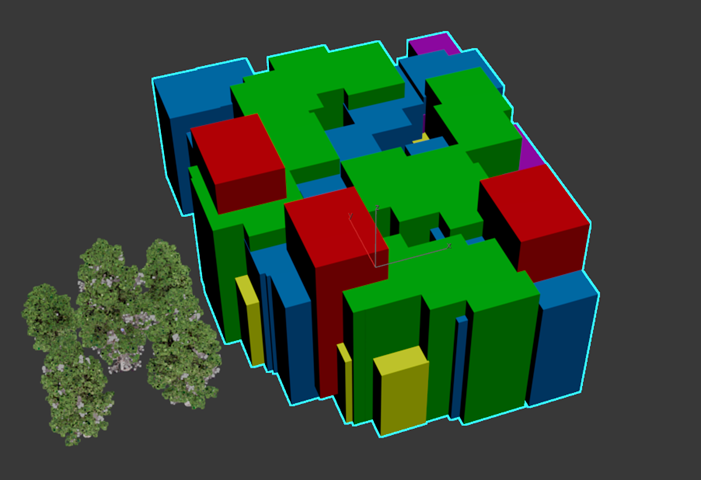
When we render the scene, we can see there are more trees.
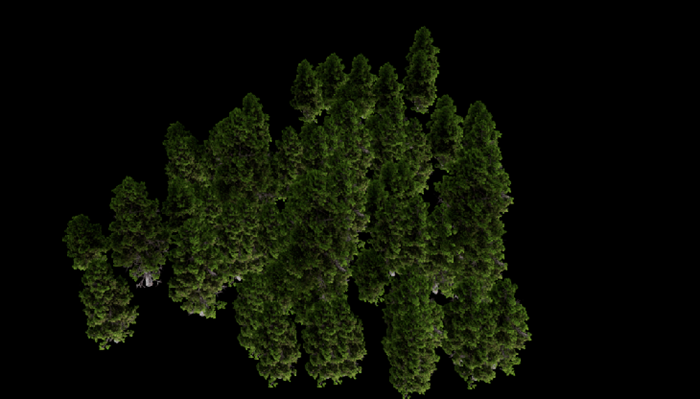
Now we can adjust the transform parameters to make cembra_pine's instance larger.
In the Transform parameters, click
 to ensure all axes transform uniformly.
Set X to 150%.
Set Variation to 20%.
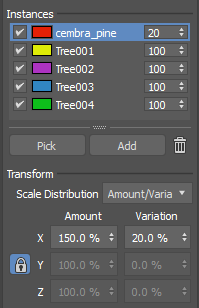
This makes the instances of cembra_pine 150% larger than the original reference object.
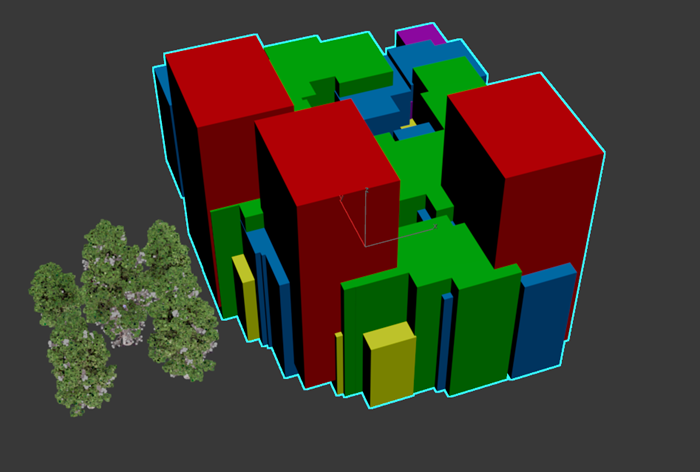
When we render, we see that several trees are now larger than the rest of the forest.