Use channels with 3DGS data
Using channels in your 3DGS workflow lets you organize your data for easy selection or manipulation. A channel can represent a wide range of data like position, rotation, or scale. It can also represent concepts like color, instance, or a custom selection of points.
Some channels also have a transform button that links the Gaussian splat data with its associated points, allowing you to manipulate both together.
Keep reading to learn about the following workflows:
- Create a new channel
- Rotate 3DGS points
- Scale 3DGS points
- Store a selection of points as a named selection
Create a new channel
Ensure you're working with an Editable Point object. To convert a Gaussian Splat object to an Editable Point object, see Edit 3DGS data.
With the Editable Point object selected in the Modifier stack, click the Points sub-object button
 in the Selection rollout.
This step ensures that you can select points.
From the main toolbar, select the Lasso tool
 .
.Select points.
In the Channels & Data rollout, click Create Channel.
In the Create Channel window that appears, enter the following:
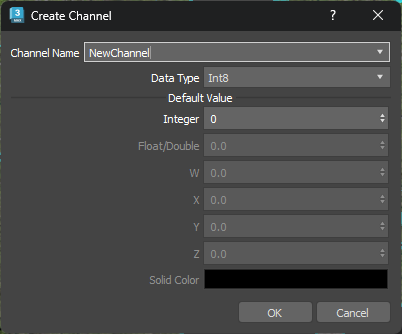
- Channel Name: Select a default channel from the list or create your own channel
- Add additional Default Values accordingly.
The new channel appears in the Channels list.
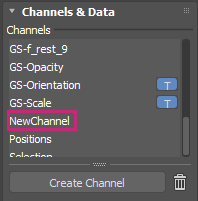
Right-click the channel name in the Channels list to access options to Delete, Rename, Clone, Clear, or Clone as Named Selection. You can also view Channel Properties.
Link channel transforms
When you import 3DGS data, all the Gaussian Splat data channels come with it. The Orientation and Scale channels are important, because they're imported with the transform button  turned on. When using the transform tools to manipulate points, this button must be turned on, so the Gaussian splat data transforms along with its associated points.
Rotate points
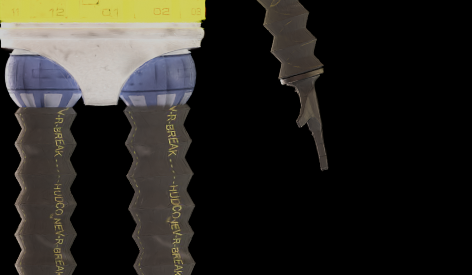
The following workflow illustrates how to rotate points. We use the Rotate tool to rotate the hand of a robot model.
Ensure you are working with an Editable Point object. To convert a Gaussian Splat object to an Editable Point object, see Edit 3DGS data.
With the Editable Point object selected in the Modifier stack, click the Points sub-object button
in the Selection rollout.This step ensures that you can select points.
In the Channels list, ensure the transform button
is turned on for the Orientation and Scale channels.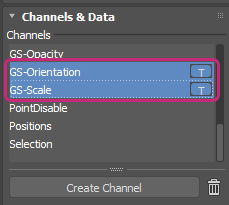
From the main toolbar, select the Lasso tool
and select the points you want to rotate.Select the Rotate tool
 .
.Select Use Selection Center
 .
.Rotate the points.
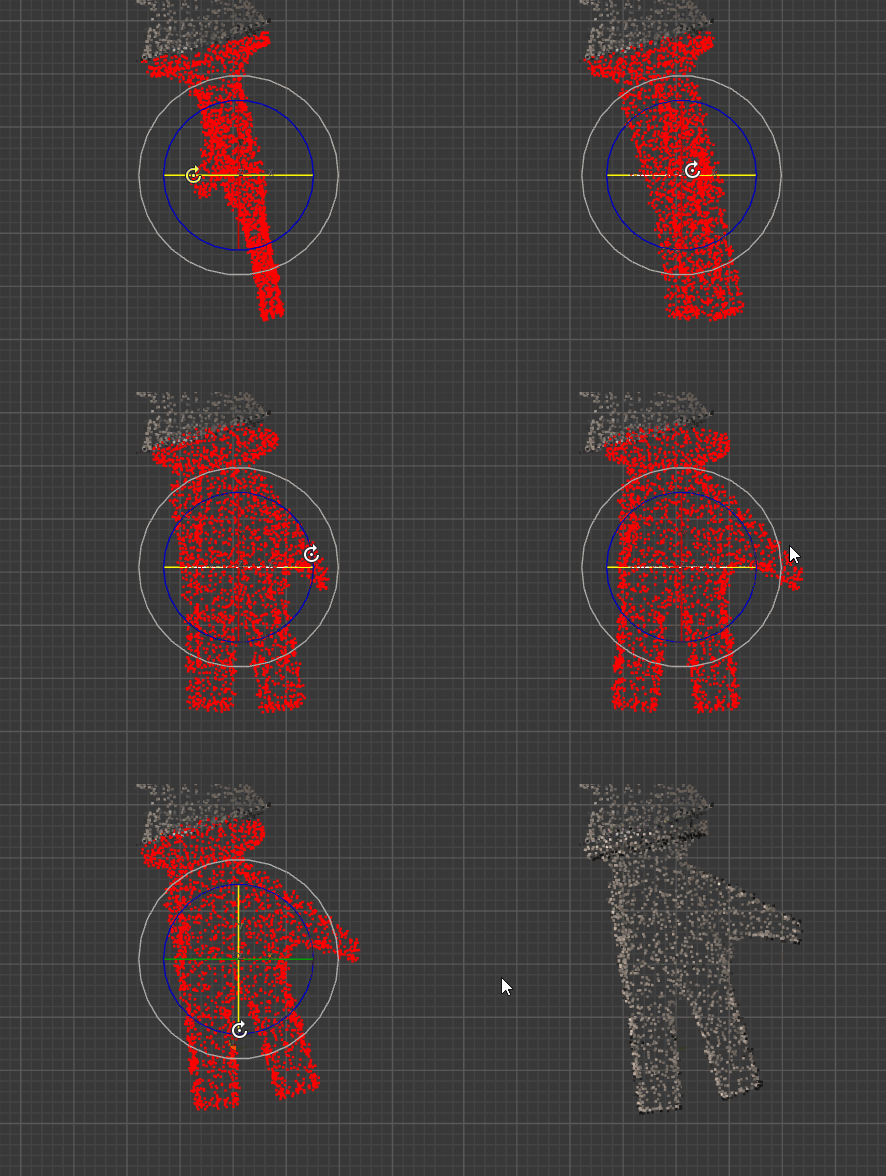
When the transform buttons are turned on, we see an expected result: the Gaussian Splat data rotates along with the points.
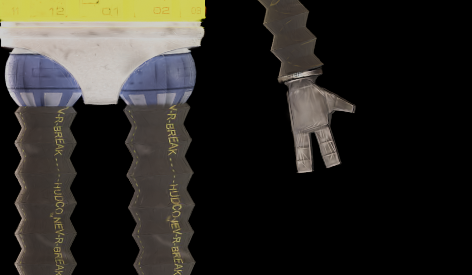
Scale Points
The following workflow illustrates how to scale points. We use the Scale tool to scale the foot of a robot model.
Ensure you are working with an Editable Point object. To convert a Gaussian Splat object to an Editable Point object, see Edit 3DGS data.
With the Editable Point object selected in the Modifier stack, click the Points sub-object button
in the Selection rollout.This step ensures that you can select points.
In the Channels list, ensure the transform button
is turned on for the Orientation and Scale channels.From the main toolbar, select the Lasso tool
and select the points you want to scale.Select the Scale tool
 .
.Select Use Selection Center
.Scale the points.
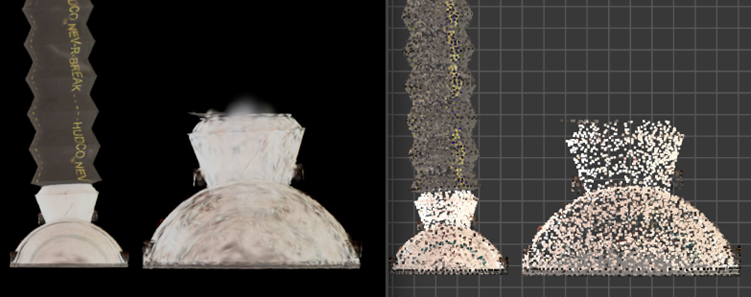
When the transform buttons are turned on, we see an expected result: the Gaussian Splat data scales with the points.
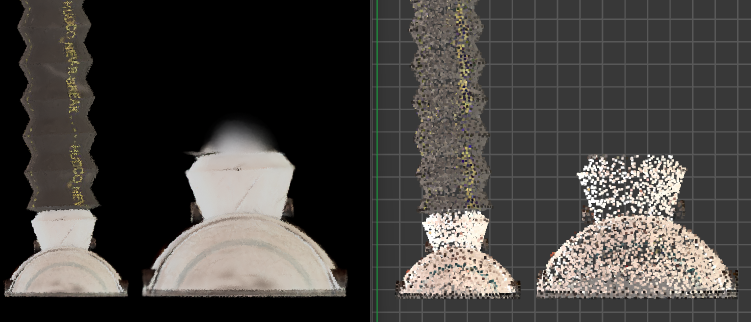
If we turn the transform buttons off, the Gaussian Splat data doesn't scale with the points, producing a distorted result.
Store a selection as a named selection
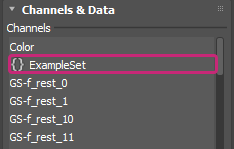
You can add a named selection set to the Channels list.
Use the Lasso tool or the Marquee tool to make a selection of points.
In the main toolbar, enter the name for the named selection set in the Create Selection Set drop-down list field
 .
.The named selection set appears in the Channels list.