Collapse Utility
The Collapse utility lets you combine the stack operations of one or more selected objects into an Editable Mesh or the stack result, and, optionally, perform a Boolean operation on them at the same time.
 Utilities panel > Utilities rollout > Collapse button
Attention: You can't undo the results of using the Collapse utility. Before you use it, save a copy of your work file, or use Hold.
Procedures
To collapse the stack of an object into an editable mesh:
On the
Utilities panel, click the Collapse button.Select the object or objects that you want to collapse.
Click the Collapse Selected button.
All modifiers are removed from the modifier stack and the object becomes an editable mesh.
To collapse the stack of an object into an editable surface other than mesh:
On the
Utilities panel, click the Collapse button.On the Collapse rollout, set Output Type to Modifier Stack Result.
Select the object or objects that you want to collapse.
Apply a modifier that outputs the desired ultimate surface type, such as Turn To Poly or Turn To Patch.
Click the Collapse Selected button.
All modifiers are removed from the modifier stack and the object becomes an editable surface of the type indicated by the modifier.
To subtract multiple objects from another object:
The Boolean compound object restricts you to combining objects one at a time. With the Collapse utility, you can perform Boolean operations on several objects simultaneously.
For the purposes of this procedure, we'll call the object to have shapes subtracted from Main. Create and arrange Main and the objects to subtract from it. For example, you might have several boxes penetrating a sphere ( Main) in different places; subtracting them will produce box-shaped cutouts in the sphere's surface.
 Select Main, and then select the objects to be subtracted from it.
The first object you select before collapsing is the one from which the others are subtracted.
On the
Utilities panel, click the Collapse button.On the Collapse rollout, set Output Type to Mesh, if necessary.
In the Collapse To group, choose Single Object.
Turn on Boolean, and then choose Subtraction.
Click the Collapse Selected button.
All objects you selected after Main, the first object, are subtracted from Main.
Interface
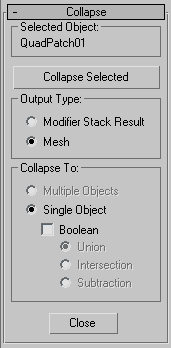
Selected Object group
Displays the name of the current selection. If more than one object is selected, "[Number] Objects Selected.” displays.
Collapse Selected
Collapses the selected objects. The method of collapse depends on the settings of the options below this button.
Output Type group
Specifies the type of object that results from the collapse.
- Modifier Stack Result The resultant object will be the same as if you had collapsed its stack. In most cases, this results in a mesh object, as when using the Mesh option. However, if the object has an Edit Patch modifier so that its stack produces a patch, then the result will be a patch object rather than a mesh. Likewise, a shape with Edit Spline modifiers becomes an editable spline. When this option is used, the Collapse To options are unavailable, and all selected objects remain independent objects.
- Mesh All selected objects become editable meshes regardless of their type before they were collapsed.
Collapse To group
Specifies how the selected objects are combined. These options are available only when you choose the Mesh option.
Multiple Objects Collapses each object in the selection but maintains each as an independent object. When this option is chosen, the Boolean options are disabled.
Single Object Collapses all selected objects into a single editable mesh object.
Boolean When on, performs Boolean operations on the selected objects. During the Boolean calculation, a progress bar appears along with a Cancel button. If any objects in the Boolean operation fail, that object is skipped, but the Collapse proceeds. The result is not a Boolean compound object, but a single editable mesh. The type of Boolean is specified by the following choice:
- Union Combines the several objects, removing intersecting geometry.
- Intersection Removes all but the intersecting geometry.
- Subtraction Maintains the first object selected while subtracting the subsequently selected objects. For example, to subtract several cylinders from a box, click to select the box, hold down ``
Ctrl, and region-select the cylinders.
Close
Exits the Collapse utility.