Extrude Polygons Along Spline (Polymesh)
Use these settings for extruding polygons along splines in Interactive Manipulation mode.
- Select an Edit Poly or editable poly object. >
 Modify panel > Polygon sub-object level > Edit Polygons rollout > Extrude Along Spline >
  (Settings)
 - Select an Edit Poly or editable poly object. > Polygon sub-object level > Quad menu > Tools 2 quadrant > Extrude Along Spline > (Settings)
- Select an Edit Poly or editable poly object. > ribbon > Modeling tab > Polygon Modeling panel >
 (Polygon) sub-object level > Polygons panel > Shift+click
  (Extrude On Spline) or choose Extrude On Spline Settings from the drop-down list.
Interface
Extrude Polygons Along Spline uses the caddy interface when Enable Caddy Controls is on; when off, the standard settings dialog is used. For details on using the caddy controls, see The Caddy Interface.
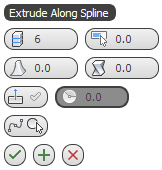
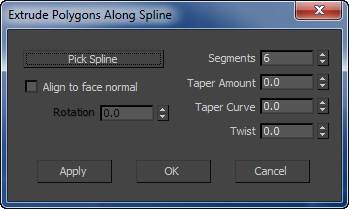
Left: the caddy interface; Right: the standard dialog
 Segments
Specifies the number of polygons into which each extruded side is subdivided. This setting also applies to manually extruded polygons.
 Taper Amount
Sets the extent to which the extrusion becomes smaller or larger along its length. Negative settings taper the extrusion smaller; positive settings taper it larger.
 Taper Curve
Sets the rate at which the tapering proceeds. Lower settings result in a more gradual taper; large settings result in a more abrupt taper.
Taper Curve affects the thickness of the extrusion between its endpoints, but not the size of the ends.
 Twist
Twist
Applies a twist along the length of the extrusion.
When using this option, increasing the number of segments will improve the smoothness of the extrusion.
 Align
Align
Aligns the extrusion with the face normal, which, in most cases, makes it perpendicular to the extruded polygon(s). When turned off (the default), the extrusion is oriented the same as the spline.
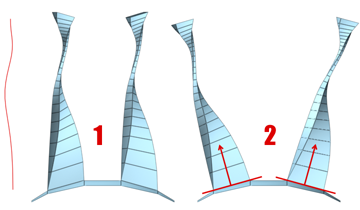
With Align To Face Normal, the extrusion does not follow the original orientation of the spline (1); it’s reoriented to match the face normals (2), or averaged normals for contiguous selections. The Rotation option is available only when Align To Face Normal is on.
 Rotation
Sets the rotation of the extrusion. Available only when Align To Face Normal is on. Default=0. Range=-360 to 360.
 Pick Spline
Click this button and then select a spline along which to extrude in the viewport. The spline object's name then appears on the button.
If you open this caddy after performing a manual Extrude Along Spline, the name of the spline you used appears on the button.
_____
 OK
OK
Applies the settings to the current selection and closes the caddy. Keyboard equivalent: Enter
 Apply and Continue
Applies the settings to the current selection, retaining them for the preview if you then change the selection. Keyboard equivalent: Ctrl+Enter
 Cancel
Closes the caddy without applying the settings to the current selection. Does not reverse previous uses of Apply And Continue. Keyboard equivalent: Esc