Connect Edges (Polymesh)
Connecting edges creates new edges between adjacent pairs of selected edges. The Connect Edges settings let you specify the number of new edges, the amount of separation from each other, and their general location.
- Select an Edit Poly or editable poly object. >
 Modify panel > Edge or Border sub-object level > Edit Edges rollout > Connect >
  (Settings)
 - Select an Edit Poly or editable poly object. > Edge or Border sub-object level > Quad menu > Tools 2 quadrant > Connect > (Settings)
- Select an Edit Poly or editable poly object. > ribbon > Modeling tab > Polygon Modeling panel >
 (Edge) or
  (Border) sub-object level > Loops panel > Shift+click
  (Connect) or choose Connect Settings from the drop-down list.
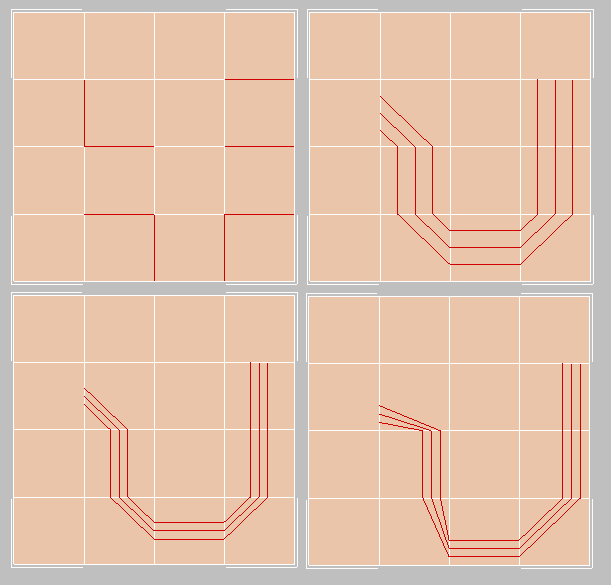
Top left: Original edge selection
Top right: Segments=3, Pinch=Slide=0
Bottom left: Segments=3, Pinch=-50, Slide=0
Bottom right: Segments=3, Pinch=-50, Slide=–200
Interface
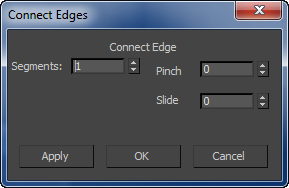
Connect Edges uses the caddy interface when Enable Caddy Controls is on; when off, the standard settings dialog is used. For details on using the caddy controls, see The Caddy Interface.
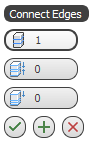
Left: The caddy interface
Right: The standard dialog
 Segments
The number of new edges between each adjacent pair of selected edges. Default=1.
 Pinch
Pinch
The relative spacing between the new, connecting edges. Negative values move the edges closer together; positive values move them farther apart. Default=0.
If Segments=1, the Pinch setting has no effect.
 Slide
Slide
The relative positioning of the new edges. Default=0.
By default, the new edges are centered. Positive values move them in one direction, while negative values move them in the opposite direction. The new edges cannot move beyond existing edges.
_____
 OK
OK
Applies the settings to the current selection and closes the caddy. Keyboard equivalent: Enter
 Apply and Continue
Applies the settings to the current selection, retaining them for the preview if you then change the selection. Keyboard equivalent: Ctrl+Enter
 Cancel
Closes the caddy without applying the settings to the current selection. Does not reverse previous uses of Apply And Continue. Keyboard equivalent: Esc