Relax (Polymesh)
Use these settings for relaxing vertices in Interactive Manipulation mode. Relax in Edit/Editable Poly works much like the Relax modifier: It normalizes the distance between each affected vertex and its neighbors by moving the vertex toward the average position of its neighbors.
- Select an Edit Poly or editable poly object. >
 Modify panel > object level or any sub-object level > Edit Geometry rollout > Relax >
  (Settings)
 - Select an Edit Poly or editable poly object. > ribbon > Modeling tab > Polygon Modeling panel >
 (Polygon) sub-object level > Geometry (All) panel > Shift+click
  (Relax) or choose Relax Settings from the drop-down list.
Interface
Relax uses the caddy interface when Enable Caddy Controls is on; when off, the standard settings dialog is used. For details on using the caddy controls, see The Caddy Interface.
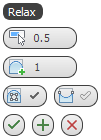
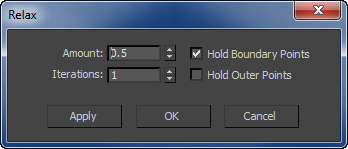
Left: the caddy interface; Right: the standard dialog
 Amount
Controls how far a vertex moves for each iteration. The value specifies a percentage of the distance from the original location of a vertex to the average location of its neighbors. Range=-1.0 to 1.0. Default=0.5.
 Iterations
Sets how many times to repeat the Relax process. For each iteration, average locations are recalculated and the Relax Value is reapplied to every vertex. Default=1.
 Hold Boundary Points
Controls whether vertices at the edges of open meshes are moved. Default=on.
When on, boundary vertices do not move while the rest of the object is relaxed. This option is particularly useful when working with multiple elements within a single object that share open edges.
When this checkbox is off, all vertices of the object are relaxed.
 Hold Outer Points
When on, preserves the original positions of vertices farthest away from the object center.
_____
 OK
OK
Applies the settings to the current selection and closes the interface. Keyboard equivalent: Enter
 Apply and Continue
Applies the settings to the current selection, retaining them for the preview if you then change the selection. Keyboard equivalent: Ctrl+Enter
 Cancel
Closes the interface without applying the settings to the current selection. Does not reverse previous uses of Apply And Continue. Keyboard equivalent: Esc