Bridge Edges (Polymesh)
Use these settings for bridging pairs of edges in Interactive Manipulation mode.
- Select an Edit Poly or editable poly object. >
 Modify panel > Polygon or Border sub-object level > Edit Polygons rollout > Bridge >
  (Settings)
 - Select an Edit Poly or editable poly object. > Polygon or Border sub-object level > Quad menu > Tools 2 quadrant > Bridge > (Settings)
- Select an Edit Poly or editable poly object. > ribbon > Modeling tab > Polygon Modeling panel >
 (Edge) sub-object level > Edges panel > Shift+click
  (Bridge) or choose Bridge Settings from the drop-down list.
Interface
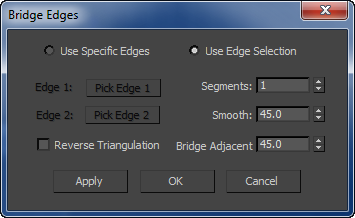
Bridging uses the caddy interface when Enable Caddy Controls is on; when off, the standard settings dialog is used. For details on using the caddy controls, see The Caddy Interface.
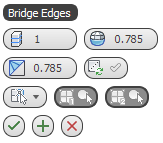
Left: The caddy interface
Right: The standard dialog
 Segments
Specifies the number of polygons along the length of the bridge connection. This setting also applies to manually bridged edges.
 Smooth
Specifies the maximum angle between columns across which smoothing can occur. A column is a string of polygons extending along the length of the bridge.
 Bridge Adjacent
Specifies the minimum angle between adjacent edges across which bridging can occur. Edges less than this angle will not be bridged, and instead will be skipped.
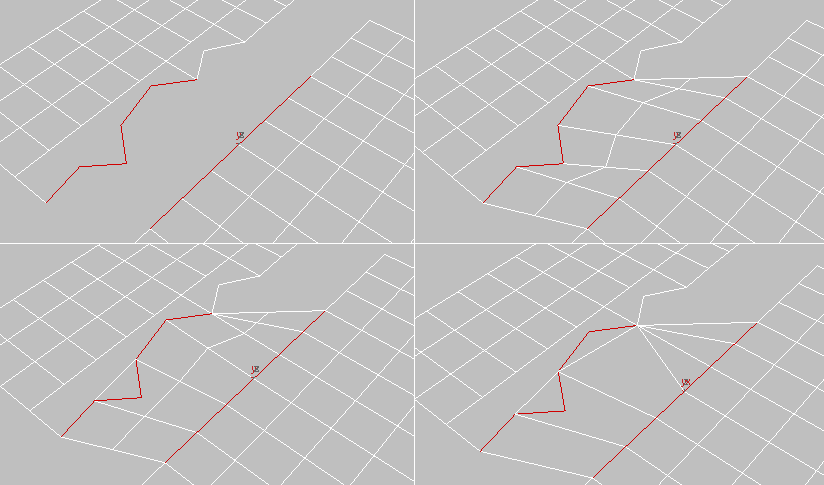
Top Left: Edge selections before bridging
Top Right: Segments=2, Bridge Adjacent<83.0
Bottom Left: Bridge Adjacent=83.0
Bottom Right: Bridge Adjacent=126.5
 Reverse Triangulation
When bridging two edge selections, each of which contains different numbers of edges, you can use either of two methods of triangulating the bridge polygons. This toggle lets you switch between the two methods.
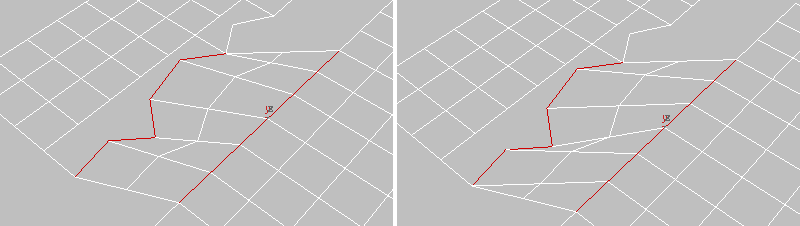
Left: Reverse Triangulation on
Right: Reverse Triangulation off
Use Edge Selection / Use Specific Edges
Choose whether to bridge edges that you choose with the caddy controls, or use an existing selection. The options are:
 Use Edge Selection If one or more qualifying selection pairs exist, choosing this option connects them immediately. If not, you can select pairs of edges in a viewport to connect them.
If you make more than two qualifying selections, Bridge connects them in increasing order of ID. For example, if you select edges 12, 35, and 89, Bridge connects the first two. But if you then deselect edge 35, Bridge connects edges 12 and 89.
 Use Specific Edges In this mode, use the Pick buttons (see following) to designate edges for bridging.

 Pick Edge 1 / Pick Edge 2
Click each Pick button in turn, and then click a border edge in a viewport. Available only in Use Specific Edges mode.
After clicking an edge, the Pick button shows its ID number. You can change the selection at any time by clicking a Pick button and picking a different sub-object.
_____
 OK
OK
Applies the settings to the current selection and closes the caddy. Keyboard equivalent: Enter
 Apply and Continue
Applies the settings to the current selection, retaining them for the preview if you then change the selection. Keyboard equivalent: Ctrl+Enter
 Cancel
Closes the caddy without applying the settings to the current selection. Does not reverse previous uses of Apply And Continue. Keyboard equivalent: Esc