Chamfer Vertices/Edges/Borders (Polymesh)
Chamfering creates new faces around the chamfered entity, along with connecting edges. Or, with the Open option, you can create an open (empty) area instead. For vertices, edges, and borders, you can set the chamfer amount numerically and toggle the Open option. The Segments setting applies only to edges and borders.
- Select an Edit Poly or editable poly object. >
 Modify panel > Vertex/Edge/Border sub-object level > Edit Vertices/Edges/Borders rollout > Chamfer >
  (Settings)
 - Select an Edit Poly or editable poly object. > Vertex/Edge/Border sub-object level > Quad menu > Tools 2 quadrant > Chamfer > (Settings)
- Select an Edit Poly or editable poly object. > ribbon > Modeling tab > Polygon Modeling panel >
 (Vertex),
  (Edge), or
  (Border) sub-object level > Vertices, Edges, or Borders panel > Shift+click
  (Chamfer) or choose Chamfer Settings from the drop-down list.
Interface
Chamfer uses the caddy interface when Enable Caddy Controls is on; when off, the standard chamfer settings dialog is used. For details on using the caddy controls, see The Caddy Interface in the Editable Poly Settings topic.
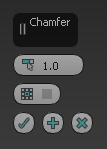
Caddy interface, vertex sub-object level
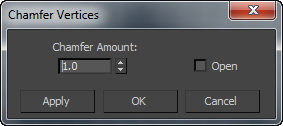
Chamfer settings dialog, vertex sub-object level
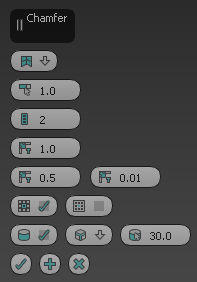
Caddy interface, edge/border sub-object level
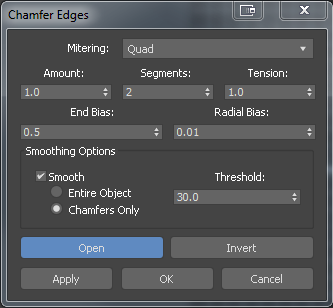
Chamfer settings dialog, edge/border sub-object level
Mitering
Choose the basic mitering method:
- Quad: Creates new quadrilateral polygons around each chamfered edge (2 x the current Segments value). The higher the Segments value used, the more the chamfer that can be rounded off, depending on the Tension value.
- Tri: Replaces each chamfered edge with a number of polygons equal to the current Segments value. This also increases the Segments value of chamfered edges between non-coplanar polygons, which can cause rounding of the chamfered area. This method generates both triangular and quadrilateral polygons. Using triangular polygons may cause mesh issues when smoothing or subdividing.
- Uniform: Creates a uniform corner with quadrilateral intersections. A Uniform corner can be smoothed or sharpened depending on the Depth setting under the Chamfer options.
- Radial: Produces an arc in the corners to avoid connecting bevel edge vertices to non-bevel edge vertices. A Radial corner can be smoothed or sharpened depending on the Depth setting under the Chamfer options. Patch: Creates a patch corner that also has quadrilateral intersections, however can provide higher resolution results and remove artifacts. A patch corner can be smoothed or sharpened depending on the Depth setting under the Chamfer options.
 Amount
The extent of the chamfer in distance units. Default=1.0.
 Segments
(Edges only) Adds polygons over the area of the chamfer. The result depends on the chamfer type.
The preceding illustration shows the difference in the number of polygons generated by the Quad and Tri methods, using the same Segments value.
 Tension
(Quad and Uniform only) Determines the angle between new polygons generated by chamfering edges between non-coplanar polygons. At the default value of 1.0, all new polygons from each chamfered edge lie flat (coplanar). Lowering the Tension value increases the angle; with a high enough Segments value and original angle between the polygons on either side of the edge, this can produce curvature of the new polygons. At 0.0, the new polygons occupy the same positions as the original polygons.
The Tension setting does not affect polygons generated from edges between coplanar polygons. The greater the angle between the original polygons adjacent to a chamfered edge, the more curvature is available.
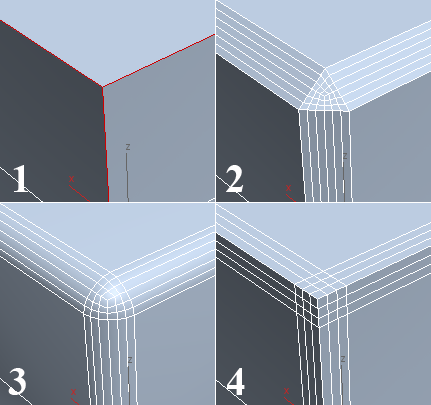
1. Original edge selection
2. Tension=1.0
3. Tension=0.5
4. Tension=0.0
 End Bias
(Quad and Uniform only) Controls the ends of chamfers that do not involve a corner, with the ability to move the end point towards the next edge. A value of 1.0 moves the end of the chamfer to the first vertex of the next edge, while a value of 0.0 ends the chamfer.
 Radial Bias
(Quad and Uniform only) Controls the radius of chamfered corners, maintaining a more spherical shape in cases where angles become sharp and the chamfer becomes obtuse.
 Open Chamfer
After chamfering, deletes all faces created by the chamfering operation.
 Invert Open
After chamfering, deletes all faces except those created by the chamfering operation. Available only when Open Chamfer is on.
 Smooth
When on, applies smoothing groups after chamfering. Also enables the Smooth Type and Smooth Threshold settings (see following).
 Smooth Type
When the Smooth option is enabled, selects how smoothing is applied to the chamfered geometry:
- Smooth Entire Object - Applies smoothing groups to the entire object based on the angles between adjacent polygons. Any two adjacent polygons will be put in the same smoothing group if the angle between their normals is less than the Smooth Threshold angle (see following).
- Smooth Chamfers Only - Applies smoothing groups to the new polygons created by the chamfering process based on the angle between adjacent polygons. Any two adjacent polygons will be put in the same smoothing group if the angle between their normals is less than the Smooth Threshold angle (see following).
 Smooth Threshold
When the Smooth option is enabled, places two adjacent faces in the same smoothing group if the angle between their normals is less than the Threshold value.
 OK
OK
Applies the settings to the current selection and closes the caddy. Keyboard shortcut: Enter
 Apply and Continue
Applies the settings to the current selection, retaining them for the preview if you then change the selection. Keyboard shortcut: Ctrl+Enter
 Cancel
Closes the caddy without applying the settings to the current selection. Does not reverse previous uses of Apply And Continue. Keyboard shortcut: Esc