Polygon Modeling Panel
The Polygon Modeling panel includes tools for switching sub-object levels, navigating the modifier stack, converting objects to editable poly and Edit Poly, and more.
- Ribbon > Modeling tab > Polygon Modeling panel
Because this is perhaps the most commonly used panel, you might want to float it separate from the ribbon (“tear” it off by dragging the panel label), and use the rest of the ribbon minimized, to maximize screen real estate.
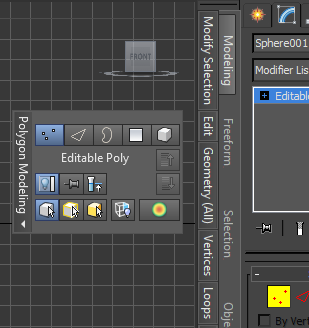
Recommended setup: The ribbon is docked and minimized, while the Polygon Modeling panel floats.
Interface
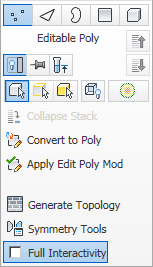
Polygon Modeling panel on minimized ribbon
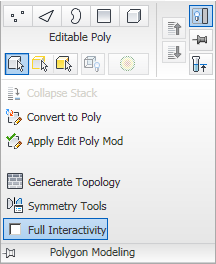
Polygon Modeling panel on maximized ribbon, with expansion
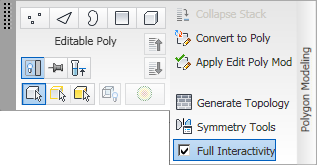
Polygon Modeling panel floating, with expansion
 Vertex
Accesses the Vertex sub-object level, which lets you select a vertex beneath the cursor; region selection selects vertices within the region.
 Edge
Edge
Accesses the Edge sub-object level, which lets you select a polygon edge beneath the cursor; region selection selects multiple edges within the region.
 Border
Accesses the Border sub-object level, which lets you select a sequence of edges that borders a hole in the mesh. A border comprises only connected edges with faces on only one side of them, and is always a complete loop. For example, a default box primitive doesn't have a border, but the teapot object has a couple of them: one each on the lid, the body, and the spout, and two on the handle. If you create a cylinder and delete one end, the row of edges around that end forms a border.
When Border sub-object level is active, you can't select edges that aren't on borders. Clicking a single edge on a border selects that whole border.
You can cap a border, either with the Cap function or by applying the Cap Holes modifier. You can also connect borders between objects with the Connect compound object.
 Polygon
Accesses the Polygon sub-object level, which lets you select polygons beneath the cursor. Region selection selects multiple polygons within the region.
 Element
Accesses the Element sub-object level, which lets you select all contiguous polygons in an object. Region selection lets you select multiple elements.
Modify Mode/[stack level]
Switches to the Modify panel, or if the Modify panel is active, shows the current modifier stack level.
Usage examples:
- if any object is selected and any command panel other than the Modify panel is active, the button label reads “Modify Mode.”
- For an object with no modifiers, if the Modify panel is active and the object type is anything other than editable poly or Edit Poly, the button is unavailable; otherwise the button shows the object type, such as “Editable Poly.”
- If the Modify panel is active and the current stack level is a modifier, the button shows the name of the modifier.
 Toggle Command Panel
Toggles visibility of the command panel.
 Pin Stack
Locks the modifier stack and ribbon controls to the currently selected object so they remain with that object regardless of subsequent changes in selection.

 Show End Result (off/on)
Shows the selected object as it appears after all modifications in the stack have taken place, regardless of your current position in the stack.
When this toggle is off, the object appears as modified up to the current modifier in the stack.

 Next/Previous Modifier
Moves up or down the stack, respectively, making the next highest or lowest modifier current.
Equivalent to clicking the entry above or below the current one in the modifier stack.
Preview
This option lets you preview a sub-object selection before committing to it. You can preview at the current sub-object level, or switch sub-object levels automatically based on the mouse position. The choices are:
 Preview Off No preview is available.
 Preview SubObject Enables previewing at the current sub-object level only. As you move the mouse over the object, the sub-object under the cursor highlights in yellow. To select the highlighted object, click the mouse.
To select multiple sub-objects at the current level, press and hold
Ctrl, move the mouse to highlight more sub-objects, and then click to select all highlighted sub-objects.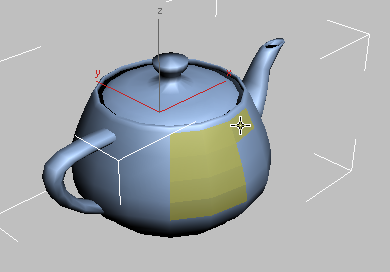
Polygon sub-object selection preview with Ctrl held down
To deselect multiple sub-objects at the current level, press and hold
Ctrl+Alt, move the mouse to highlight more sub-objects, and then click a selected sub-object. This deselects all highlighted sub-objects. Preview Multi Works like Preview SubObject, but also switches among the Vertex, Edge, and Polygon sub-object levels on the fly, based on the mouse position. For example, if you position the mouse over an edge, the edge highlights, and then clicking activates the Edge sub-object level and selects the edge.
To select multiple sub-objects of the same type, press and hold
Ctrlafter highlighting a sub-object, move the mouse to highlight more sub-objects, and then click to activate that sub-object level and select all highlighted sub-objects.To deselect multiple sub-objects at the current sub-object level, press and hold
Ctrl+Alt, move the mouse to highlight more sub-objects, and then click a selected sub-object. This deselects all highlighted sub-objects. Note that this method does not switch sub-object levels.
 Ignore Backfacing
Toggles selection of backfacing sub-objects.
When on, selection of sub-objects affects only those facing you. When off (the default), you can select any sub-object(s) under the mouse cursor, regardless of their visibility or facing.
 Use Soft Selection
Toggles Soft Selection and the Soft Panel, with settings for controlling how Soft Selection works. Available only at sub-object levels.
When off, transforming a sub-object selection affects only those sub-objects.
When on, partially selects sub-objects near an explicit selection, depicted as a color gradient. Transforming then falls off with distance from explicitly selected sub-objects.
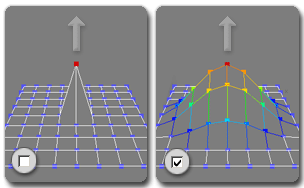
Left: Vertex moved with Soft Selection off
Right: Vertex moved with Soft Selection on
 Collapse Stack
Same as Collapse All: Collapses the selected object’s entire stack to an editable object that preserves the cumulative effect of the collapsed modifiers on the base object. See Collapsing the Stack.
You can use the Graphite Modeling Tools with an object that results from collapsing the stack only if it’s an editable poly.
 Convert to Poly
Converts the object to editable poly format and switches to Modify mode.
This is the quickest way to start using the Graphite Modeling Tools on an object.
 Apply Edit Poly Mod
Applies the Edit Poly modifier to the object and switches to Modify mode.
 Generate Topology
Opens the Topology Dialog with tools for adjusting the object’s geometric makeup.
 Symmetry Tools
Opens the Symmetry Tools Dialog with controls for making models symmetrical.
Full Interactivity
Toggles the level of feedback for the QuickSlice and Cut tools, as well as all settings dialogs and caddies. Available with editable poly objects, but not the Edit Poly modifier.
When on (the default), 3ds Max updates the viewport in real time as you use the mouse to manipulate the tool or change a numeric setting. With Cut and QuickSlice, when Full Interactivity is off, only the rubber-band line is visible until you click. Similarly, with numeric settings in caddies, the final result is visible only when you release the mouse button after changing the setting.
The state of Full Interactivity doesn't affect changing a numeric setting from the keyboard. Whether it's on or off, the setting takes effect only when you exit the field by pressing Tab or Enter, or by clicking a different control in the dialog.