Modify Selection Panel
The Modify Selection panel provides tools for adding to and subtracting from sub-object selections, both in general and with respect to loops and rings.
- Ribbon > Modeling tab > Modify Selection panel
Interface
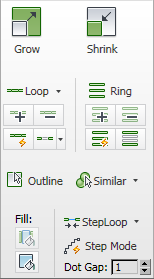
Modify Selection panel on minimized ribbon
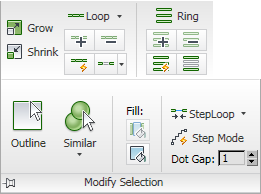
Modify Selection panel on maximized ribbon, with expansion
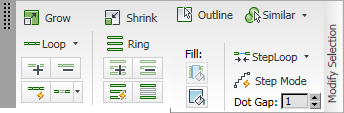
Modify Selection panel floating, with expansion
 Grow
Grow
Expands the selection area outward in all available directions.
For this function, a border is considered to be an edge selection.
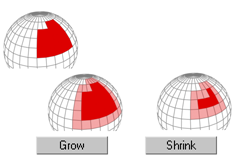
With Shrink and Grow, you can add or remove neighboring elements from the edges of your current selection. This works at any sub-object level.
 Shrink
Reduces the sub-object selection area by deselecting the outermost sub-objects. If the selection size can no longer be reduced, the remaining sub-objects are deselected.
 Loop
Loop
Selects a loop or loops based on the current sub-object selection. Loop on the ribbon works at all sub-object levels, whereas Loop on the Modify panel works only on edges.
Shift +clicking another sub-object at the same level in the same loop.When Maya mode is active, you can't use Shift +click to select a loop. In Maya mode, Shift +click selects or deselects objects, instead.
Usage:
Vertex Select sets of neighboring vertices and apply to select loops. If you select a single vertex, Loop selects all vertices on any loops that pass through the vertex.
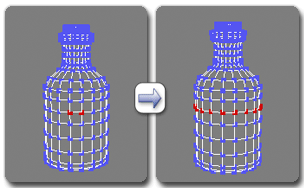
Using Loop at the Vertex level
Edge Select one or more edges and apply to select loops.
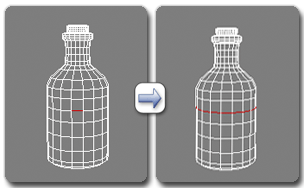
Using Loop at the Edge level
Polygon Select sets of neighboring polygons and apply to select loops. If you select a single polygon, Loop selects all polygon loops that pass through the poly.
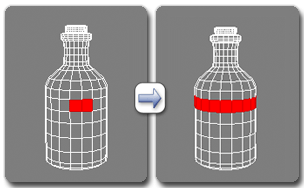
Using Loop at the Polygon level
 Loop Cylinder Ends (on Loop drop-down)
Selects vertex and edge loops along the top and bottom edges of a cylinder.
Select an edge or a pair of adjacent vertices along the top and/or bottom edge of a cylinder, and then apply to select a loop.
Add Loop Shift to Caddy Manipulator (on Loop drop-down)
Toggles the availability of the Loop Shift control on the caddy when Select And Manipulate is active.
 Grow Loop
Grows a loop based on current sub-object selection.
Select part of one or more loops (an edge, or two or more adjacent vertices or polygons), and then click Grow Loop to select sub-objects at the end(s) of the loops.
 Shrink Loop
Reduces the extent of selected loops by removing sub-objects from the ends. Does not apply to circular loops.
Select one or more non-circular loops and then click Shrink Loop to deselect sub-objects at the end(s) of the loops.
 Loop Mode
When on, selecting sub-objects can also automatically select an associated loop.
Shift +clicking another sub-object in the same loop.Usage:
- Vertex/Polygon Select two or more adjacent sub-objects to select the associated loop(s).
- Edge Select one or more edges to select the associated loop(s).
To deselect a loop with Loop Mode active, hold Alt while making a selection described preceding.
Alt +click does not work as expected in Maya mode. In Maya mode, Alt +drag orbits a viewport (Perspective views only). Dot Loop
Selects loops with gaps. Select an edge or sets of two or more adjacent vertices or polygons in a row or column (to indicate the loop direction) and apply.
To change the spacing, use the Dot Gap setting.
Dot Loop Opposite (on Dot Loop drop-down)
Selects vertex/polygon loops with gaps. Select sets of two or more adjacent vertices or polygons in a row or column (to indicate the loop direction) and apply.
Starts with a different sub-object from Dot Loop.
To change the spacing, use the Dot Gap setting.
Dot Loop Cylinder (on Dot Loop drop-down)
Selects edges or vertices in a non-continuous loop around the top and bottom edges of a cylinder, with the selection pattern determined by the Dot Gap setting available on the panel expansion.
To use with edges, first select an edge on the top or bottom edge of a cylinder. To use with vertices, first select two or more adjacent vertices on the top or bottom edge of a cylinder.
 Ring
Ring
Selects a ring or rings based on the current sub-object selection.
Usage:
Vertex Select sets of neighboring vertices and apply to select rings.
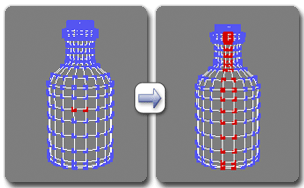
Using Ring at the Vertex level
Edge Select one or more edges and apply to select rings.
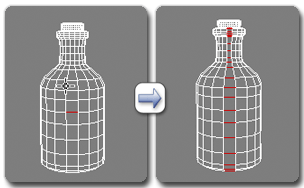
Using Ring at the Edge level
Tip: You can select an edge ring quickly by selecting an edge and thenShift+clicking another edge in the same ring.Polygon Select sets of neighboring polygons and apply to select rings. If you select a single polygon, selects both the loop and ring the poly belongs to.
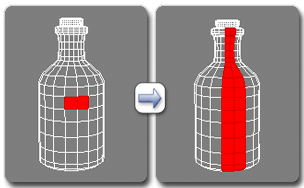
Using Ring at the Polygon level
Add Ring Shift to Caddy Manipulator (on Ring drop-down)
Toggles the availability of the Ring Shift control on the caddy when Select And Manipulate is active.
 Grow Ring
Grows one or more edge rings in steps. Available only at the Edge and Border sub-object levels.
Select one or more edges and then apply to select any available rings at either end of the current ring(s).
 Shrink Ring
Reduces the extent of selected edge rings by removing edges from the ends. Does not apply to circular rings. Available only at the Edge and Border sub-object levels.
Usage: Select one or more non-circular rings and then click Shrink Ring to deselect edges from the ends of the rings.
 Ring Mode
When on, selecting enough sub-objects to indicate the ring direction automatically selects the ring.
Sub-object level:
- Vertex/Polygon Select two or more adjacent sub-objects to select the ring(s) they’re on.
- Edge Select one or more edges to select the ring(s) they’re on.
To deselect a ring with Ring Mode active, hold Alt while selecting an edge in a selected ring.
Alt +click does not work as expected in Maya mode. In Maya mode, Alt -+drag orbits a viewport (Perspective views only). Dot Ring
Selects edge rings with gaps, based on the current selection.
To change the spacing, use the Dot Gap setting.
 Outline
Selects the border (outside members) of the current sub-object selection and deselects the rest.
At the Polygon level, to select an edge border, use Shift (switches to Edge sub-object level).
 Similar
Adds to the current sub-object selection based on the characteristics of selected sub-objects and the settings on the drop-down for this tool.
The availability of options and results depend on the sub-object level and the current selection. The options are:
- Edge Count Selects vertices with the same number of edges going from them as the selected vertices, or polygons with the same number of sides as the selected polygons.
- Edge Length Selects vertices with roughly the same combined length of connected edges as the selected vertices, or edges with roughly the same lengths as selected edges.
- Face Count Selects vertices with the same number of surrounding faces as the selected vertices.
- Face Areas Selects vertices or edges with roughly the same combined areas of surrounding faces as the current selection.
- Topology Selects edges whose endpoint vertices have the same number of neighboring edges and faces as the selected edges, or polygons whose vertices have the same edge count as the selected faces.
- Normal Direction Selects vertices, edges, or polygons with roughly the same normal directions as the current selection.
See also: Select By Numeric.
 Fill
Fill
Selects all sub-objects between two selected sub-objects.
Usage: Select two objects to designate diagonally opposite corners of the area to be filled, and then click Fill. Available only at the Vertex and Polygon/Element levels.
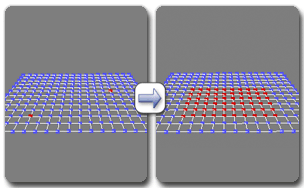
Using Fill at the Vertex level
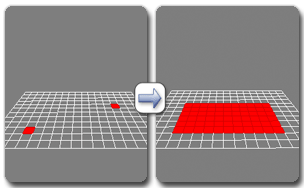
Using Fill at the Polygon level
 Fill Hole
Selects all sub-objects within an enclosed area, as designated by an outline selection and a freestanding selection inside the outline.
Outline an area with a selection, select a sub-object within the area, and click Fill Hole.
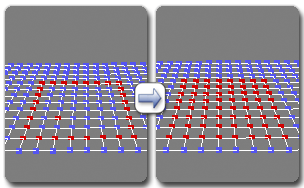
Using Fill Hole at the Vertex level
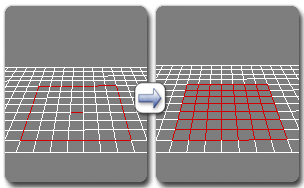
Using Fill Hole at the Edge level
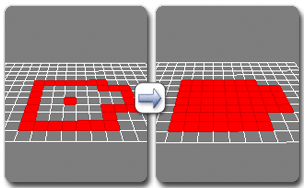
Using Fill Hole at the Polygon level
 StepLoop
Selects a loop between two selected sub-objects on the same loop.
Select two sub-objects on the same loop and apply StepLoop to select all sub-objects between them using the shortest distance.
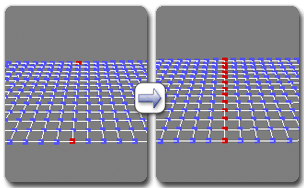
Using StepLoop at the Vertex level
StepLoop Longest Distance (on StepLoop drop-down)
Selects a loop between two selected sub-objects on the same loop using the longest distance, if possible.
Select two sub-objects on the same loop and apply StepLoop to select all sub-objects between them using the longest distance, if the complete loop is closed.
 Step Mode
Use Step Mode to select a loop in steps, increasing the loop length by selecting individual sub-objects.
Access the desired sub-object level and turn on Step Mode. Select a sub-object and then Ctrl +click to select another sub-object on the same loop. This also selects all sub-objects between the two in the shortest distance.
To select an edge or vertex loop at a cylinder end, use Shift+Ctrl +click to select the second and subsequent sub-objects.
If you select a sub-object not on the current loop, you start a new loop, and can then use Step Mode for that loop.
Dot Gap
Specifies the extent of gaps between sub-objects in a loop selected with Dot Loop, or between edges in a ring selected with Dot Ring.