Editable Poly (Polygon/Element)
A polygon is a closed sequence of three or more edges connected by a surface. Polygons provide the renderable surface of editable poly objects.


- Select an editable poly object. > Modify panel > Selection rollout > Polygon or Element
- Select an editable poly object. > Modify panel > Modifier List display > Expand Edit Poly. > Polygon/Element
- Select an editable poly object. > Quad menu > Tools 1 quadrant > Polygon or Element
At the Editable Poly (Polygon) sub-object level, you can select single and multiple polygons and transform them using standard methods. At the Element sub-object level you can select and edit groups of contiguous polygons. For further distinctions between polygon and element, see Editable Poly > Selection rollout. This topic covers the Edit Polygons/Elements rollout and Edit Geometry rollout functions for these sub-object types; for other controls, see Editable Poly.
F2.Interface
Selection rollout
See Editable Poly > Selection rollout for information on the Selection rollout settings.
Soft Selection rollout
Soft Selection controls apply a smooth falloff between selected sub-objects and unselected ones. When Use Soft Selection is on, unselected sub-objects near your selection are given partial selection values. These values are shown in the viewports by means of a color gradient on the vertices, and optionally on the faces. They affect most types of sub-object deformations, such as the Move, Rotate, and Scale functions, as well as any deformation modifiers (such as Bend) applied to the object. This provides a magnet-like effect with a sphere of influence around the selection.
For more information, see Soft Selection Rollout.
Edit Polygons/Elements rollout
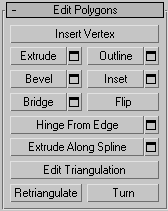
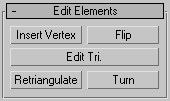
At the Element sub-object level, this rollout includes commands that are common to both polygons and elements. At the Polygon level, it contains those as well as a number more that are unique to polygons. The commands available at both levels are Insert Vertex, Flip, Edit Triangulation, Retriangulate, and Turn.
Delete key. If Delete Isolated Vertices is off, this can result in isolated vertices; that is, vertices with no associated face geometry.Insert Vertex
Lets you subdivide polygons manually. Applies to polygons, even if at the element sub-object level.
After turning on Insert Vertex, click a polygon to add a vertex at that location. You can continue subdividing polygons as long as the command is active.
To stop inserting vertices, right-click in the viewport, or click Insert Vertex again to turn it off.
Extrude
Lets you perform manual extrusion via direct manipulation in the viewport. Click this button, and then drag vertically on any polygon to extrude it.
Extruding polygons moves them along a normal and creates new polygons that form the sides of the extrusion, connecting the selection to the object.
Following are important aspects of polygon extrusion:
- When over a selected polygon, the mouse cursor changes to an Extrude cursor.
- Drag vertically to specify the extent of the extrusion, and horizontally to set the size of the base.
- With multiple polygons selected, dragging on any one extrudes all selected polygons equally.
- You can drag other polygons in turn to extrude them while the Extrude button is active. Click Extrude again or right-click in the active viewport to end the operation.
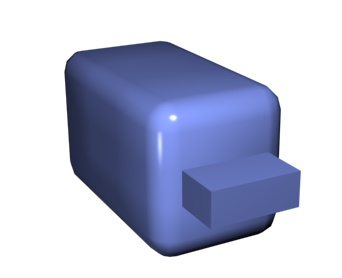
Chamfer box showing extruded polygon
 Extrude Settings Opens the Extrude Polygons caddy, which lets you perform extrusion via interactive manipulation.
If you click this button after performing an extrusion, the same extrusion is performed on the current selection as a preview and the dialog opens with Extrusion Height set to the amount of the last manual extrusion.
Outline
Lets you increase or decrease the outside edge of each contiguous group of selected polygons.
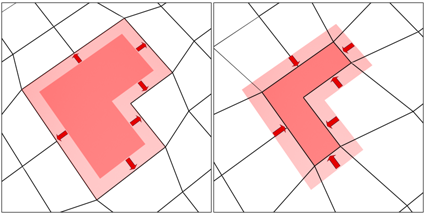
Outline is often used after an extrusion or bevel to adjust the size of the extruded faces. It doesn't scale the polygons; only changes the size of the outer edge. For example, in the following illustration, note that the sizes of the inner polygons remain constant.
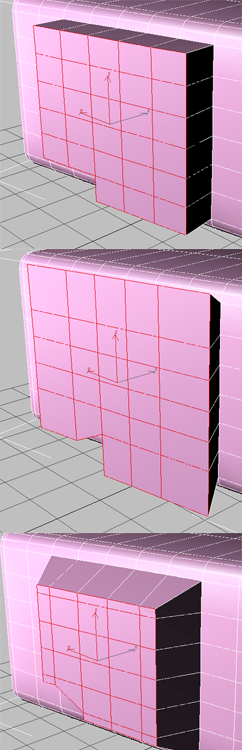
Extruded polygons (top), outline expanded (middle), outline reduced (bottom)
Note that inner polygons do not change size.
- Outline Settings Opens the Outline Polygons caddy, which lets you perform outlining by a numeric setting.
For details on using the caddy controls, see The Caddy Interface.
Bevel
Lets you perform manual beveling via direct manipulation in the viewport. Click this button, and then drag vertically on any polygon to extrude it. Release the mouse button and then move the mouse vertically to outline the extrusion. Click to finish.
- When over a selected polygon, the mouse cursor changes to a Bevel cursor.
- With multiple polygons selected, dragging on any one bevels all selected polygons equally.
- You can drag other polygons in turn to bevel them while the Bevel button is active. Click Bevel again or right-click to end the operation.
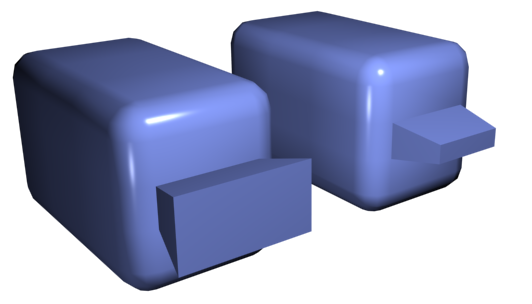
Polygon beveled outward (left) and inward (right)
- Bevel Settings Opens the Bevel caddy, which lets you perform beveling via interactive manipulation.
If you click this button after performing a bevel, the same bevel is performed on the current selection as a preview and the dialog opens with the same settings used for the previous bevel.
Inset
Performs a bevel with no height; that is, within the plane of the polygon selection. Click this button, and then drag vertically on any polygon to inset it.
- When over a selected polygon, the mouse cursor changes to an Inset cursor.
- With multiple polygons selected, dragging on any one insets all selected polygons equally.
- While the Inset button is active, you can drag other polygons in turn to inset them. To end the operation, click Inset again or right-click.
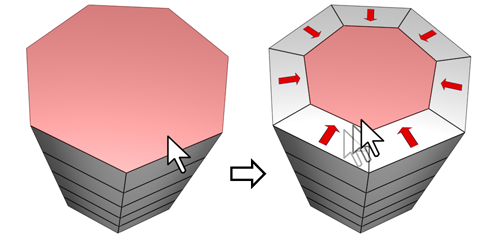
Inset works on a selection of one or more polygons. As with Outline, only the outer edges are affected.
- Inset Settings Opens the Inset caddy, which lets you inset polygons via interactive manipulation.
If you click this button after performing a manual inset, the same inset is performed on the current selection as a preview and the dialog opens with Inset Amount set to the amount of the last manual inset.
Bridge
Connects two polygons or polygon selections on an object with a polygon “bridge.” There are two ways to use Bridge in Direct Manipulation mode (that is, without opening the Bridge Settings dialog):
- Make two separate polygon selections on the object, and then click Bridge. This creates the bridge immediately using the current Bridge settings, and then deactivates the Bridge button.
- If no qualifying selection exists (that is, two or more discrete polygon selections), clicking Bridge activates the button and places you in Bridge mode. First click a polygon and move the mouse; a rubber-band line connects the mouse cursor to the clicked polygon. Click a second polygon to bridge the two. This creates the bridge immediately using the current Bridge settings; the Bridge button remains active for connecting more pairs of polygons. To exit Bridge mode, right-click the active viewport or click the Bridge button.
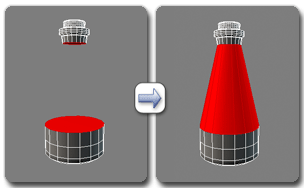
Using Bridge at the Polygon level
- Bridge Settings Opens the Bridge Polygons caddy, which lets you connect pairs of polygon selections via interactive manipulation.
Flip
Reverses the directions of the normals of selected polygons, hence their facing.
Hinge From Edge
Lets you perform a manual hinge operation via direct manipulation in the viewport. Make a polygon selection, click this button, and then drag vertically on any edge to hinge the selection. The mouse cursor changes to a cross when over an edge.
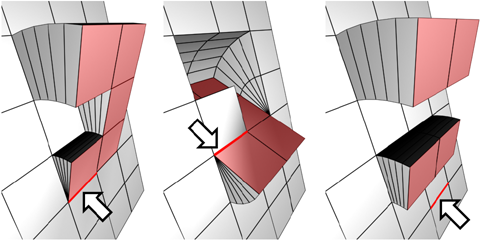
The hinge edge needn't be part of the selection. It can be any edge of the mesh. Also, the selection needn't be contiguous.
Hinging polygons rotates them about an edge and creates new polygons that form the sides of the hinge, connecting the selection to the object. It's essentially an extrusion with rotation, with the exception that, if the hinge edge belongs to a selected polygon, that side is not extruded. The manual version of Hinge From Edge works only with an existing polygon selection.
- Hinge Settings Opens the Hinge From Edge caddy, which lets you hinge polygons via interactive manipulation.
If you click this button after performing a manual hinge, the dialog opens with Angle set to the extent of the last manual hinge.
Extrude Along Spline
Extrudes the current selection along a spline.
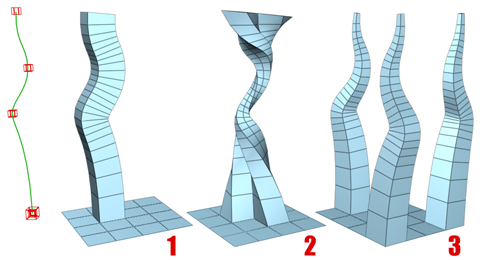
You can extrude a single polygon (1) or a selection of contiguous (2) or non-contiguous polygons (3). Extrusion 2 uses Taper Curve and Twist (available via Settings). Extrusion 3 uses Taper Amount; each extrusion has a different curve rotation.
Make a selection, click Extrude Along/On Spline, and then select a spline in the scene. The selection is extruded along the spline, using the spline's current orientation, but as though the spline's start point were moved to the center of each polygon or group.
- Extrude Along Spline Settings Opens the Extrude Along Spline caddy, which lets you extrude along splines via interactive manipulation.
Edit Triangulation
Lets you modify how polygons are subdivided into triangles by drawing internal edges.
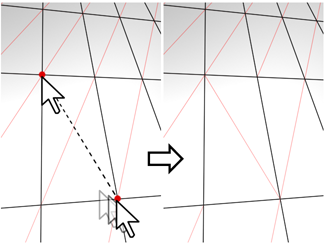
In Edit Triangulation mode, you can see the current triangulation in the viewport, and change it by clicking two vertices on the same polygon.
To manually edit triangulation, turn on this button. The hidden edges appear. Click a polygon vertex. A rubber-band line appears, attached to the cursor. Click a non-adjacent vertex to create a new triangulation for the polygon.
Retriangulate
Lets 3ds Max automatically do its best triangulation on the polygon or polygons currently selected.
$.enableEnhancedRetriangulation = true to activate this new functionality in the base Editable Poly object.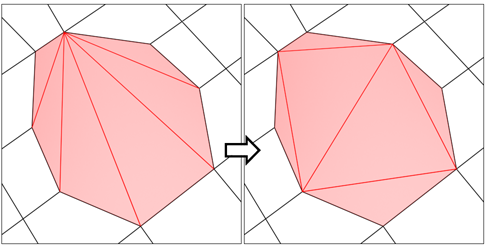
Retriangulate attempts to optimize how selected polygons are subdivided into triangles.
Turn
Lets you modify how polygons are subdivided into triangles by clicking diagonals. When you activate Turn, the diagonals become visible as dashed lines in wireframe and edged-faces views. In Turn mode, click a diagonal to change its position. To exit Turn mode, right-click in the viewport or click the Turn button again.
Each diagonal has only two available positions at any given time, so clicking a diagonal twice in succession simply returns it to its original position. But changing the position of a nearby diagonal can make a different alternate position available to a diagonal.
For more information on how to use Turn with the enhanced Cut tool, see this procedure.
Edit Geometry rollout
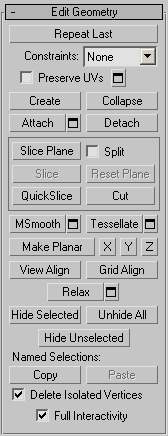
For detailed descriptions of these controls, see Edit Geometry Rollout (Polymesh and Edit Poly).
Polygon: Material IDs rollout
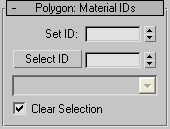
Set ID
Lets you assign a particular material ID number to selected polygons for use with multi/sub-object materials and other applications. Use the spinner or enter the number from the keyboard. The total number of available IDs is 65,535.
Select ID
Selects polygons corresponding to the Material ID specified in the adjacent ID field. Type or use the spinner to specify an ID, then click the Select ID button.
[Select By Name]
This drop-down list shows the names of sub-materials if an object has a Multi/Sub-Object material assigned to it. Click the drop arrow and choose a sub-material from the list. The sub-objects that are assigned that material are selected. If an object does not have a Multi/Sub-Object material assigned, the name list is unavailable. Likewise, if multiple objects are selected that have an Edit Patch, Edit Spline, or Edit Mesh modifier applied, the name list is inactive.
Clear Selection
When on, choosing a new ID or material name deselects any previously selected sub-objects. When off, selections are cumulative, so new ID or sub-material name selections add to the existing selection set of patches or elements. Default=on.
Polygon: Smoothing Groups rollout
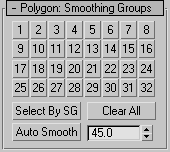
Use these controls to assign selected polygons to different smoothing groups, and to select polygons by smoothing group.
To assign polygons to one or more smoothing groups, select the polygons, and then click the number(s) of the smoothing group(s) to assign them to.
Select By SG (Smoothing Group)
Displays a dialog that shows the current smoothing groups. Select all polygons that belong to a group by clicking the corresponding numbered button and clicking OK.
If Clear Selection is on, any previously selected polygons are first deselected. If Clear Selection is off, the new selection is added to any existing selection.
Clear All
Removes any smoothing group assignments from selected polygons.
Auto Smooth
Sets the smoothing groups based on the angle between polygons. Any two adjacent polygons will be put in the same smoothing group if the angle between their normals is less than the threshold angle, set by the spinner to the right of this button.
Threshold
This spinner (to the right of Auto Smooth) lets you specify the maximum angle between the normals of adjacent polygons that determines whether those polygons will be put in the same smoothing group.
Polygon: Vertex Colors rollout
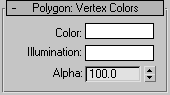
Use these controls to assign the color, illumination color (shading), and alpha (transparency) values of vertices on selected polygons or elements.
Color
Click the color swatch to change the color of vertices on selected polygons or elements.
Illumination
Click the color swatch to change the illumination color of vertices on selected polygons or elements. This lets you change the illumination without changing the vertex's color.
Alpha
Lets you assign an alpha (transparency) value to vertices on selected polygons or elements.
The spinner value is a percentage; zero is completely transparent and 100 is completely opaque.
Subdivision Surface rollout
See Subdivision Surface Rollout (Polymesh). Not available with the Edit Poly modifier.
Subdivision Displacement rollout
See Subdivision Displacement Rollout (Polymesh). Not available with the Edit Poly modifier.
Paint Deformation rollout
Paint Deformation lets you stroke elevated and indented areas directly onto object surfaces. For more information, see Paint Deformation Rollout (Polymesh).