Edit Geometry Rollout (Polymesh and Edit Poly)
The Edit Geometry rollout provides global controls for changing the geometry of the poly object, at either the top (Object) level or the sub-object levels. The controls are the same at all levels, except as noted in the descriptions below.
- Create or select an editable poly or Edit Poly object. >
 Modify panel > Edit Geometry rollout
Interface
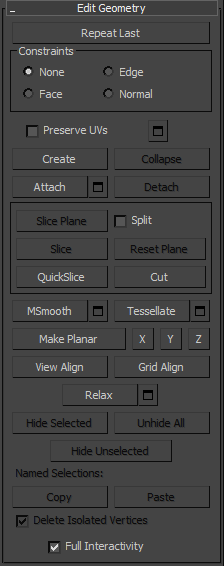
Repeat Last
Repeats the most recently used command.
For example, if you extrude a polygon, and want to apply the same extrusion to several others, select the others, and then click Repeat Last.
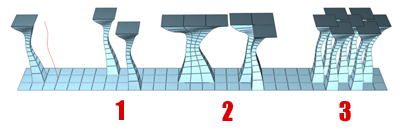
You can apply a spline extrusion of a single polygon (left) repeatedly to other single polygons (1) or to multiple polygon selections, contiguous (2) or not (3).
Keyboard > ; (semicolon) ( 3ds Max mode)
Keyboard > G (Maya mode: See Interaction Mode Preferences.)
Constraints
Lets you use existing geometry to constrain sub-object transformation. Choose the constraint type:
None: No constraints. This is the default option.
Edge: Constrains sub-object transformations to edge boundaries.
Face: Constrains sub-object transformations to individual face surfaces.
Normal: Constrains each sub-object’s transformations to its normal, or the average of its normals. In most cases, this causes sub-objects to move perpendicular to the surface.
Note: This constraint works like the Push modifier, including the fact that it operates on unmodified base normals. Edited normals are unsupported.
When set to Edge, moving a vertex will slide it along one of the existing edges, depending on the direction of the transformation. If set to Face, the vertex moves only on the polygon’s surface.
Preserve UVs
When on, you can edit sub-objects without affecting the object's UV mapping. You can choose any of an object's mapping channels to preserve or not; see Preserve UVs Settings, following. Default=off.
Without Preserve UVs, there is always a direct correspondence between an object's geometry and its UV mapping. For example, if you map an object and then move vertices, the texture moves along with the sub-objects, whether you want it to or not. If you turn on Preserve UVs, you can perform minor editing tasks without changing the mapping.
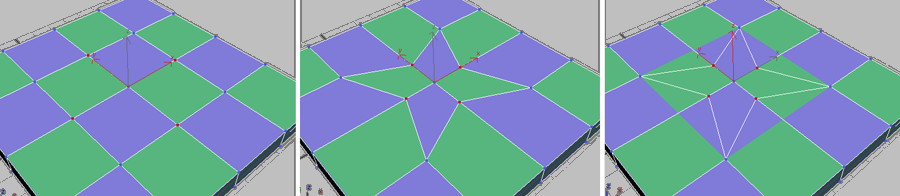
Original object with texture map (left); Scaled vertices with Preserve UVs off (center); Scaled vertices with Preserve UVs on (right)
 Preserve UVs Settings Opens the Preserve Map Channels dialog, which lets you specify which vertex color channels and/or texture channels (map channels) to preserve. By default, all vertex color channels are off (not preserved), and all texture channels are on (preserved).
Create
Lets you create new geometry. How this button behaves depends on which level is active:
- Object, Polygon, and Element levels Add polygons in the active viewport by clicking existing or new vertices.
- Vertex level Add vertices to a single selected poly object by clicking anywhere in the active viewport.
- Edge and Border levels Add edges between pairs of non-adjacent vertices on the same polygon.
Collapse (Vertex, Edge, Border, and Polygon levels only)
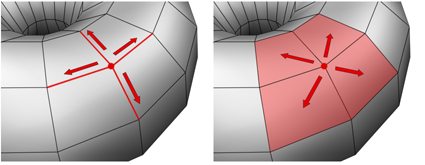
Collapses groups of contiguous selected sub-objects by welding their vertices to a vertex at the selection center.
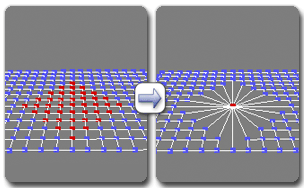
Using collapse on a vertex selection
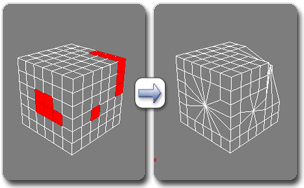
Using collapse on a polygon selection
Attach
Makes other objects in the scene part of the selected poly object. After activating Attach, click an object to attach it to the selected object. Attach remains active, so you can continue clicking objects to attach them. To exit, right-click in the active viewport or click the Attach button again.
You can attach any type of object, including splines, patch objects, and NURBS surfaces. Attaching a non-mesh object converts it to editable-poly format. Typically, each attached object becomes an element of the poly object.
- Attach List Lets you attach other objects in the scene to the selected mesh. Click to open the Attach List dialog, which works like Select from Scene to let you choose multiple objects to attach.
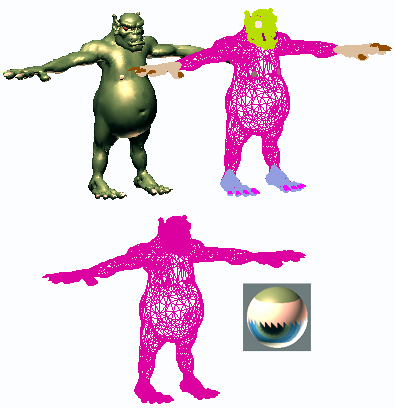
Upper left: Shaded view of model
Upper right: Wireframe view of model
Lower left: Model with objects attached
Lower right: Subsequent multi/sub-object material
When you attach objects, the materials of the objects are combined in the following way:
If the objects being attached have no assigned material, they inherit the material of the object to which they are attached.
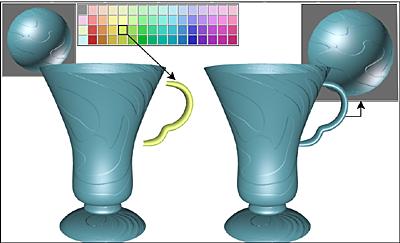
Handle inherits material from the cup it is being attached to.
Likewise, if the object you're attaching to doesn't have a material, it inherits the material of the object being attached.
If both objects have materials, the resulting new material is a multi/sub-object material that includes the input materials. A dialog appears offering three methods of combining the objects' materials and material IDs. For more information, see Attach Options Dialog.
Attach remains active in all sub-object levels, but always applies to objects.
Detach (sub-object levels only)
Separates the selected sub–objects and associated polygons as a new object or element(s).
With an Editable Poly object, when you click Detach, the software prompts you for the options specified on the Detach dialog. With an Edit Poly object, Detach on the Modify panel automatically uses those settings. To change them, click Detach Settings (see following).
- Detach Settings Opens the Detach dialog, which lets you set several options. Available only with Edit Poly objects; with Editable Poly, this dialog opens automatically when you click Detach.
[cut and slice group]
These knife-like tools let you subdivide the poly mesh along a plane (Slice) or in a specific area (Cut). Also see Full Interactivity.
Slice Plane (sub-object levels only)
Creates a gizmo for a slice plane that you can position and rotate to specify where to slice. Also enables the Slice and Reset Plane buttons; click Slice to create new edges where the plane intersects the geometry.
If you use Slice Plane from the ribbon, the Slice, Split, and Reset Plane controls are available on the Slice Mode contextual panel.
If snapping is off, you see a preview of the slice as you transform the slice plane. To perform the slice, click the Slice button.
Split
When on, the QuickSlice and Cut operations create double sets of vertices at the points where the edges are divided. This lets you easily delete the new polygons to create holes, or animate the new polygons as separate elements.
Slice (sub-object levels only)
Performs the slice operation at the location of the slice plane. Available only when Slice Plane is on. This tool slices the poly just like the “Operate On: Polygons” mode of the Slice modifier.
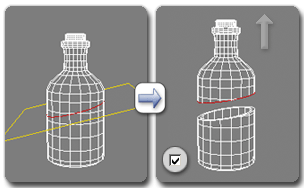
Left: Using Slice; Right: After slicing and moving the pieces apart
Reset Plane (sub-object levels only)
Returns the Slice plane to its default position and orientation. Available only when Slice Plane is on.
QuickSlice
Lets you quickly slice the object without having to manipulate a gizmo. Make a selection, click QuickSlice, and then click once at the slice start point and again at its endpoint. You can continue slicing the selection while the command is active.
To stop slicing, right-click in the viewport, or click QuickSlice again to turn it off.
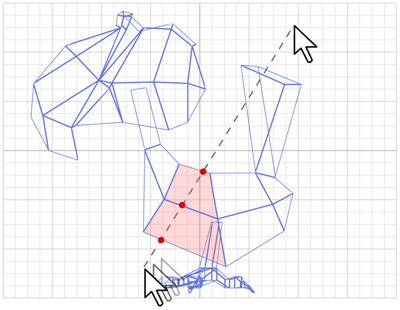
With Quickslice on, you can draw a line across your mesh in any viewport, including Perspective and Camera views. The mesh is sliced interactively as you move the line endpoint.
Cut
Lets you create edges from one polygon to another or within polygons. Click at the start point, move the mouse and click again, and continue moving and clicking to create new connected edges. Right-click once to exit the current cut, whereupon you can start a new one, or right-click again to exit Cut mode.
While cutting, the mouse cursor icon changes to show the type of sub-object it’s over, to which the cut will be made when you click. The following illustration shows the three different cursor icons.
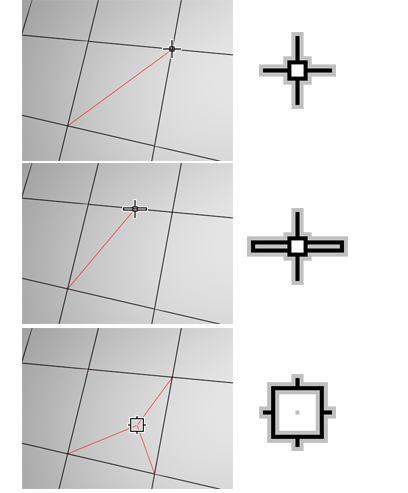
Top: Cutting to a vertex
Center: Cutting to an edge
Bottom: Cutting to a polygon
Cut is available at the object level and all sub-object levels.
- To pan the viewport, scroll the mouse wheel or drag with the middle mouse button.
- To orbit the viewport, hold down
Altwhile scrolling the mouse wheel or dragging with the middle mouse button. - To zoom the viewport, scroll the mouse wheel or hold down
Alt+Ctrland drag forward and back with the middle mouse button.
MSmooth
Smoothes the object using the current settings. This command uses subdivision functionality similar to that of the MeshSmooth modifier with NURMS Subdivision, but unlike NURMS subdivision, it applies the smoothing instantly to the selected area of the control mesh.
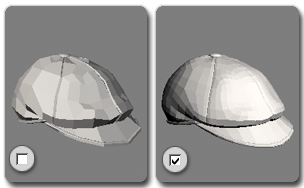
Smoothing a low-poly object with NURMS subdivision
- MSmooth Settings Opens the MeshSmooth caddy, which lets you specify how smoothing is applied.
Tessellate
Subdivides all polygons in the object based on the Tessellation settings.
Tessellation is useful for increasing local mesh density while modeling. You can subdivide any selection of polygons. Two tessellation methods are available: Edge and Face.
- Tessellate Settings Opens the Tessellate caddy, which lets you specify how the mesh is subdivided.
Make Planar
Forces all selected sub-objects to be coplanar. The plane's normal is the average surface normal of the selection.
At the Object level, forces all vertices in the object to become coplanar.
X/Y/Z
Makes all selected sub-objects planar and aligns the plane with the corresponding plane in the object's local coordinate system. The plane used is the one to which the button axis is perpendicular; so, for example, clicking the X button aligns the object with the local YZ axis.
At the Object level, makes all vertices in the object planar.
View Align
Aligns all vertices in the object to the plane of the active viewport. At sub-object levels, this function affects only selected vertices or those belonging to selected sub-objects.
In orthographic viewports, aligning to the view has the same effect as aligning to the construction grid when the home grid is active. Aligning to a perspective viewport (including camera and light views), reorients the vertices to a plane that is parallel to the camera's viewing plane. This plane is perpendicular to the view direction that is closest to the vertices' average position.
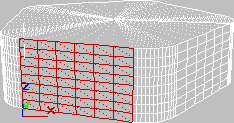
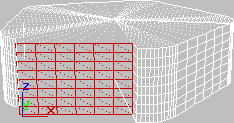
Above: Selected polygons in Perspective view
Below: Same polygons aligned to Front view
Grid Align
Aligns all vertices in the selected object with the construction plane of the current view and moves them to that plane. Or, at sub-object levels, affects only selected sub-objects.
This command aligns the selected vertices to the current construction plane. When the home grid is active, the current construction plane is specified by the active viewport. For example, if the Front viewport is active, Grid Align uses the XZ plane. If a perspective viewport such as a camera viewport is active, Grid Align uses the home grid. When using a grid object, the current plane is the active grid object.
Relax
Applies the Relax function to the current selection, using the current Relax settings (see following). Relax normalizes mesh spacing by moving each vertex toward the average location of its neighbors. It works the same way as the Relax modifier.
At the object level, Relax applies to the entire object. At sub-object levels, Relax applies only to the current selection.
- Relax Settings Opens the Relax caddy, which lets you specify how the Relax function is applied.
Hide Selected (Vertex, Polygon, and Element levels only)
Hides selected sub-objects.
Unhide All (Vertex, Polygon, and Element levels only)
Restores hidden sub-objects to visibility.
Hide Unselected (Vertex, Polygon, and Element levels only)
Hides unselected sub-objects.
Named Selections (sub-object levels only)
Lets you copy and paste named selection sets of sub-objects between objects. Start by creating one or more named selection sets, copy one, select a different object, go to the same sub-object level, and then paste the set.
For more information, see Named Selection Sets.
Copy
Opens a dialog that lets you specify a named selection set to place into the copy buffer.
Paste
Pastes the named selection from the copy buffer.
Delete Isolated Vertices (Edge, Border, Polygon, and Element levels only)
When on, deletes isolated vertices when you delete a selection of contiguous sub-objects. When off, deleting sub-objects leaves all vertices intact. Default=on.
Full Interactivity (editable poly only)
Toggles the level of feedback for the QuickSlice and Cut tools, as well as all settings dialogs and caddies. Available with editable poly objects, but not the Edit Poly modifier.
When on (the default), 3ds Max updates the viewport in real time as you use the mouse to manipulate the tool or change a numeric setting. With Cut and QuickSlice, when Full Interactivity is off, only the rubber-band line is visible until you click. Similarly, with numeric settings in caddies, the final result is visible only when you release the mouse button after changing the setting.
The state of Full Interactivity doesn't affect changing a numeric setting from the keyboard. Whether it's on or off, the setting takes effect only when you exit the field by pressing Tab or Enter, or by clicking a different control in the dialog.