Point Instance Modifier
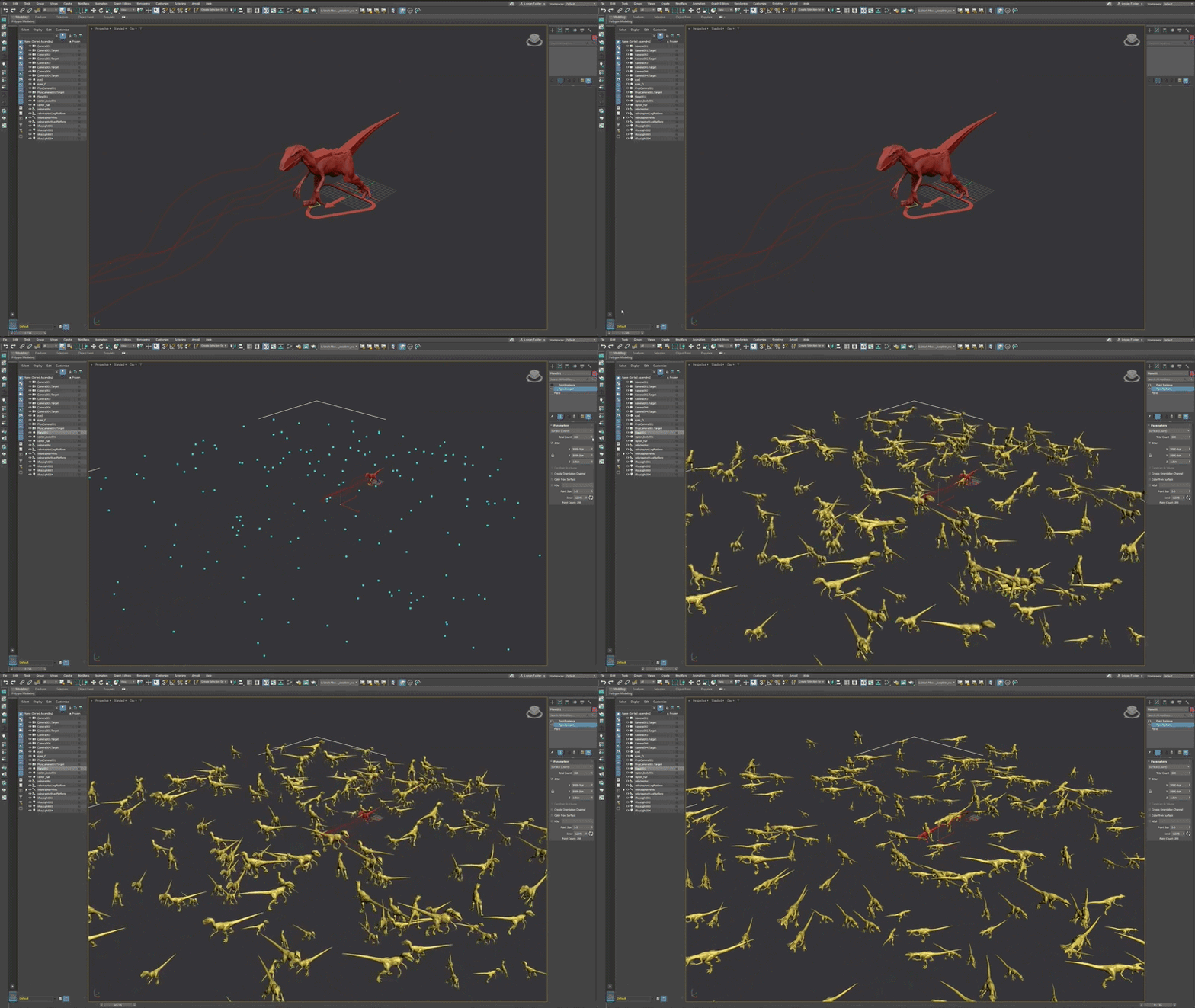
You can represent hundreds, thousands, or even millions of objects through a single mesh using the Point Instance modifier. This memory efficient modifier lets you create dense environments and highly complex scenes, like forests and grasslands, with organized and easily scalable data sets.
The Point Instance modifier references objects in your scene and uses them as instances that are placed at a point on the object being modified. The easy-to-use and familiar modifier format lets you control how the distribution takes place using a variety of new parameters.
You can use any type of 3ds Max object as an instance, including 3DGS data and polygon geometry. The modifier is also designed to work hand-in-hand with the Points Object type.
For more information on using Turn to Point in a workflow, see Create a forest using 3DGS data and the Turn to Point and Point Instance Modifiers.
 Modify panel > Make a selection > Modifier List > Object-Space Modifiers > Point Instance
- Default menu: Make a selection > Modifiers menu > Point Editing > Point Instance
Notes
- The Point Instance modifier does not work on Point Cloud objects or particle data.
- The Point Instance modifier can be used with any object that has points or vertices. If it's applied to a geometric object, the object is automatically converted to a Points object type, and its vertices are converted to points.
Interface
Parameters rollout
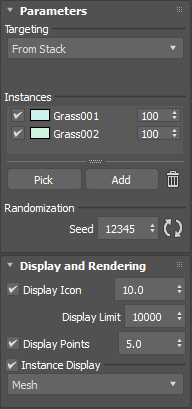
Targeting: Controls where the Point Instance modifier finds points to generate instances. Select from the following options:
From Stack: Uses everything that is actively selected on the modified object. If nothing is selected, all points are used.
Selected Points: Uses only the points that are selected and passed up to the Point Instance modifier on the stack. This occurs when working with an Editable Point object or using the Point Select modifier.
Soft Selected Points: Uses the selected points and the points that are influenced by the set Soft Selection Threshold value. Any soft selected points within the Threshold are also selected and used.
All: Uses all of the points on the modified object regardless of selection.
None: Uses none of the points in the scene.
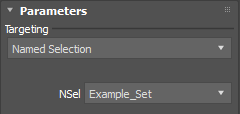
Named Selection: Uses only the points contained in the selected Named Selection Set. Select your set from the drop-down list:
 Tip: You can store a named selection through the Editable Point object. Its name appears in the Channels List, and can also be selected in the NSel list in the Point Instance parameters.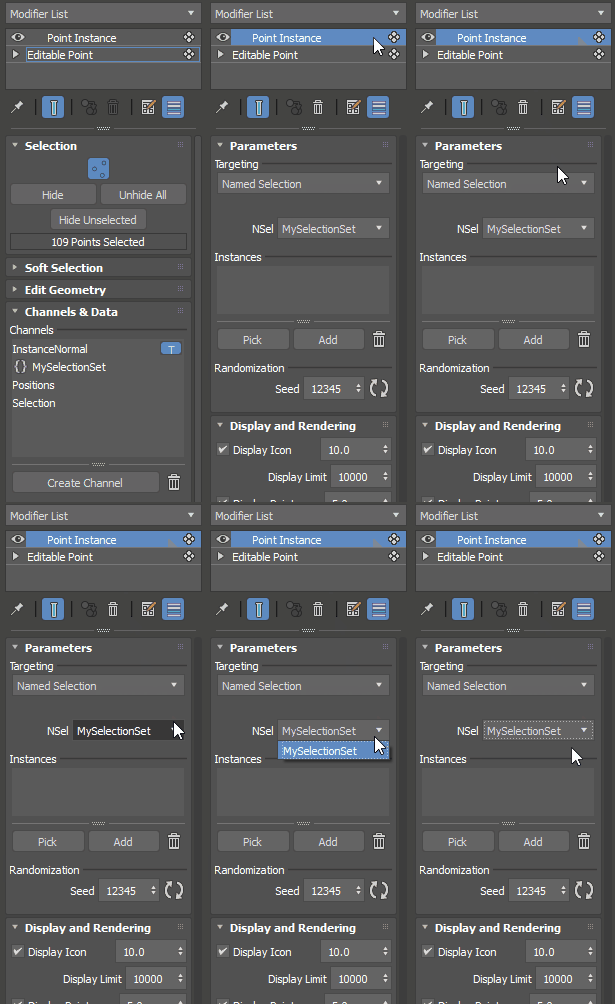
Point Color: Uses the selected color to find points.
Point Color (Instance Swatch): Uses the selected color to find points.
Instances list: Includes the names of the reference(s) in the scene. The objects in the list are chosen to be instanced.
Click the checkbox next to the reference to toggle its state: active or inactive.
Click the color swatch to change the color of the instances associated with the reference.
Adjust the probability matrix value to control the chance that the object is used in instancing. All references are weighted against each other. When all references are weighted at 100%, they have the same probability of being applied to each of the points that are being driven with the Point Instance modifier. If one reference is weighted lower, it has less of a chance of being applied. For example, if you are populating a forest with grass and trees, the probability matrix value could be lower for the trees, as we want them to appear more infrequently.
Click the reference to display a set of randomization parameters: Scale Distribution, Rotation Distribution, and Position Offset. You can click the
 button to apply the settings to all of the generated instances for the selected reference.
For example, you can use Scale Distribution to make trees different sizes. Adjusting the X amount to 150% makes the trees 150% larger than the original object. However, trees of the same size look unnatural, so you can adjust the corresponding Variation percentage. Setting Variation to 20% results in some trees becoming 20% smaller and others becoming 20% larger.
button to apply the settings to all of the generated instances for the selected reference.
For example, you can use Scale Distribution to make trees different sizes. Adjusting the X amount to 150% makes the trees 150% larger than the original object. However, trees of the same size look unnatural, so you can adjust the corresponding Variation percentage. Setting Variation to 20% results in some trees becoming 20% smaller and others becoming 20% larger. 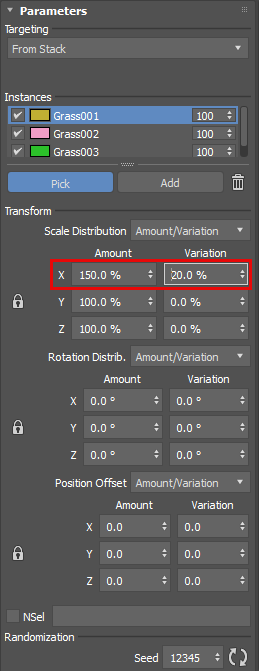
Add: Opens the Add Node window, letting you select object(s) in your scene to be instanced and added to the Instances list.
Pick: Clicking Pick enters pick mode, letting you click any object in your scene to be instanced and added to the Instances list. Click Pick again to exit pick mode.
Delete
 : Removes the currently selected object in the list.
Seed: Sets a random number value that is used to randomize which instances are applied to points. Click
 to randomize the seed value that is generated.
Display and Rendering rollout
- Display Icon: Toggles the visibility of the 3DGS display icon. You can adjust the physical size of the icon using the numeric field.
- Display Limit: Toggles the display limit.
- Display Points: Toggles the visibility of the 3DGS points in the viewport. You can adjust the physical size of the points using the numeric field. You may want to change the display point size of your 3DGS data if the points are very small on import. Making the points larger can help you visualize your data, especially in less dense areas.
- Instance Display: Lets you choose how the instances are displayed in your scene. You can select Mesh or Bounding box.