Turn To Poly Modifier
The Turn To Poly modifier lets you apply object conversions in the modifier stack. Also, when you apply the general-purpose modifiers, such as Normal, Material, or UVW Map, it can be helpful to explicitly control the type of object beforehand.
- Make a selection. >
 Modify panel > Modifier List > Object-Space Modifiers > Turn to Poly
 - Make a selection. > Modifiers menu > Conversion > Turn to Poly
- Make a selection. > Modifiers menu > Edit/Convert > Turn to Poly
When you use Turn To Poly, you're joining triangles into polygons, so you might need to have restrictions on polygon convexity, size, and planarity. All conversions from patches produce quads and triangles. Conversions from meshes can produce arbitrarily large polygons. Mesh polygons are controlled as usual by joining together faces that are separated by invisible edges.
Procedures
Example: To prevent interior vertices from being passed up the stack:
Create an NGon in wireframe mode:
 Create panel >
  (Shapes) > Splines > Object Type rollout > NGon.
Go to the
Modify panel and convert the NGon to an editable mesh by right-clicking the modifier stack and choosing Convert to > Editable Mesh.In the stack display (or in the Selection rollout), choose the Polygon sub-object mode.
Choose Edit > Object Properties to display the Object Properties dialog.
In the Display Properties group, turn off By Layer.
Turn on Vertex Ticks. Choose OK to close the dialog.
Click Cut under the Edit Geometry rollout, and make a cut from one side of the NGon to the other. Notice that an interior vertex now exists.
Note: Doing this on an NGon doesn't always generate an interior vertex.Apply the Turn To Poly modifier:
Modify panel > Modifier List > Turn To Poly. Notice the interior vertex clears.
Interface
Parameters rollout
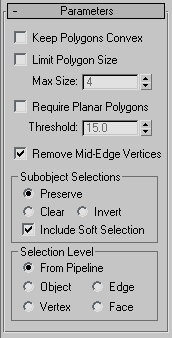
Keep Polygons Convex
Does not join across edges if the resulting polygon would not be convex. "Convex" means that you can connect any two points in the polygon with a line that doesn't go outside the polygon. A polygon is not convex if you can draw a line between vertices and that line lays outside of the polygon.
Problems that can occur with non-convex polygons include the fact that changes in the geometry of the input object can result in a different topology for the Turn To Poly result. For instance, in a box, if you drag one of the top corners across the middle of the top face, the box becomes non-convex. Turn To Poly would then see this as two triangles instead of one quad, and the number of points in the result would change.
Limit Polygon Size
Limits the number of sides to a polygon so that the surface is better defined. For example, you might want to produce a polymesh of triangles and quads, or one composed of all triangles, rather than joining together more than two triangles into pentagons, hexagons, and so on.
Max Size
The maximum number of sides to a polygon.
Require Planar Polygons
Creates polygons composed of flat planes. Does not join faces together across an edge if the edge has a sharper angle than the threshold listed.
Threshold
Controls the threshold of the angle between polygonal planes.
Remove Mid-Edge Vertices
Eliminates divisions that result from intersections with invisible edges.
Sub-object Selections group
These options control the selection of sub-objects.
- Preserve (The default.) Passes the sub-object selection up the stack. For example, if you have an object that you have converted to an editable mesh, and you've selected a polygon, then when you apply a Turn To Poly modifier, the polygon remains selected.
- Clear Clears the sub-object selection so that nothing is selected.
- Invert Inverts the sub-object selection. All sub-objects not currently selected are selected, and all sub-objects currently selected are deselected.
Include Soft Selection
Affects the action of sub-object Move, Rotate, and Scale functions. When these are on, 3ds Max applies a spline curve deformation to unselected vertices surrounding the transformed selected sub-object. This provides a magnet-like effect, with a sphere of influence around the transformation. Use this when you want to preserve the soft selection from beneath. For example, if Use Soft Selection is on when you select vertices on an editable mesh, and you apply Turn To Poly with Include Soft Selection on, then the same soft selection will apply to the polymesh vertices. Default=on.
For more information, see Soft Selection Rollout.
Selection Level group
These options set the sub-object selection level for passing up the rest of the stack.
- From Pipeline Uses the equivalent of whatever the input object uses (patch level becomes face level, and so on). For example, if you create a box, convert it to an editable mesh in face mode, and apply a Turn To Poly modifier to it, 3ds Max passes a sub-object selection in face mode up the stack. The Turn To Poly modifier takes the sub-object face selection into account and selects the polygons that derive from the face selection.
- Object Uses object as the selection level for passing up the rest of the stack.
- Edge Uses edge as the sub-object selection level for passing up the rest of the stack.
- Vertex Uses vertex as the sub-object selection level for passing up the rest of the stack.
- Face Uses face as the sub-object selection level for passing up the rest of the stack.