XForm Modifier
Use the XForm (short for Transform) modifier to apply transformations (Move, Rotate, Scale) to objects.
 Modify panel > Make a selection. > Modifier List > Object-Space Modifiers > XForm
- Default menu: Make a selection. > Modifiers menu > Parametric Deformers > XForm
- Alt menu: Make a selection. > Modifiers menu > Geometry (Parametric) > XForm
The XForm modifier has many practical uses in 3ds Max that let you make transformations without changing your original pivot points or using standard transformation tools.
Interface
Stack (Gizmo Only)
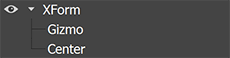
You can transform the XForm Gizmo and Center. If you switch the selection level to the XForm Center, only the Move transform is available. This lets you offset the center and transform the gizmo around it. Both Gizmo and Center transformations are animatable.
Menu
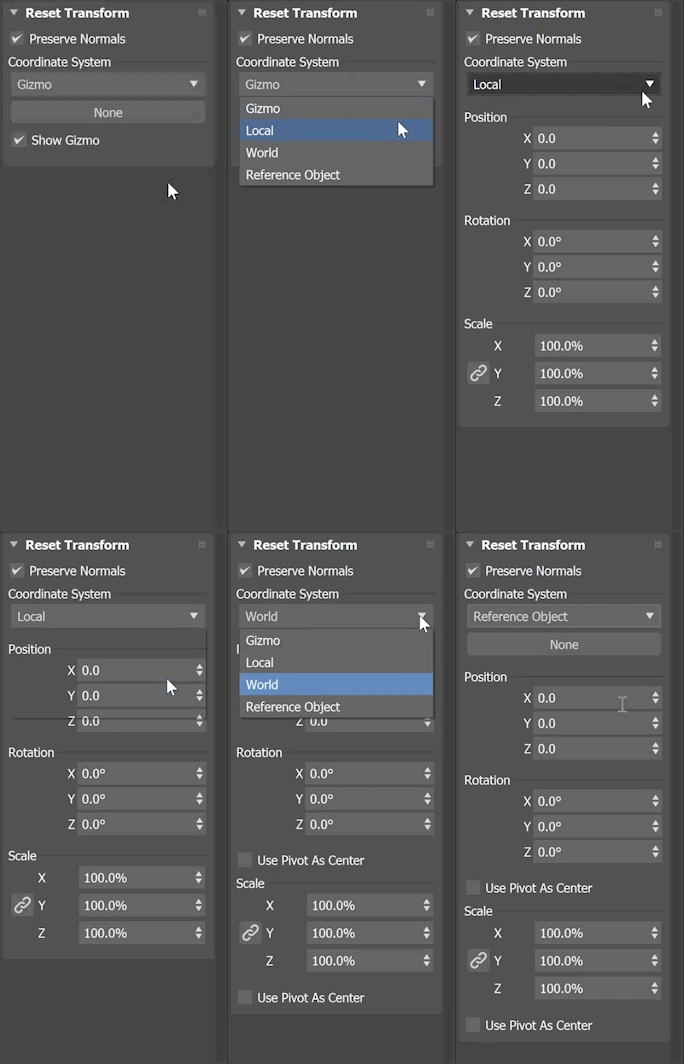
In addition to transforming the XForm Gizmo and Center, you can also preserve normals and set a coordinate system for all transformations using the integrated menu. The menu lets you modify your transformations in a number of ways that suits your workflow.
Preserve Normals:
- When selected, ensures your vertex normals are preserved during transformations.
Coordinate System:
The Coordinate System lets you select one of four options for performing transformations within the XForm modifier.
- Gizmo mode: The default setting, lets you to transform mesh data without altering the pivot point, making it appear as though the object is moving while only the mesh data is transformed. This mode reflects the previous default behavior.
- Local mode: Lets you transform an object's data relative to the object's pivot information, perfect for temporary adjustments without changing the object's pivot data in the scene. This mode provides options for adjusting on the local position, rotation, and scale of the object along the X, Y, and Z axis.
- World mode: Transforms objects based on the world axis origin (0,0,0), ensuring transformations follow world coordinates even if the object is rotated for example. Much like Local mode, you have the same position, rotation, and scale options, but you also have access to the Use Pivot As Center checkbox for rotation and scale. When selected, rotation and/or scaling will occur around the world origin.
- Reference Object mode: Allows you to choose another object in the scene and use it as the reference point, making complex interactions and dependencies between objects easier, such as an animation where the pivot needs to shift with the object, like a rocking chair.
Show Gizmo:
- When selected, display the coordinate gizmo in the Viewport.
XForm Modifier Example Workflow
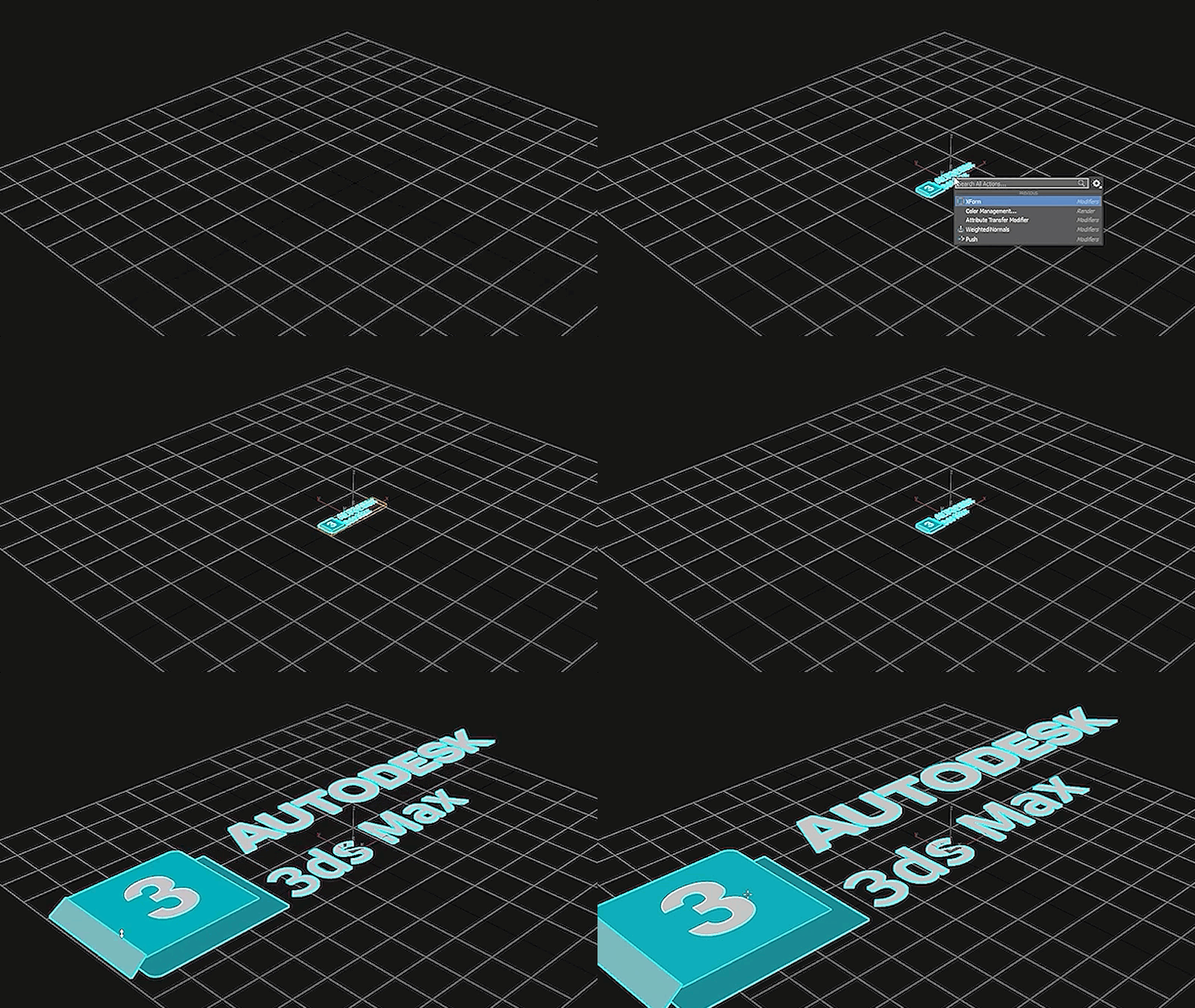
To use the XForm modifier with an SVG file:
- Import an SVG file into 3ds Max.
- With the SVG file in your scene and selected, go to the Modify panel > Modifier List > Object-Space Modifiers and select the XForm modifier.
- Set the Coordinate System to World mode.
- Link the scale transforms.
- Adjust the scale value until the data is now larger in your scene.
From here, you can reorder the XForm modifier to be below your extrude and you can adjust the Extrude modifier values based on the new world size of the object.
Legacy Gizmo Workflow
Using the XForm modifier
While the XForm modifier has received a significant upgrade, you can still interact with the it as you would in the past.
XForm provides a gizmo and center for any geometry it receives from the stack whether it's a sub-object selection or the whole object. XForm has no parameters. When you move the XForm modifier gizmo, the center moves with it, along with the geometry.
You can reposition the XForm center separately from the gizmo.
Offsetting the XForm Center
At the XForm Center sub-object selection level, only the Move transform is available. This lets you reposition the center. When you return to the Gizmo level, you can rotate or scale the selection around the offset center. The center position and gizmo transformations are all animatable.
Scaling with XForm
When you scale an object with a toolbar Scale tool, 3ds Max applies the effect to the object after all the modifiers in the stack. In some cases you might want to squash or stretch an object before applying geometric or edit modifiers. XForm makes this possible.
By applying XForm and scaling its gizmo, you can place the scaling operation anywhere in the stack.
Using XForm with Volume Select
You can combine the XForm and Volume Select modifiers to animate sub-object selections. This combination makes it possible to animate both the effect of a modifier on the selection (Volume Select) and a transformation of that selection (XForm).