Renderable Spline Modifier
The Renderable Spline modifier lets you set the renderable properties of a spline object without needing to convert the object to an editable spline. This is particularly useful with splines you have linked to from AutoCAD. It also lets you apply the same rendering properties to multiple splines at once.
- Select a shape. >
 Modify panel > Modifier List > Renderable Spline
 - Select a shape. > Modifiers menu > Patch/Spline Editing > Renderable Spline Modifier
- Select a shape. > Modifiers menu > Spline > Renderable Spline Modifier
Interface
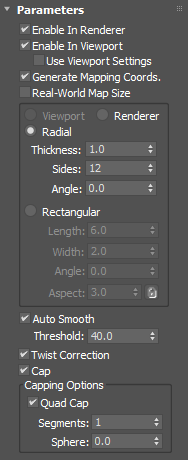
Enable In Renderer
When on, the shape is rendered as a 3D mesh using the Radial or Rectangular parameters set for Renderer.
Enable In Viewport
When on, the shape is displayed in the viewport as a 3D mesh using the Radial or Rectangular parameters set for Renderer.
Use Viewport Settings
Lets you set different parameters for viewport display and rendering, and displays the mesh generated by the Viewport settings in the viewports. Available only when Enable in Viewport is on.
Generate Mapping Coords
Turn this on to apply mapping coordinates. Default=off.
3ds Max generates the mapping coordinates in the U and V dimensions. The U coordinate wraps once around the spline; the V coordinate is mapped once along its length. Tiling is achieved using the Tiling parameters in the applied material. For more information, see Mapping Coordinates.
Real-World Map Size
Controls the scaling method used for texture mapped materials that are applied to the object. The scaling values are controlled by the Use Real-World Scale settings found in the applied material's Coordinates rollout. Default=on.
Viewport/Renderer group
- Viewport Choose this to specify Radial or Rectangular parameters for the shape as it will display in the viewport when Enable In Viewport is on. Available only when Use Viewport Settings is on.
- Renderer Choose this to specify Radial or Rectangular parameters for the shape as it will display when rendered or displayed in the viewport when Enable in Viewport is turned on.
Radial
Displays the spline as a 3D object with a circular cross-section.
- Thickness Specifies the cross-section diameter. Default=1.0. Range=0.0 to 100,000,000.0.
- Sides Sets the number of sides for the spline mesh in the viewports or renderer. For example, a value of 4 produces a square cross-section.
- Angle Adjust the rotational position of the cross section in the viewports or renderer. For example, if you have a square cross section you can use Angle to position a “flat” side down.
Rectangular
Displays the spline as a 3D object with a rectangular cross-section.
- Length Specifies the size of the cross–section along the local Y axis.
- Width Specifies the size of the cross–section along the local X axis.
- Angle Adjusts the rotational position of the cross-section in the viewport or renderer. For example, if you have a square cross-section you can use Angle to position a "flat" side down.
- Aspect Sets the aspect ratio for rectangular cross-sections. The Lock checkbox lets you lock the aspect ratio. When Lock is turned on, Width is locked to Depth that results in a constant ratio of Width to Depth.
Auto Smooth
When on, the spline is auto-smoothed using the smoothing angle specified by the Threshold setting. Auto Smooth sets the smoothing based on the angle between spline segments. Any two adjacent segments are put in the same smoothing group if the angle between them is less than the threshold angle.
Threshold
Specifies the threshold angle in degrees. Any two adjacent spline segments are placed in the same smoothing group if the angle between them is less than the threshold angle.
Twist Correction
When enabled, corrects any twists created between the first and last vertices after adjusting bezier handles on closed splines.
Cap
Enables capping on renderable splines. When this option is disabled, the ends of splines will not have caps.
Capping Options group
Quad Cap
Enables quad capping to create cleaner results for such operations as OpenSubdiv, TurboSmooth, and MeshSmooth.
Segments
Sets the number of segments in each cap.
Sphere
Progressively rounds the caps. More segments create smoother results. A setting of 1 is a perfect hemisphere while a setting of 0 creates a flat cap.