Pick Shape Dialog (Sweep Modifier)
The Pick Shape dialog is displayed when you select a custom shape in the scene. This shape can be any of the splines, extended splines or NURBS curves.
- Select a shape that already has a Sweep modifier applied. >
 Modify Panel > Section Type rollout > Turn on Use Custom Section > Click Pick Shape.
Procedures
To pick a custom section using the Pick Shape dialog:
In a viewport,
select a shape you want to use as the underlying path of the sweep.From the Modifiers menu, open the Patch/Spline Editing menu and choose Sweep.
On the
Modify panel, turn on Use Custom Section in the Section Types rollout.Click
 (Pick Shape). 3ds Max opens
the Pick Shape dialog.
Select a shape in the list, then click the Pick button.
Interface
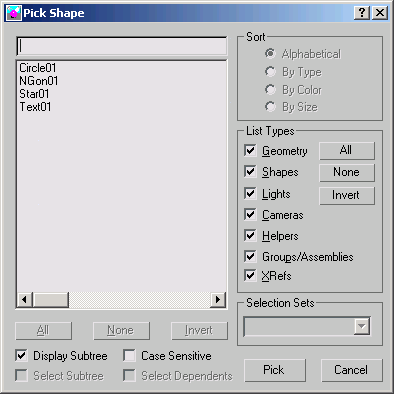
If the scene contains multiple shapes, you can choose only one shape to be swept along the underlying spline in your scene.
All/None/Invert
These buttons are unavailable in the Pick Shape dialog.
Display Subtree
Displays the shapes in the list in an indented format. Turn this switch off to activate the Sort group options.
Select Subtree
Unavailable in the Pick Shape dialog.
Case Sensitive
When on, distinguishes between upper case and lower case for item names.
Sort group
These options allow you to sort the list on the left. When Display Subtree is on, these options are not available.
- Alphabetical Sorts from A at the top to Z at the bottom.
- By Type While this switch is available, it has no effect because only shapes are listed in the Pick Shape dialog.
- By Color Sorts by object wireframe color. The sorting order is arbitrary; shapes of the same color are grouped together.
- By Size This switch is available but has no effect on sorting.
List Types group
Because this dialog is specifically designed to work with the Sweep modifier, the List Type group is locked to only display Shapes. Shapes is the only switch in this group that affects what is displayed.
Selection Sets group
The Selection Sets group is unavailable in the Pick Shape dialog.