Extract Shape Dialog (Sweep Modifier)
The Extract feature allows you to recover custom cross-sections that may have been deleted from the scene. As long as you have a Sweep object in the scene that uses the deleted shape as a custom cross-section, you can use Extract to restore the shape to the scene.
- Select a shape that already has a Sweep modifier using a Custom Section applied. >
 Modify Panel > Section Type rollout > Click Extract.
In a large scene that has many objects and shapes, you can also use Extract if you want to quickly duplicate a section used by the sweep instead of searching for the original shape you used as the section.
Procedures
To extract a section from a sweep:
In a viewport,
 select a swept shape.
Go to the
Modify panel and in the Section Types rollout > Custom Section Types group, click the Extract button.3ds Max opens the Extract Shapes dialog.
Enter a new name for the extracted section.
Specify the type of cloned shape you want extracted; a copy, an instance or a reference.
Click OK.
Interface
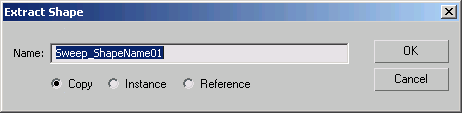
Name
This field shows the default name that will be given to the extracted section. By default, it always has the naming convention of Sweep_ShapeName01, Sweep_ShapeName02, and so on.
For example, if your missing section was named Roman-Ogee, the extracted shape will be named Sweep_Roman-Ogee01.
Copy
Places a copy of the extracted section at the global origin (0,0,0).
Instance
Places an instance of the extracted section at the global origin.
Reference
Places a reference of the extracted section at the global origin.