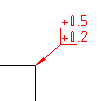
- Click
 Edge Symbol
. Find
Note: Only the DIN, GB, JIS, and ISO drafting standards support edge symbols.
Edge Symbol
. Find
Note: Only the DIN, GB, JIS, and ISO drafting standards support edge symbols. - Select the object to which you want to attach the edge symbol.
- If the symbol is attached to a line, in the drawing area, specify the start point for the leader.
If the symbol is attached to an arc, circle, ellipse, or spline, skip to the next step.
- Specify the second point of the edge symbol leader and press Enter.
Tip:
- If the symbol is attached to an arc, circle, or line, press Shift+F (Toggle Symbol Leader Orthogonal Mode) as you drag the cursor to allow non-perpendicular leaders.
- If the symbol is attached to a line, move the cursor so that the leader is approximately perpendicular, and then track along the displayed alignment path.
- In the Edge Symbol dialog box, specify the requirements and how the edge symbol is placed in the drawing.
- Under Options, to set the symbol as a collective indication of all other edge symbols in the drawing, select Place as majority symbol.
In the ISO 13715:2017(E) revision, under Options, select one of the following:
- Define for all edges
- Define for outside edges
- Define for inside edges
- Place as a majority symbol with more than one exception
- Place as a majority symbol with one exception
Note: Except for Place as majority symbol for more than one exception, all other options are new in the ISO 13715:2017(E) revision. - Under Requirements, do the following:
- To insert an edge symbol without specific data, select Allow undefined size, and then click Burr or passing permitted or Undercut required. To define the direction, select a value from the drop-down list.
In the ISO 13715:2017(E) revision, to insert an edge symbol without specific data, under Requirements, select No values. To define the direction, select one of the following positions:
- Direction undefined
- Vertical direction defined
- Horizontal direction defined
- Vertical and horizontal direction defined
- To set the edge symbol data, enter the Edge symbol value in the upper or lower box of the parameters area or select the value from the drop-down list.
- To display the standard revision next to the symbol, select Show Standard Label.
- To add the all-around designation, click All Around.
- To display indication values, enter values in the Indication from and Indication to boxes.
Note: This option is available only in the ISO 13715:2017(E) revision.
- To specify the number of edges, enter a value in the Number of edges box.
Note: This option is available only in the ISO 13715:2017(E) revision.
- To insert an edge symbol without specific data, select Allow undefined size, and then click Burr or passing permitted or Undercut required. To define the direction, select a value from the drop-down list.
- Under Options, to set the symbol as a collective indication of all other edge symbols in the drawing, select Place as majority symbol.
- Click OK.