Concepts in this topic include:
Export Data
Export Active Node and Child Nodes
You can export data for the active node and all child nodes under it, or for the active node only. If you include all child nodes, you export a spreadsheet that contains a worksheet for each node, or a CSV file for each node. If you include only the active node, you export a spreadsheet with a single worksheet, or a single CSV file.
View Exported Data
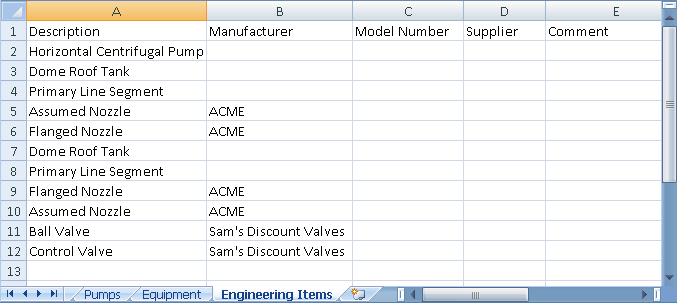
When you export the current data table, the resulting file includes all columns and rows displayed in the Data Manager. An exported file does not include hidden columns and rows.
Read-only columns in the data table are write-protected in the exported spreadsheet. The exception to this rule is that properties in Acquire mode can be edited in an exported file.
Each worksheet or CSV file contains a row for each Plant object and a column for each property, such as PnPID number, description, and manufacturer.
Name Exported Files
You can specify a name for an exported file, or accept the name that the program suggests. The following default file name structures vary by file type and by data table settings in the Data Manager.
| File Type | Project Data View | Drawing Data View |
|---|---|---|
| Spreadsheet | ProjectName-ActiveNodeName.xlsx | DrawingName-ActiveNodeName.xlsx |
| CSV File | ProjectName-ActiveNodeName-ChildNodeName.csv | DrawingName-ActiveNodeName-ChildNodeName.csv |
In an exported spreadsheet, worksheet names are derived from the display names of the nodes being exported. The column headings are derived from the display names of the column headings (properties) in the data table. If the display name is longer than 31 characters, the node name is used to name the worksheet.
Modify Data
Modify Exported Microsoft Excel Spreadsheets
In Excel, you modify the worksheet that corresponds to the active node where you plan to import the spreadsheet. If you edit a worksheet that represents a child node, the import process ignores your changes.
It is important not to modify the names of worksheets in an exported Microsoft Excel spreadsheet. The import process uses worksheet names to identify a match with data in the Data Manager.
Modify Exported CSV Files
When you include child nodes in an export to CSV, you create multiple CSV files. You can edit data in the CSV files for import back into the Data Manager.
Understand Read-Only Exported Data
Some properties, such as PnPID, are read-only in the Data Manager. These read-only properties are also write-protected in an exported Microsoft Excel spreadsheet. While it is possible to edit read-only data in a CSV file, a subsequent import ignores these changes.
Modify Document Registry
In the Document Registry report, only the following properties are editable:
- DWG Number
- DWG Title
- Revision
- User-added custom properties
Import Data
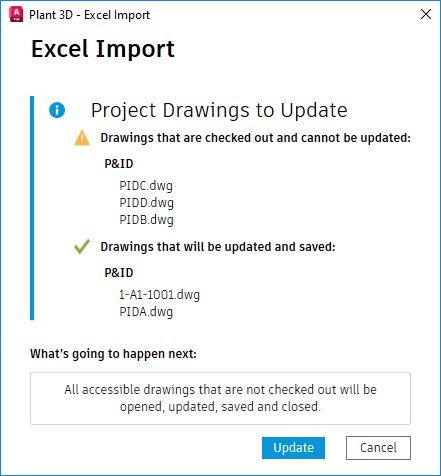
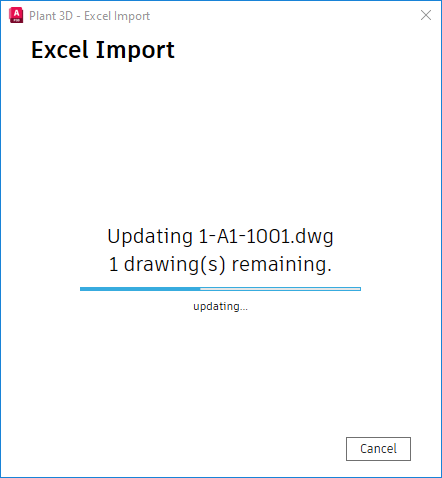
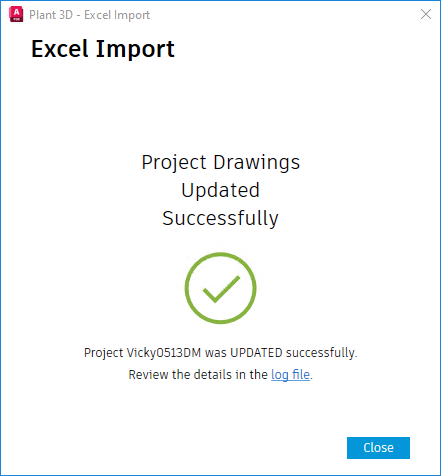
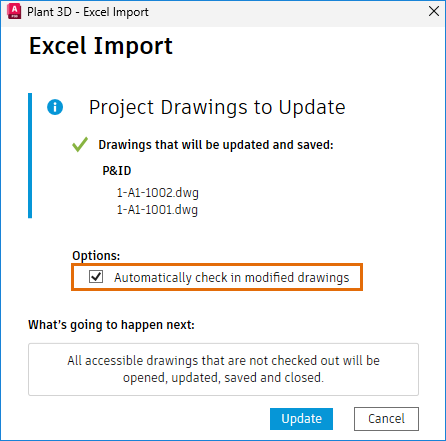
When you select the Automatically Check In Modified Drawings option, the system automatically checks in all affected drawings at the end of the import. This eliminates the need for manual check-ins after the import is completed.
If you do not select this option, you must manually check in the affected drawings.