Initialize and manage the Skin Tools layer system on skinned meshes, including setup, switching between skin clusters, and removing or resetting layers.
Initialize Skin Layers
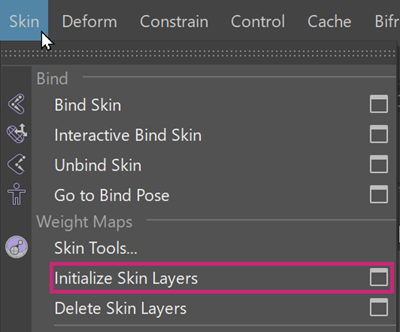
You can initialize skin layers in one of the following ways:
- Choose
Skin >
Initialize Skin Layers
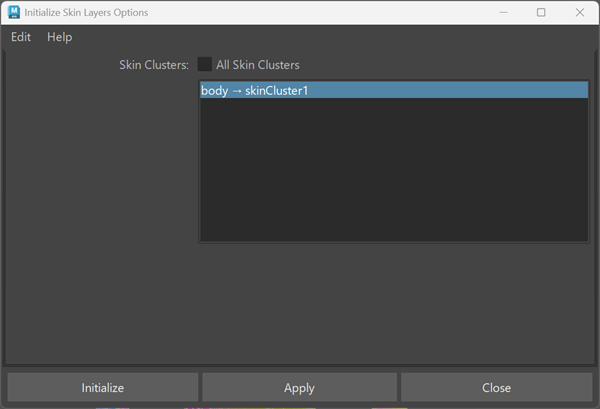
In Initialize Skin Layers options, you can choose to initialize skin layers on all Skin Clusters or limit the operation to selected Skin Clusters.
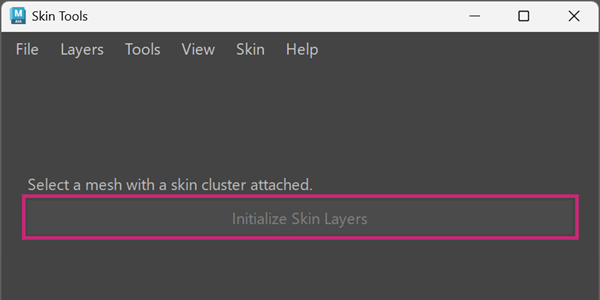
- Open
Skin >
Skin Tools and click
Initialize Skin Layers in the Skin Tools interface.
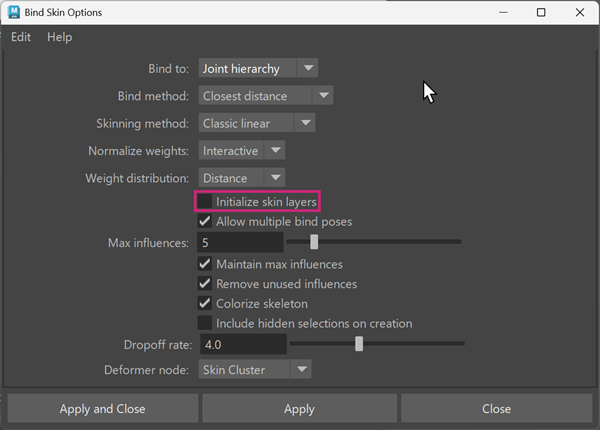
- Enable
Initialize Skin Layers in the
Skin >
Bind Skin options before binding.
- Skin layers are created only when you explicitly initialize them on a Skin Cluster.
- You must use Skin > Initialize Skin Layers, the Skin Tools window, or enable Initialize Skin Layers when binding.
- Skin layers are not added automatically to existing Skin Clusters through other skinning operations.
Work with multiple skin clusters
Skin Tools supports meshes with multiple Skin Clusters.
The Skin menu in the Skin Tools menu bar lists all Skin Clusters associated with the selected mesh.
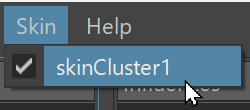
- The currently active Skin Cluster is marked with a checkmark.
- Skin clusters are ordered based on node traversal. The most recently attached Skin Cluster appears first in the menu.
- Selecting a different Skin Cluster updates the Skin Tools UI to target that cluster.
- The last active Skin Cluster selection is preserved while Skin Tools remains open during the current Maya session.
Skin Tools operations apply only to the active Skin Cluster.
Reset to Default Weights
Menu: Skin > Reset to Default Weights
Warning: Resetting skin weights will reset skinning layers on the selection. Do you want to continue?
Resets all skin weights to Maya's default bind skin weights. Existing Skin Tools layers are deleted, the standard Maya reset operation is performed, and the Skin Tools layer system is re-initialized with a single default layer.
Delete Skin Layers
To remove skin layers from the selected Skin Cluster, use one of the following:
- Choose
Skin >
Delete Skin Layers
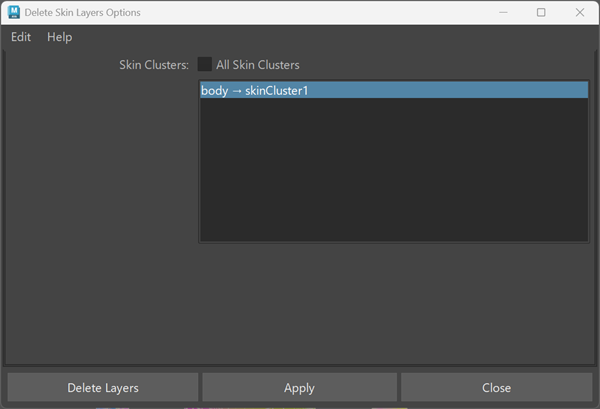
In Delete Skin Layers options, you can choose to delete skin layers on all Skin Clusters or limit the operation to selected Skin Clusters.
- Open Skin > Skin Tools and delete the layers from the Skin Tools interface.
Deleting skin layers removes the layered structure and returns the Skin Cluster to standard Maya skinning behavior.