Forecast
The Forecast tool brings cost, schedule, performance, and fee analysis together so project teams can plan how money flows through a project, see how the schedule and budget interact, monitor labor productivity, and analyze project fees against the main contract.
Select a card to explore each part of Forecast:
What You Can Do in Forecast
The Forecast tool is organized into four areas that map to four common workflows:
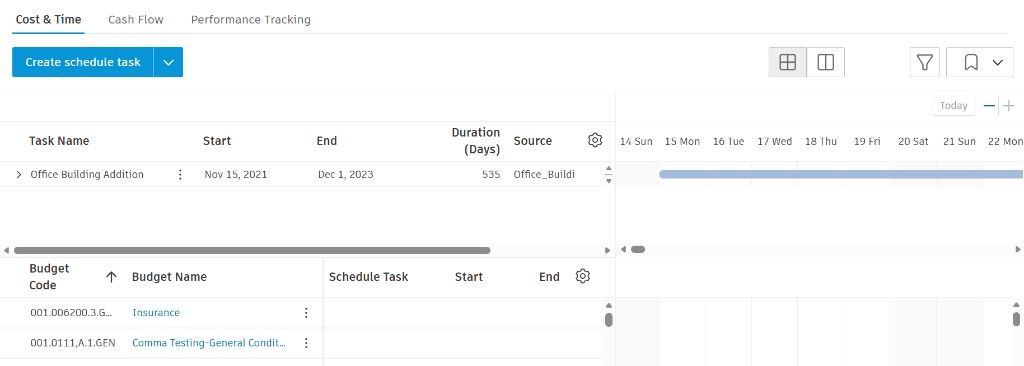
- Cost & Time — Plan time-based allowances, like General Conditions, in a Gantt view by linking budget items to schedule tasks. See Method-Related Planning.
- Cash Flow — Distribute budget and cost across time periods, run automated and manual forecast adjustments, and visualize project-level cash flow. See Cash Flow Forecasting.
- Performance Tracking — Track labor input and output to monitor productivity and create forecast adjustments from tracking data. See Performance Tracking.
- Fee Analysis — Analyze fees against main contract amounts using budget-column data. Available as the Analysis panel inside the Budget view. See Fee Analysis.
Prerequisites
Before working in Forecast, make sure these are in place:
- Budget: Most Forecast workflows start from a budget with budget code segments defined.
- Permissions: Members need cost permissions appropriate to their role. See Cost Management Permissions.
- Project process: Confirm the project process configuration with a project administrator. See General Settings.
Forecast-Related Settings
Forecast-related settings are split across two tabs in project settings, matching how the product is laid out:
In the Forecast tab of project settings
- Forecast Settings — Time period (weekly or monthly) and Distribution Curves
In the Budget tab of project settings
- Budget Forecast — Turn on revenue and cost forecasting
- Date Range Based Resources Update Schedule — Configure frequency settings used by date-range forecasting and cash flow distribution
- Fee Analysis — Configure fee categories and their data sources
- Budget Financial Markup Formulas — Configure markup formulas applied to the Final Main Contract Amount column
Frequently Asked Questions
Where do I start with Forecast?
Pick a workflow based on your goal:
- To plan time-based allowances tied to schedule tasks, start in Cost & Time. See Method-Related Planning.
- To distribute budget and cost across time periods and visualize cash flow, start in Cash Flow. See Cash Flow Forecasting.
- To track labor productivity and forecast cost impacts from on-site performance, start in Performance Tracking. See Performance Tracking.
- To analyze project fees against the main contract amount, open the Analysis panel in the Budget view. See Fee Analysis.
How do Cost & Time, Cash Flow, and Performance Tracking relate?
They are independent workflows that share the same budget data:
- Cost & Time drives schedule-linked budget items, which feed forecasted budget values used downstream.
- Cash Flow distributes forecasted budget and cost across time periods.
- Performance Tracking monitors actual labor performance against planned values and can create forecast adjustments that flow back into the budget.
You can use any one of these independently, or combine them.
How do I create a forecast adjustment to a budget?
You can do this in three places:
- From a budget row — Use the Forecast basis drop-down (Manual adjustment, Output complete, or Date range). See Edit Forecast Final Budget and Cost.
- As a one-off adjustment in the Budget view — See Create Forecast Adjustments in Budgets.
- From the Cash Flow tool — See Forecast Adjustments (automated and manual).
How does Fee Analysis differ from applying a markup formula on budget columns?
- Fee Analysis displays calculated and entered fee values across user-defined categories in the Budget view's Analysis panel. See About Fee Analysis.
- Apply markup formula on budget columns (Budget Financial Markup Formulas) calculates markup amounts on the Final Main Contract Amount column based on formulas configured in project settings. See Apply Markup Formula on Budget Columns.
The two features work together: project administrators configure fee categories and Budget Financial Markup Formulas in project settings; project members view the resulting analysis in the Budget view.
How do Budget Financial Markup Formulas relate to Financial Markup Formulas in change orders?
They are separate concepts even though both involve markup formulas:
- Budget Financial Markup Formulas apply to budget columns (specifically Final Main Contract Amount). Configured under Budget Financial Markup Formulas.
- Financial Markup Formulas apply to change orders (PCOs, CORs, OCOs). Configured under Financial Markup Formulas.
Project administrators can set up either or both for the same project.
Related Articles
- Edit Forecast Final Budget and Cost
- Forecast Settings
- Budget Settings
- Work with Budgets
- Cost Management Permissions
- Budget and Contract Tables
More Resources
Check out our video course to learn more about the Forecast tool.