Work with Summary Reports
This topic describes how to use the summary report after transitioning data using the Data Transitions and the actions you can take when reviewing a report.
Work with Summary Reports
Navigate to Hub Admin > Data transitions.
Click the More menu
 on the right of the relevant row, then select View summary reports.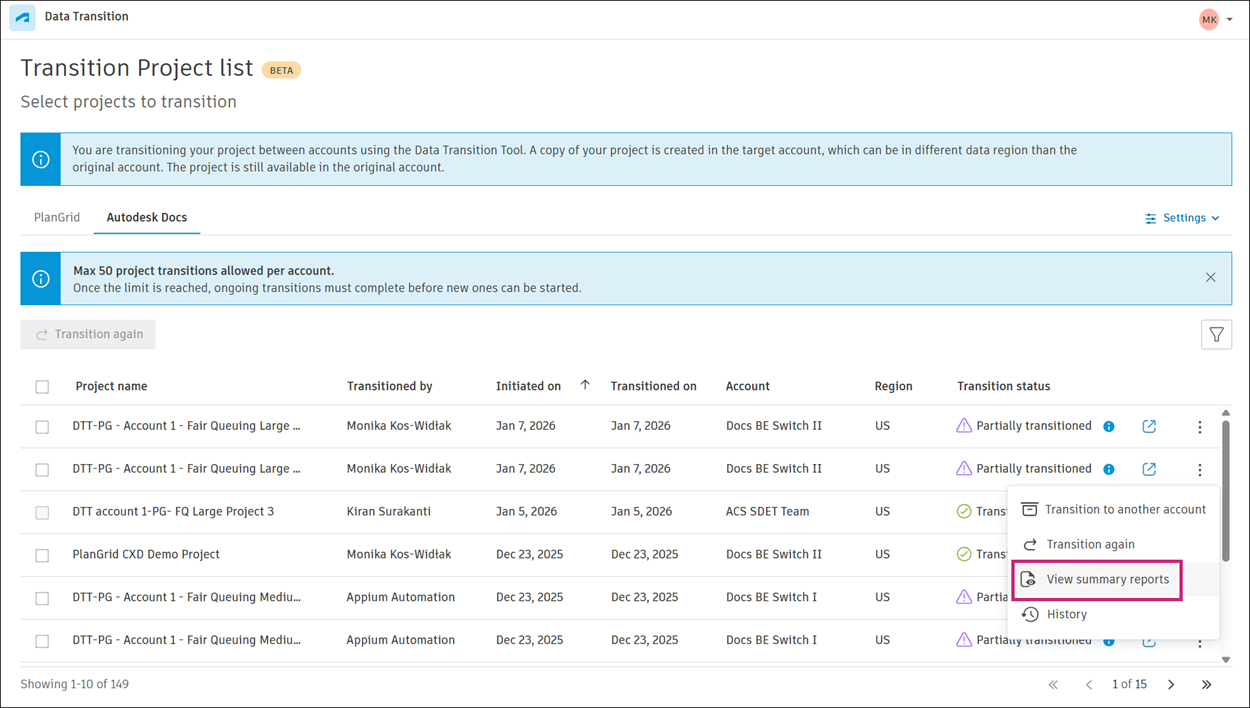
Review the Summary Reports page.
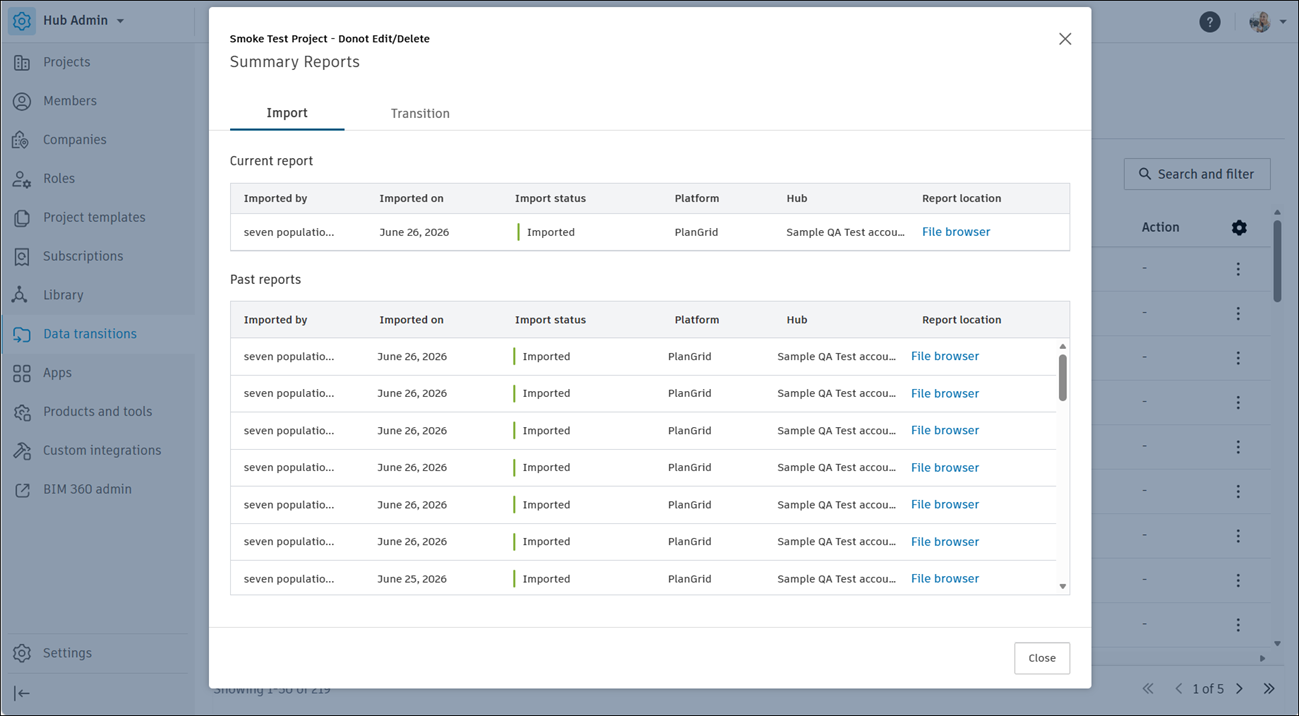
The page contains two tabs:
Import: Tracks data imports into Forma Data Management.
Current report: Displays the most recent import, with details about who imported the data, the import date, the import status, the source platform, the hub, and a link to the report location in the File browser.
Past reports: Lists previous imports, using the same columns as the current report.
Tip: Click Close to close the page.
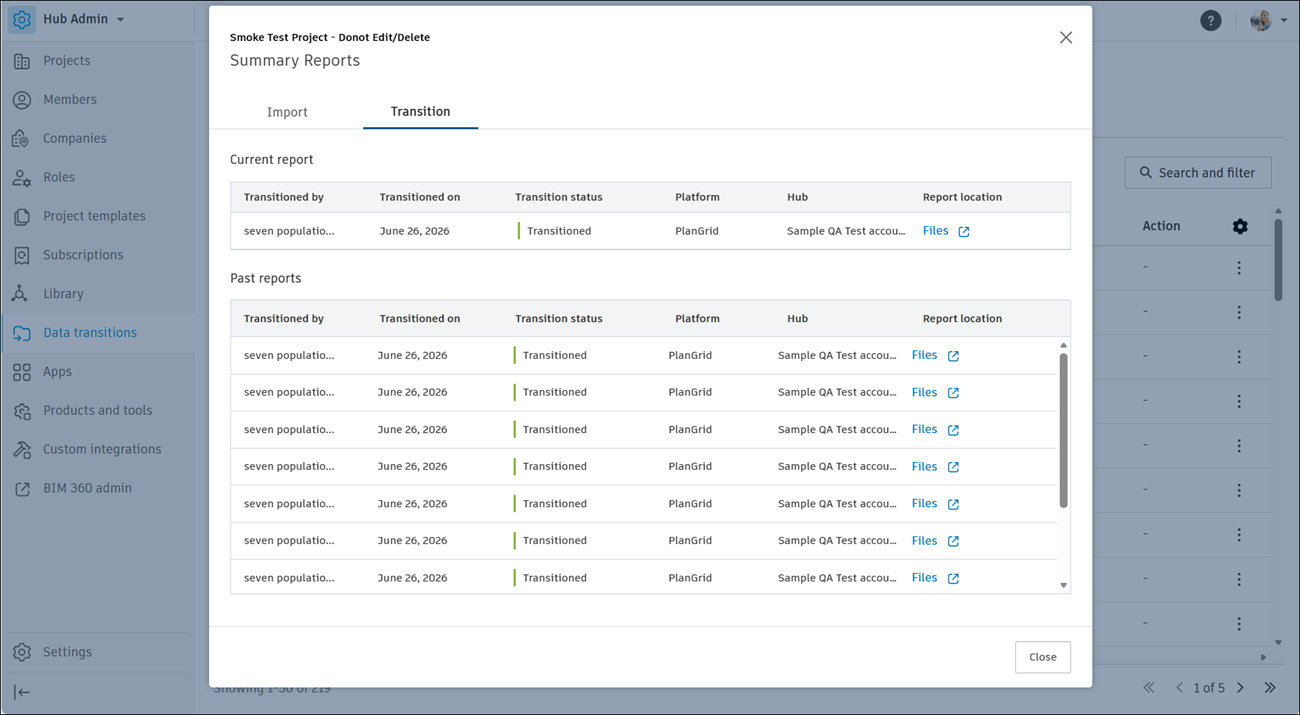
Transition: Tracks data transitions into Forma Data Management, including the current and past transition reports.
About File Browser
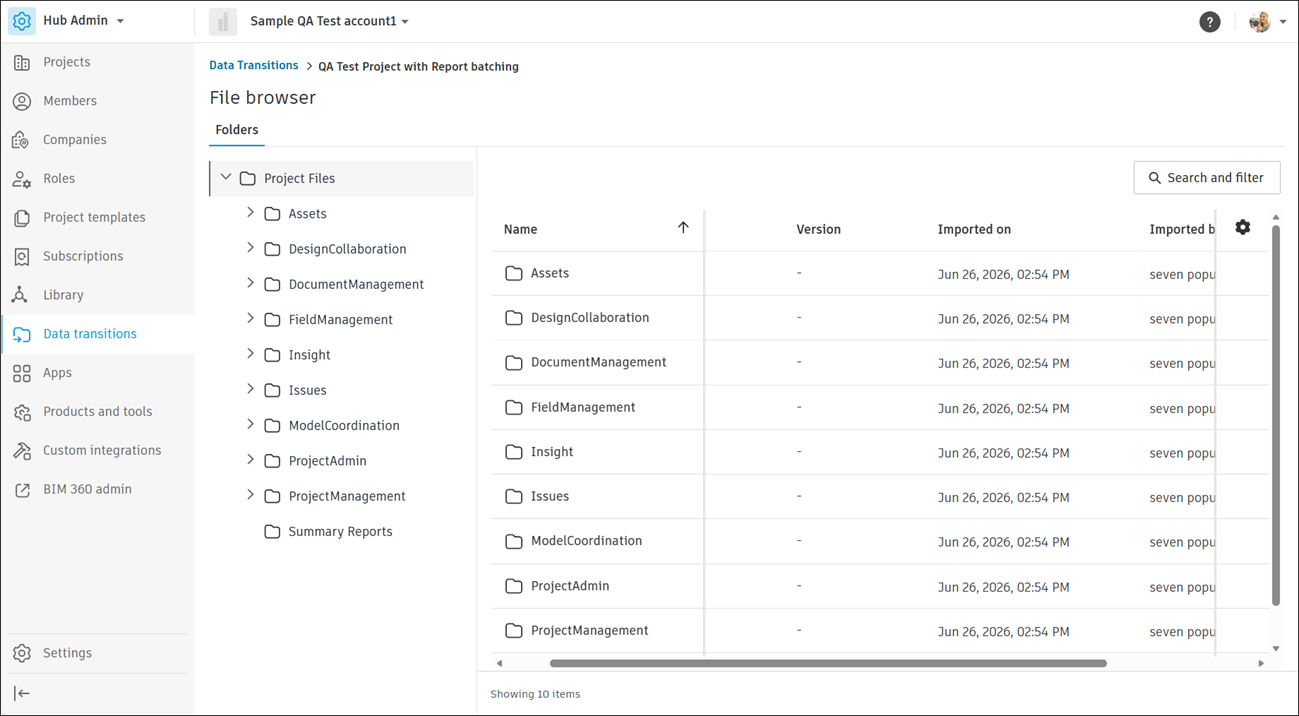
The File browser shows where Forma Data Management stores the data files imported during a transition. Use it to browse a project's folders, locate summary reports, and download source files.
To open it, navigate to Hub Admin > Data transitions, select a project, and open the File browser. The breadcrumb above the page title shows the selected project.
Find and Customize
- Click Search and filter
 in the upper-right corner to narrow the file list.
 - Click the Settings icon
 above the list to show, hide, or reorder columns.
Download a Source File
In the folder tree, select Project Files > Summary Reports.
Click the More menu
next to the file, and then select Download source file.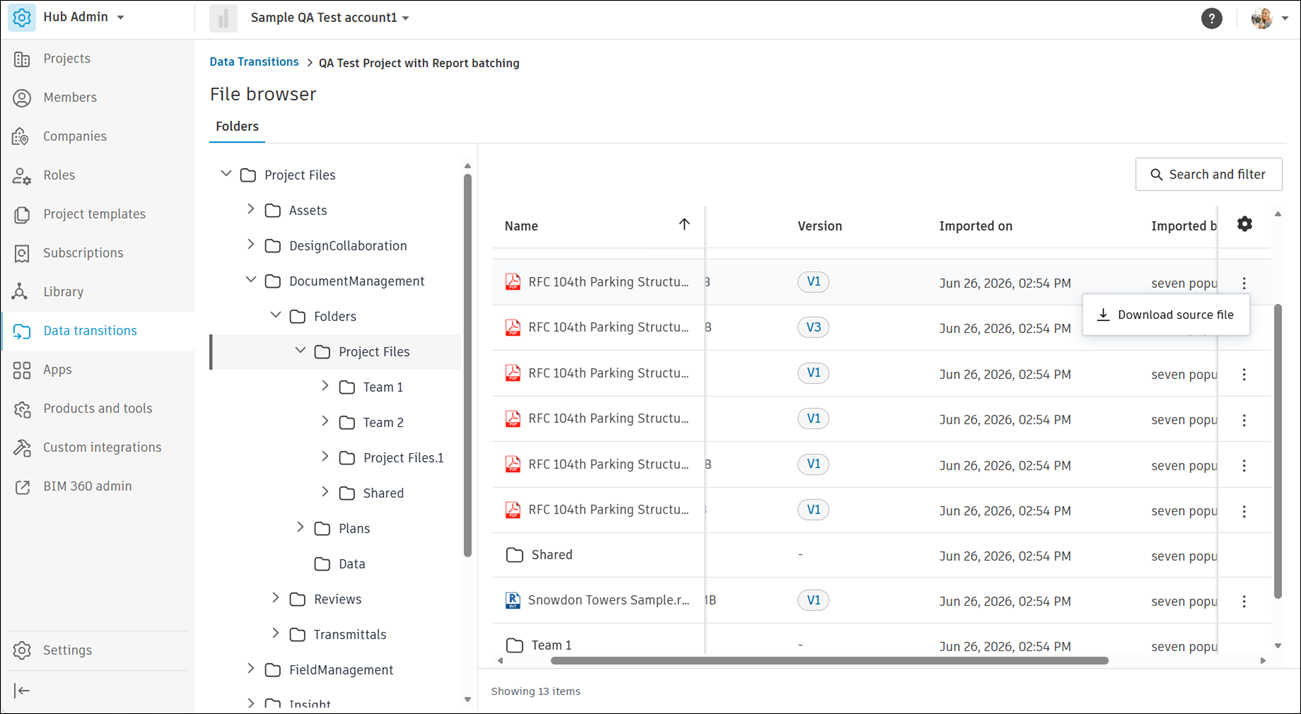
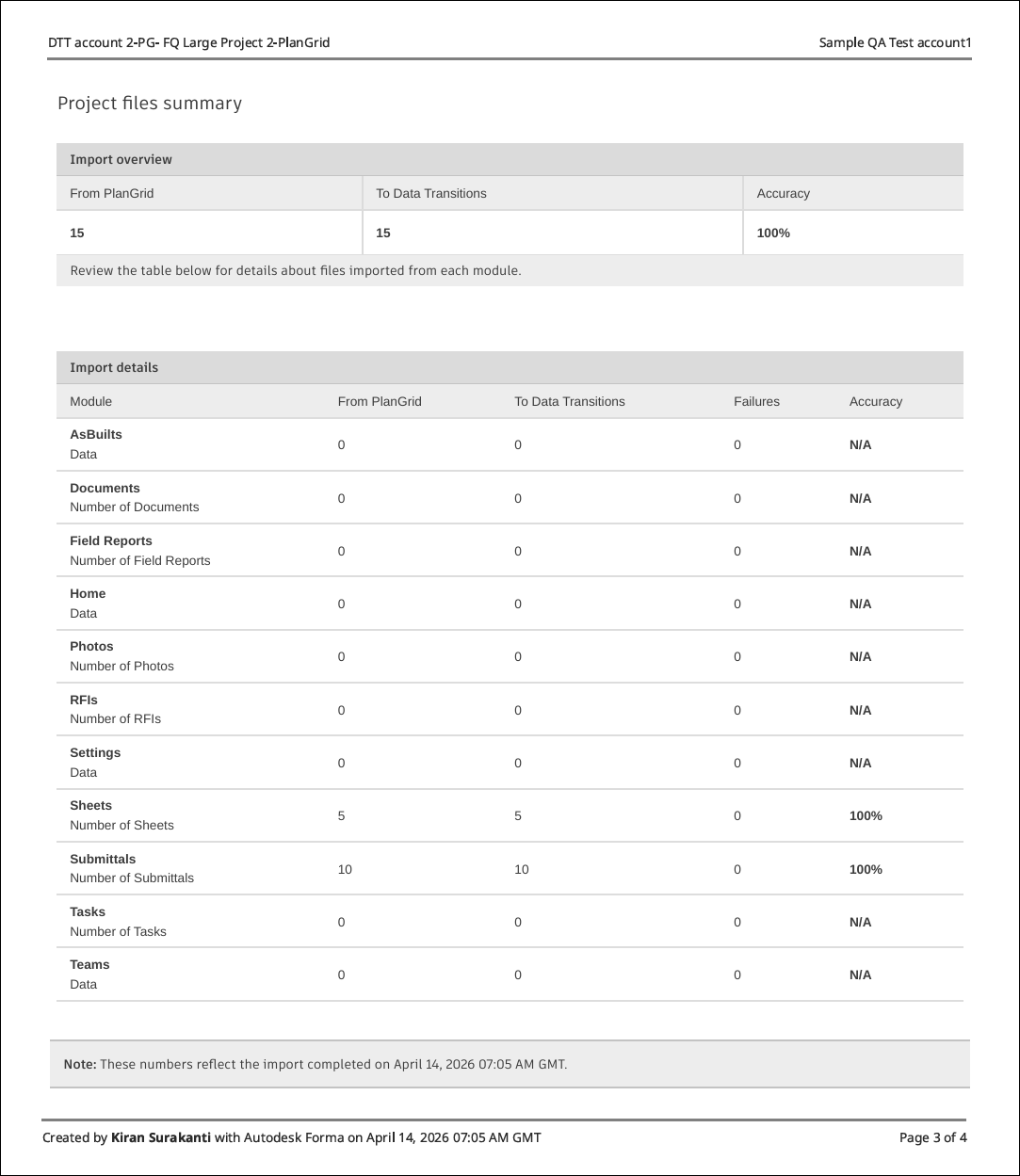
The downloaded summary report shows the data that you imported into Forma Data Management, grouped by module. Use the report to confirm that the import completed and to identify any modules that failed.