Navigate the Electronics Browser
Use the Browser to move through your design hierarchy without relying on the canvas.
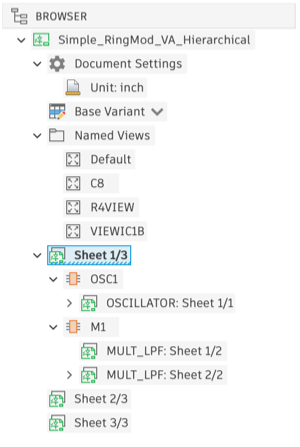
The Browser tree shows your sheets, module instances, and named views in a hierarchy that reflects your design structure. You can interact with nodes using the following actions.
Expand or collapse nodes
- Click the Expand ► icon to the left of a node to expand it.
- Click the Collapse ▼ icon to collapse it.
Navigate to a sheet
- Find the target Sheet node in the Browser.
- Click the Sheet node. If the selected sheet is not the current sheet, the editor navigates to it.
Note: Sheets can appear more than once in the Browser when they belong to a module that is placed multiple times. Any of the duplicate nodes navigates to the same sheet.
Highlight a module instance
- Find the target module instance node in the Browser.
- Click anywhere on the node to select it. The canvas highlights the selected module instance but does not change your view position. In 2D PCB, the bounding box of the flattened instance and its child objects is also shown.
Navigate to a module instance
- Find the target module instance node in the Browser.
- Right-click to open the context menu.
- Choose Find in Window. The canvas pans and zooms to center the selected instance. In 2D PCB, it centers on the child objects of the instance.
Keyboard navigation
- Click somewhere in the Browser to give it focus.
- Use the Up and Down keys to move between nodes.
- Use the Left and Right keys to collapse and expand nodes that have children.