AutoConstrain
The Sketch AutoConstrain tool generates a list of options to automatically apply dimensions and sketch constraints to your sketch in Fusion so you can focus on more important parts of the design process. The tool uses AI technology to show result options to dimension and constrain all types of geometry, including splines.
Workflow overview
- In the sketch contextual environment, create a sketch.
- Add a few important dimensions and constraints to your sketch.
- Run the Sketch > Constraints > AutoConstrain tool to automatically generate results with added constraints and dimensions.
- Review the result options and select your favorite.
- Adjust the result settings:
- Use Set Datum to realign the dimensions in the canvas.
- Adjust the number of added constraints and dimensions.
- In the canvas, delete or edit dimensions.
- Accept the result to apply the added constraints and dimensions to your sketch.
Results
Each result tile displays the number of constraints and dimensions in your sketch. When you hover on the number of constraints or dimensions, you'll see how many will be added from the tool. When you select a result tile, the potential dimensions and constraints are shown in purple on the canvas so you can evaluate the results. You can also hover the cursor over the icon in each tile to see if the selected result will fully constrain your sketch.
Use Generate more to generate two additional results at a time. If you edit dimensions in the canvas, use Start Over to generate fresh results.
Constrained Status
 Fully Constrained
 Partially Constrained
Depending on the complexity of your sketch, you may need to run the tool a few times to see results that are fully constrained.
Datum
You can set a Datum in your sketch to align dimensions to. There are a few ways to do this:
- Run
 AutoConstrain to generate results, then use More > Set Datum to place the datum for a specific result.
 - Select a sketch point in the canvas to use as a datum, then run the AutoConstrain tool to generate results.
- Run
 AutoConstrain From Datum, then select a point in the canvas to place the datum. Once the datum is set, results will generate automatically.
Tips
- For best results, add some initial constraints and dimensions to your sketch, then run the tool.
- To place the datum quickly and then calculate results in one click, use AutoConstrain From Datum.
Finish with AutoConstrain
When you finish a sketch, you can apply constraints and dimensions in one step. Select Finish with AutoConstrain from the Finish Sketch menu to close the sketch and run AutoConstrain automatically.
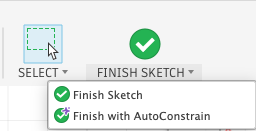
For step-by-step instructions, see Finish a sketch with AutoConstrain.
Use the AutoConstrain tool when you want to compare result options, adjust the number of constraints and dimensions, or set a datum before you apply a result.