Details panel
The Details panel has three tabs: Graph, Node, and Diagnostics. The content of each tab updates based on what you have selected on the canvas. Toggle it with Ctrl+I (Windows) / Command+I (macOS).
Graph tab
The Graph tab shows information about the graph currently open on the canvas. Click an empty area of the canvas to deselect all nodes and bring this tab into focus. The content of this tab differs depending on whether you're viewing a standalone graph or a subgraph.
Standalone graph
When you open a standalone graph, the Graph tab has two sections: About and Properties.
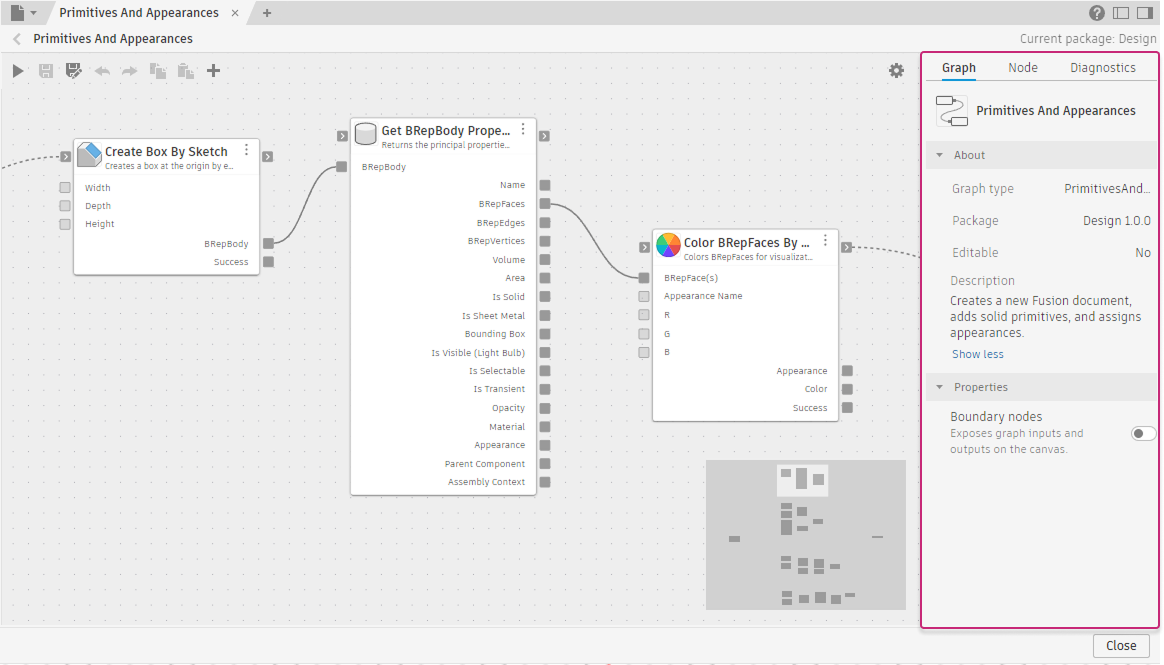
Design - Primitives And Appearances
About
- Graph type: The internal identifier for this graph
- Package: The package that owns this graph and its version
- Editable: Whether the graph can be saved. No means the graph belongs to a read-only package and can't be modified or saved from the editor.
- Description: A short description of what the graph does. Click Show more to expand a long description.
Properties
- Boundary nodes: When enabled, exposes the graph's input and output ports as boundary nodes on the canvas, making the graph reusable across multiple graphs. See Create a reusable subgraph for the full workflow.
Subgraph
When you open a subgraph, the Graph tab has two sections: About and Ports.
About
- Graph type: The internal identifier for this subgraph
- Package: The package that owns this subgraph and its version
- Editable: Whether the subgraph can be saved
- Description: A short description of what the subgraph does. Click Show more to expand a long description.
Ports
The Ports section lists the subgraph's Inputs and Outputs, with the number of ports in each group. Each port shows:
- Port name: The port label shown on the subgraph node
- Required: Appears for inputs that must be wired
- Type: The data type the port accepts or returns
To rename or remove a port, right-click the port and select Rename or Remove. To rename from the canvas instead, place the pointer over the port label on the subgraph node until More  appears, then select Rename.
Node tab
The Node tab shows information about the selected node.
When a node is selected, the tab shows the node name at the top, followed by the About, Properties, and Inputs sections.
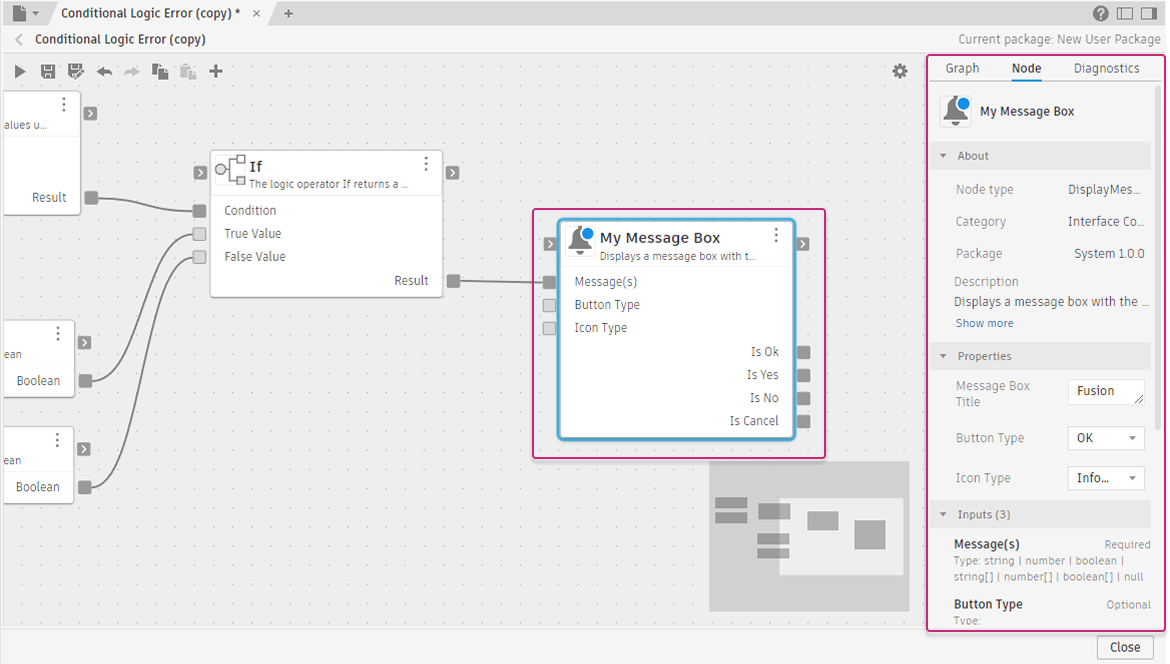
Copy of Base - Conditional Logic Error
Node name
The node name appears at the top of the tab. Click it to make it editable and type a new name. Renaming a node only works in graphs that belong to an editable (user) package. Graphs in read-only packages shipped with System Modeler can't be renamed. To rename a node in a shipped graph, copy the graph to a user package first.
About
- Node type: The internal type identifier for this node
- Category: The category folder the node belongs to within its package (for example, Math or Text)
- Package: The package the node belongs to and its version
- Description: A description of what the node does. Click Show more to expand a long description.
Properties
The Properties section lists the node's configurable settings. Most properties are default values for optional input ports: when an optional port has no wire connected, the node uses the value set here. Some properties are general settings that configure the node's behavior independently of any port. Property types include text boxes, number boxes, and drop-down lists. The properties shown depend on the node.
Inputs
The Inputs section lists all input ports for the selected node. For each port it shows:
- The port name
- The accepted data type (for example:
string | number | boolean | null) - Whether the port is Required or Optional
Outputs
The Outputs section lists all output ports. For each port it shows the port name and the data type it produces. After a graph run, a Last run row appears under each port showing the value it produced. Selecting Clear diagnostics removes the Last run values. See Last-run output port values for details.
Diagnostics tab
The Diagnostics tab lists all diagnostics for the current graph level, sorted by severity and then by node name.
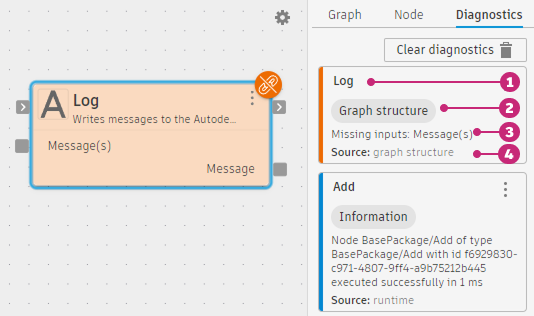
Each entry shows:
Node name: The display name of the node that has the diagnostic
Severity: Error (red), Warning, Graph structure (orange), or Information (blue)
Message: A description of the issue or run result, naming specific ports where applicable
Source: Graph structure means a wiring issue detected before the graph runs. Runtime means a diagnostic generated during a graph run.
For subgraph nodes, the tab shows two entries: an aggregate entry ("Subgraph diagnostics: N errors, M informational diagnostics") and a runtime entry with the specific failure message.
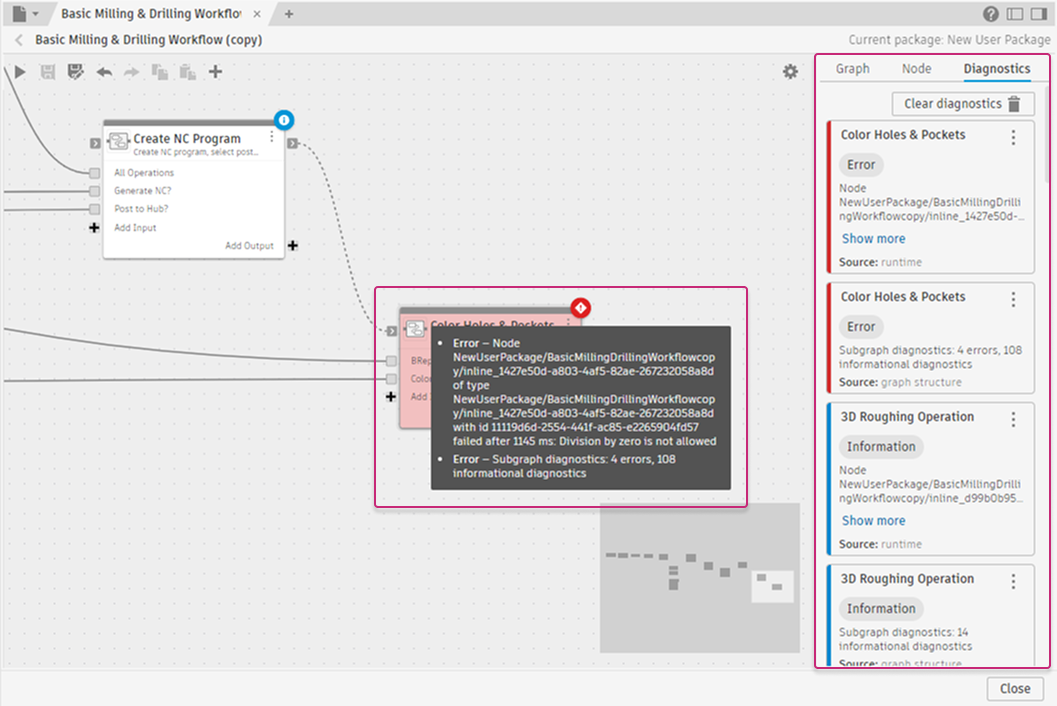
Copy of Manufacture - Basic Milling & Drilling Workflow
To navigate to a node in the list, place the pointer over the entry and click Show node. The canvas centers on that node. This is useful for locating a specific node in a large or deeply nested graph.
Click Clear diagnostics (trash icon, top of the tab) to remove all entries.
For details on badge colors, severity levels, and how to use the Diagnostics tab during debugging, see Debugging graphs.