Create a report
Create reports to track, analyze, and manage data stored in your Fusion Manage workspaces.
From the main menu, go to Advanced Tools > Reports.
From the workspace drop-down list, select the workspace you want to report on. The selected workspace serves as the report's data source.

Click Create report.
In the General information section, enter report details. Only a report name is required.
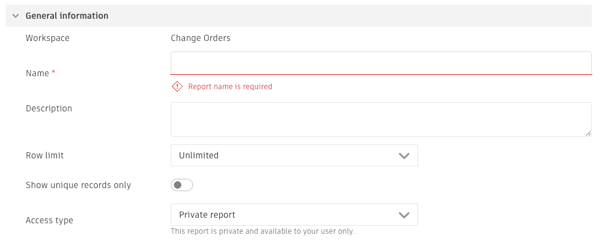
From the Access type drop-down, select who can access the report:
- Private report: Only you can access the report.
- Public report: Only selected users or groups can access the report.
- Shared report: All users with permission to view the workspace can access the report.
If you selected Shared report, select the users and/or groups that should have access to the report.
(Optional) To group report results:
a) In the Results grouping section, click the Group results toggle.
b) Select up to four fields to group by, in order of priority.
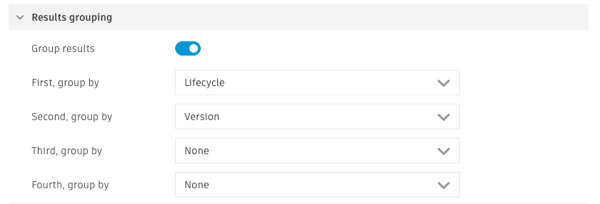 Note: When grouping is enabled, you cannot choose which columns appear in the report. The grouping fields become the report columns automatically.
(Optional) To aggregate grouped results:
a) Select an Aggregation type from the drop-down list.
b) Select the field to aggregate, if applicable.
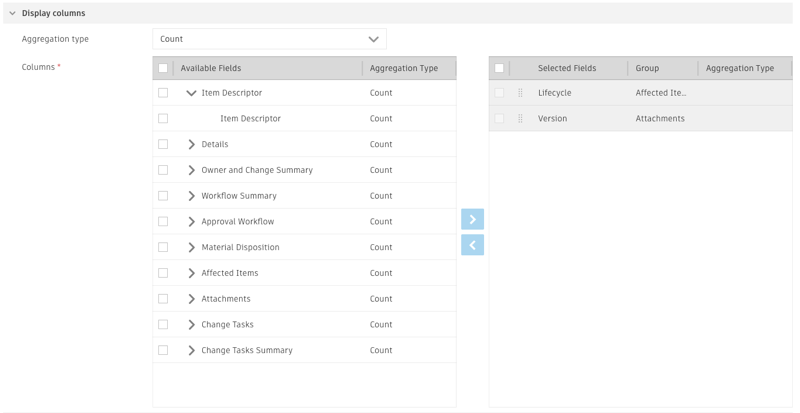 Important: To create a chart, you must enable grouping and aggregate results.
Example: If you group a report by Lifecycle and then Version, and use Count as the aggregation type, the report displays the number of items in each Lifecycle and Version group.
If grouping is disabled, select the columns to display:
a) In the Display columns section, select fields from the Available Fields list by checking the box.
b) Click the arrow to move them into the Selected Fields list.
c) Use the gripper icon
 to drag and change the column order.
Configure any filters in the Filter rows section:

a) Select the attribute to filter on.
b) Select the filter operator.
c) Enter a filter value.
d) To prompt users to enter a filter value each time they run the report, check the Edit at Run-Time box. If you enter a filter value when configuring the report, that value is used as the default in the run-time prompts.
e) To add another filter, click Add another filter. If the report contains multiple filters, choose how the filters are evaluated:
- Match all: Results must meet all filter conditions.
- Match any: Results must meet at least one filter condition.
- Advanced: Define custom filter logic using Boolean expressions in the advanced filter expression field.
Configure the report sort order in the Sort Order section:
a) Select up to four sort fields.
b) Choose ascending or descending order for each field.
Click Save.
To use the Chart section, see Create a Chart from a Report.