
Issue:
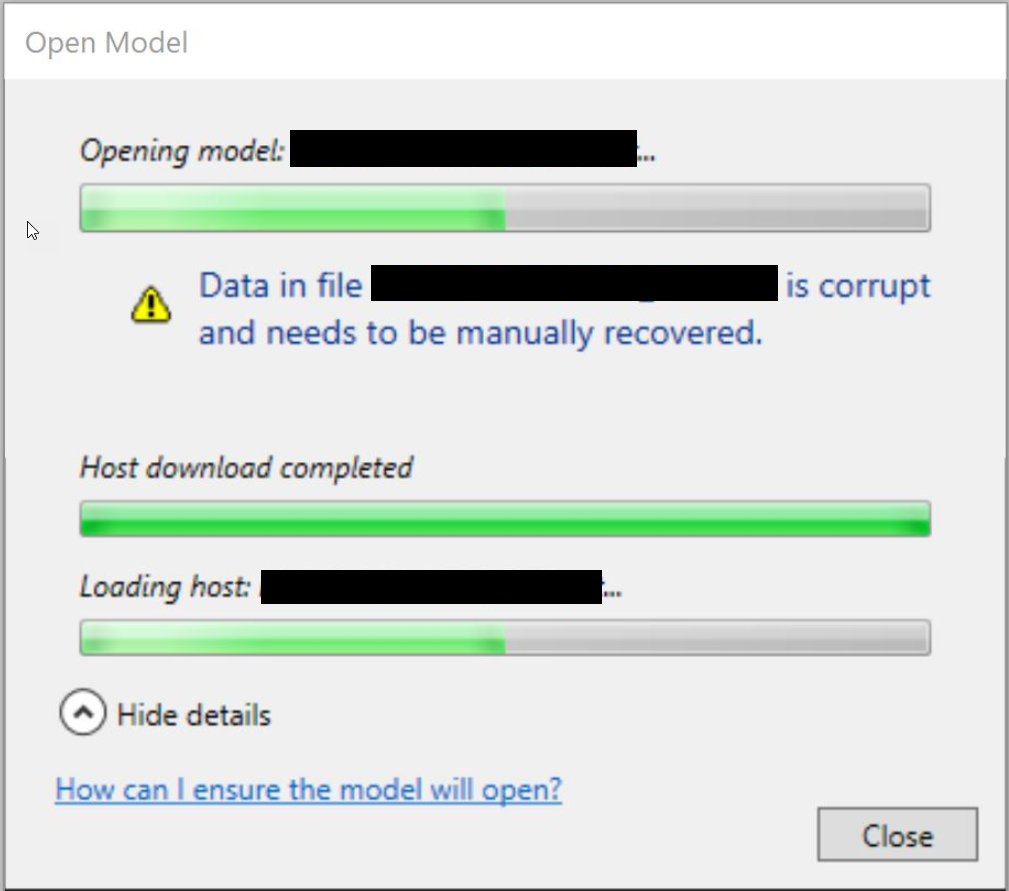
When opening a cloud model in Revit, the following message appears:
Open Model
"Data in file <File name>.rvt is corrupt and needs to be manually recovered."
Solution:
Initial Troubleshooting
Audit
Try to opening the model using the Audit checkbox.
Note: If this error occurs when the Audit option is checked, then a different issue may be occurring, see Cannot open or save file with audit in Revit.
Close worksets and check links
- Open the model with all worksets closed, see How to turn off worksets when opening Revit models.
- If the model opens with all worksets closed, begin opening worksets one by one.
- Check if the error returns on accessing a workset containing Revit links.
- If the error is related to one or more links:
- Try opening the affected link directly.
- Clear any errors/warnings encountered.
- Retry loading the link in the host model.
- If there are no warnings/errors (or clearing them doesn't clear the issue):
- Check for links with Reference Type set to Attachment.
- Ensure all of these links can be loaded successfully (even if initially not loaded).
- If Attachment Reference Type is not needed, consider changing it to Overlay.
- If issue relates to Desktop Connector-based links, see "Failed to open document" when working with Revit cloud model containing Desktop Connector links.
- If the error is related to one or more links:
One User Affected
Check disk space
Ensure sufficient hard disk space is available on the primary C:\ drive to work with the model.
Note:
To identify the amount of space required, use this calculation:
20 times of Model size (required to extract the RVT to the temp folder when the model is open) PLUS (+) 3 times of All linked RVT models (this is required for the cloud cached data).
Clear the collaboration cache and pac cache
See How to clear damaged Revit cloud model cache.
Test in a new Windows user profile
- See Create a user account in Windows.
- If the model opens, sync and close the model.
- Retest in the old profile.
Disable add-ins
See Check if add-ons are causing unexpected behavior in Revit.
Compare Revit builds across all users
- Compare Revit build on the affected system, and the builds used by other accounts, see How to tie the Build number with the Revit update.
- If these are different, try to match the Revit build (so that everyone is on the same build) and retry, see How to keep Revit updated.
Multiple Users Affected
- On the system encountering the error, move the Collaboration Cache files for the model (and the Central Cache version of the model) to the desktop (or another location outside the Collaboration Cache folder). See How to clear damaged Revit cloud model cache
- Have another account that's able to open and work in the model sync using the Compact option, see Synchronize and Modify settings dialog.
- Verify the model opens on the problematic system without errors.
- Ensure all team members using the model do Relinquish All Mine action.
All Users Affected
- Troubleshooting Desktop Connector links, see "Failed to open document" when working with Revit cloud model containing Desktop Connector links.
- Restore a prior version of the model, see Recovery options for Revit cloud workshared models stored on BIM 360 and ACC for information on recovery options for cloud models.
Other Troubleshooting
If the "Missing Elements" error appears, see "The model [File] is missing many elements" opening Revit model.