About Autodesk Forma Connector
Starting with Desktop Connector v2027.0.0 (March 2026), Autodesk Docs has been rebranded to Forma Data Management. Throughout Desktop Connector and this help site, references to "Autodesk Docs" or "Docs connector" now appear as Autodesk Forma or Forma connector. Existing help links and local file paths (such as ACCDocs) remain unchanged.
- Overview
- Access Forma Connector
- Add your Projects
- Manage Your Cloud Files Locally
- Upload Files and References
Overview
The Forma Data Management (formerly Autodesk Docs) connector allows you to work locally with your BIM 360 and Forma cloud data.
Access Forma Connector
Install Desktop Connector and the Forma connector will be added to your Windows File Explorer. The Forma connector is located within the same tier as This PC in File Explorer.
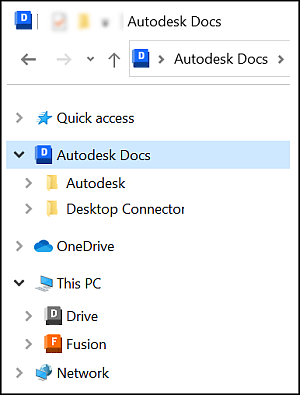
For more details, see the Connectors help topic.
Add your Projects
 . Once added, the connector replicates the Project Files folder structure for each project, including all subfolders.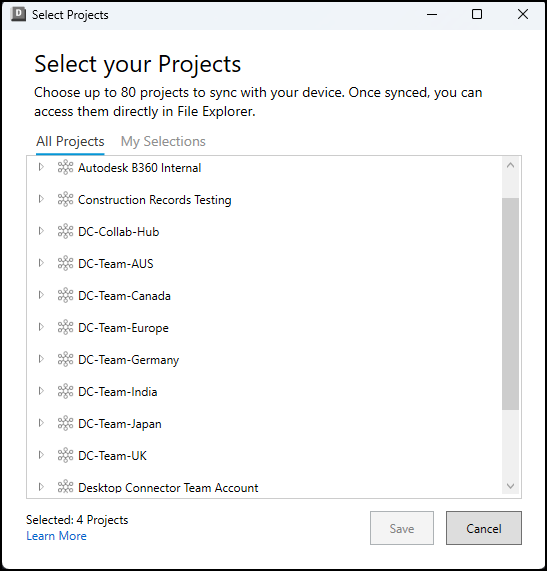
All the projects you've added to the connector will display in the following order:
- Hub name
- Project name
- Project files folder
- Project name
Manage Your Cloud Files Locally
Manage your files locally and use the Windows ribbon and right-click commands as well as those commands inherited from your installed programs. Changes you make will be synced to the relevant BIM 360 or Forma cloud data source. You can view your connector activities currently and from the previous 24 hours in the home screen.
Your file and folder permissions are the same as those granted to you in the cloud data source; however, you will always be able to view the full folder paths.
Upload Files and References
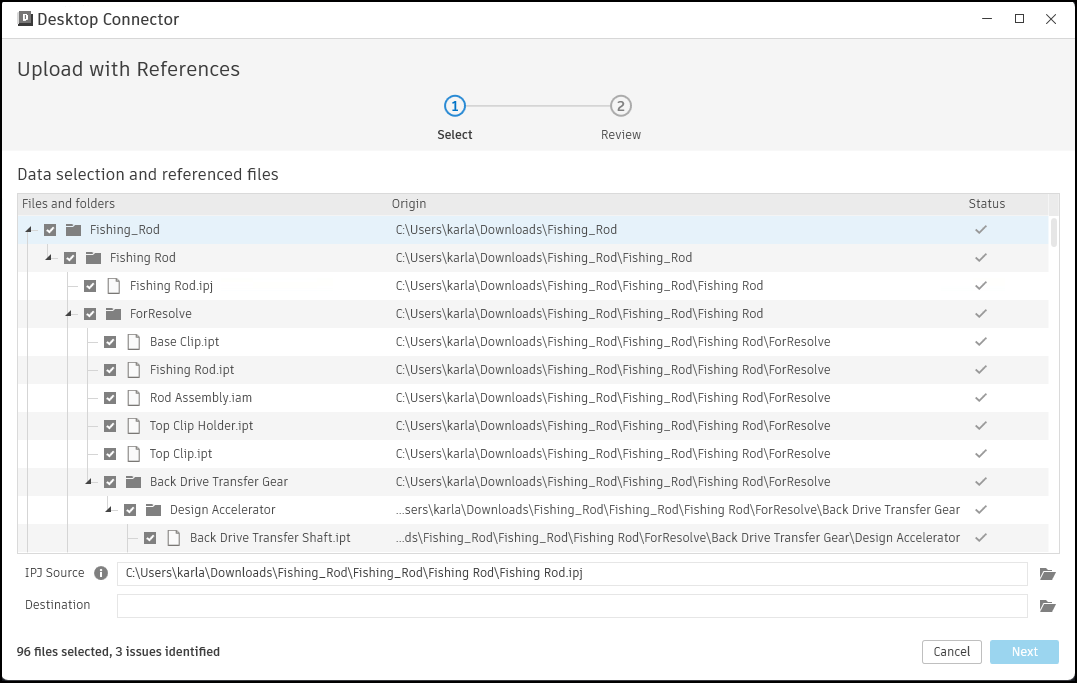
The Forma connector understands design files and their references. The Upload files with references tool gives you the ability to view all gathered references and related data before uploading all listed files to the cloud.