
Reporting and Diagnostic Logs
- How to Collect Diagnostic Logs Video Tutorial
- About Diagnostic Logs
- Collect the Diagnostic Logs
- Submit the Diagnostic Logs
- Collecting Logs Manually
- Diagnostics Mode for earlier versions
- Collecting and Viewing Sync Data
How to Collect Diagnostic Logs Video Tutorial
 provides a guide on how to collect diagnostic logs in Desktop Connector, but some information may be outdated. Starting with v2027.0, Desktop Connector automatically maintains rolling detailed logs, so the manual Diagnostics Mode steps shown in the video are no longer required. Always refer to the written content on this page for the most up-to-date instructions.
About Diagnostic Logs
Diagnostic logs are helpful for analyzing any unexpected behavior of Desktop Connector. For example, logs are helpful if the Desktop Connector sync engine stops working on a specific file, folder, or both.
Starting with v2027.0, Desktop Connector automatically maintains rolling detailed logs at all times — up to 100MB of log data (approximately 1–2 weeks of typical use). Older logs are removed automatically to manage disk space. You no longer need to manually enable diagnostic logging before reproducing an issue — just collect the logs and submit them.
Because rolling logs are automatically overwritten over time, follow these guidelines:
- Collect logs as soon as possible after experiencing an issue. The sooner you collect, the more likely the relevant log data is still available.
- Note the date and time when the issue occurred. Report this to Autodesk Support so they know where to look in the logs.
For versions earlier than v2027.0, you must manually enable Diagnostics Mode before reproducing an issue. See Diagnostics Mode for earlier versions below.
Collect the Diagnostic Logs
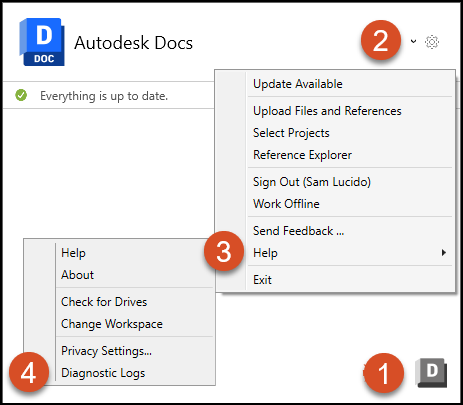
Click the Desktop Connector
 tray icon. If you right-click the tray icon the dialog box will appear and you can move directly to step 3.
Click the Gear
 in the top right of the home screen.
Select Help.
Select Diagnostics Logs.
- Desktop Connector will start collecting recent log files.
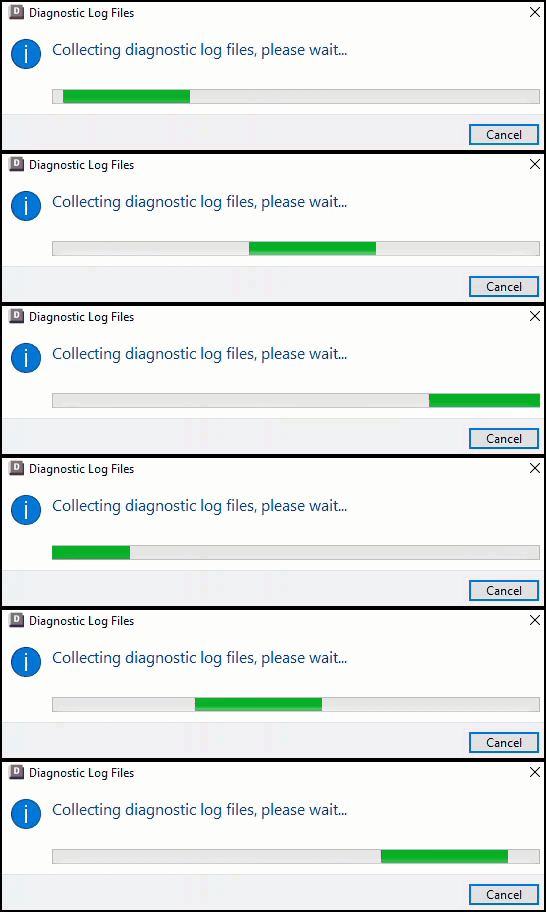
- The Diagnostic Log Files dialog opens.
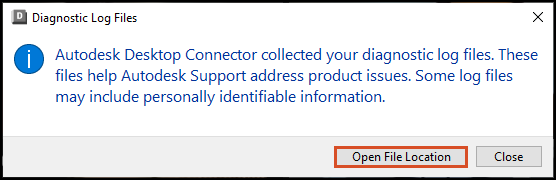
Click Open File Location to access your logs.
Submit the Diagnostic Logs
The default path for storing log data is:
C:\Users\<username>\AppData\Local\Autodesk\Desktop Connector Diagnostics.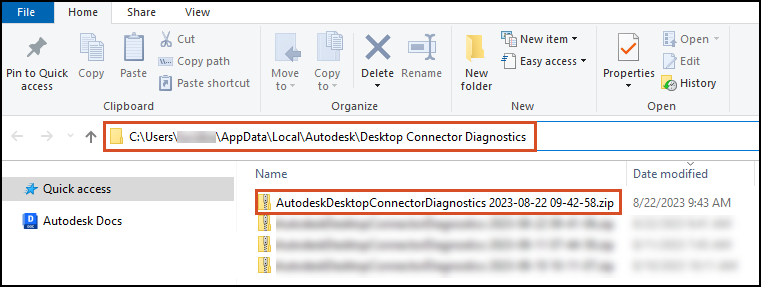
Take the compressed ZIP file and contact Autodesk Support to log a ticket and troubleshoot the issue. Include the date and time the issue occurred so the support team knows where to look in the logs.
Collecting Logs Manually
If Desktop Connector doesn't start or crashes at startup, the diagnostic logs can be captured manually.
- Navigate to
C:\Program Files\Autodesk\Desktop Connector\DiagnosticLogsCollectorand run the fileDiagnosticLogsCollector.exe. - A ZIP file will be created in
C:\Users\<username>\AppData\Local\Autodesk\Desktop Connector Diagnostics. - Copy the ZIP file and submit it to Autodesk Support.
For versions earlier than v2027.0, you must enable Diagnostics Mode before collecting logs manually. See Diagnostics Mode for earlier versions for the full steps.
Diagnostics Mode for earlier versions
Expand for Diagnostics Mode Instructions (pre-v2027.0)
Enable Diagnostics Mode
Start and configure Diagnostics Mode before creating log files to gather detailed error reports:
Right-click the
tray icon.Hold the Shift key and click the gear in the top right of the home screen.
Select Help and then select Diagnostics Mode
Select Verbose in both drop-down menus.
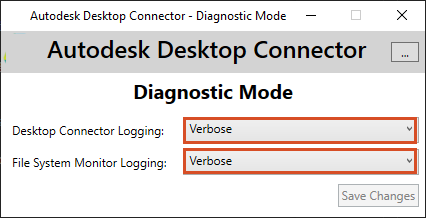
Click Save Changes
Close the window by selecting the x in the upper right corner.
Disable Diagnostics Mode
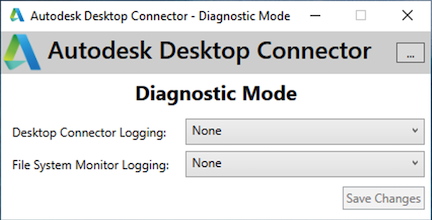
After collecting your diagnostic logs, follow the steps above again but choose "none" in both drop-down menus instead of "verbose" to save space on your computer.
Collecting Logs Manually (pre-v2027.0)
If Desktop Connector doesn't start or crashes at startup:
- Navigate to
C:\Program Files\Autodesk\Desktop Connectorand run the fileADriveDiagnosticsMode.exe. - Choose Verbose on both drop-down menus, save the changes, and close the dialog box.
- Restart Desktop Connector until it crashes or nothing happens.
- Navigate to
C:\Program Files\Autodesk\Desktop Connector\DiagnosticLogsCollectorand run the fileDiagnosticLogsCollector.exe. - A ZIP file will be created in
C:\Users\<username>\AppData\Local\Autodesk\Desktop Connector Diagnostics. - Copy the ZIP file and submit it to Autodesk Support.
- Redo the first step and set the Diagnostics mode back to "None" to save space on your computer and for better performance.
Collecting and Viewing Sync Data
Starting with version 16.4 of Desktop Connector, the Diagnostic Log collector will also gather a list of files and folders which have not yet been synced. You can view the synced data by following these steps.
Sync data for files and folders will now be a part of the log ZIP file found here:
C:\Users\<username>\AppData\Local\Autodesk\Desktop Connector Diagnostics\AutodeskDesktopConnectorDiagnostics 2023-xx-xx.zip\UnSyncFileInfo\UnSyncDataInfo.The file or folder contains a list of
unsyncedfiles that are pending sync and should attempt to sync. If the file does not attempt to sync you may need to Reset Desktop Connector.The file contains a list of
excludedfiles which are files that will not attempt to sync. This could be files that have been added while Desktop Connector was not running, or files that Desktop Connector is filtering out from uploading (possibly not supported by the server). If files are added while Desktop Connector is not running they will not sync, you will need to readd that file while Desktop Connector is running.With v16.6 of Desktop Connector we now will also collect data for unsynced folders. That data can be found in the same folder location within the zip file named
UnSyncDataInfo. Then under the file namedUnSyncFolderData.txt.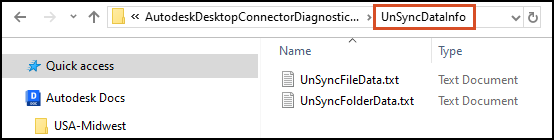 Note: The following is an example of the
UnSyncFileData.txtfile and theUnSyncFolderData.txtshowing no unsynced files or folders. Both text files are found within the same location.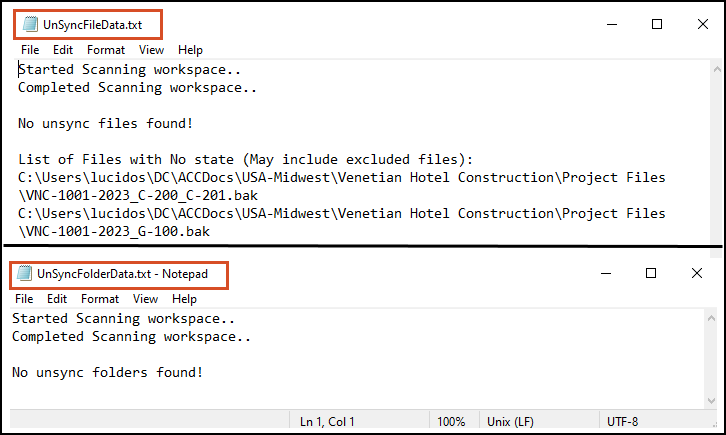
Related Concepts: