
Issue:
Users reported that Desktop Connector is crashing on either Windows or Desktop Connector startup, with these possible symptoms:
- Error Report appears:
- "Autodesk Desktop Connector Error Report" error message.
- A software problem has caused Autodesk Desktop Connector to close unexpectedly.
- May reference leading or trailing whitespace.
- Issue may first appear after uninstalling and reinstalling Desktop Connector.
- Issue may appear after selecting a project.
- "Upload failed: [...]" message displayed in the Desktop Connector version 16.x.x or v17.x.x.
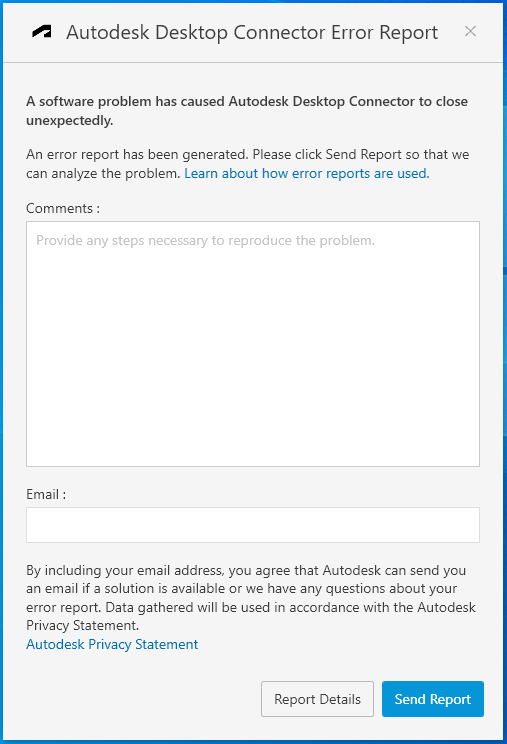
Possible Errors:
- "Comet.VirtualFileSystem.CloudFileApi.Registrar+<RegisterAsync>d__7.MoveNext()"
- "System.UnauthorizedAccessException" - Access is denied. (Exception from HRESULT: 0x80070005 (E_ACCESSDENIED))</Message>
Causes:
Possible causes:
- Whitespace at the end or beginning of the folder name:
- In releases of Desktop Connector prior to version 16.2.x, these whitespace characters could cause crashes when syncing with the cloud.
- Desktop Connector 16.2.x handles these characters more similar to Windows.
- Duplication of cloud registry file.
- Revit families causing pending actions for entire project team.
- Duplicate folder and files (with same file name and same extension) present under a folder.
- Desktop Connector running in unsupported virtual environments.
Solution:
Make a copy of any un-synced data (Collecting and Viewing Sync Data) before proceeding with these troubleshooting suggestions:
White spaces in the cloud project
See Leading and Trailing Spaces.
Update or reset Desktop Connector
- Update Desktop Connector to the latest release.
- Note: Uninstalling Desktop Connector before updating it will remove local settings and will require a reset afterwards. Whenever possible, install the new version on top of the existing version.
- Use the Reset Utility for guidance during the reset process.
- Reset Desktop Connector with the steps from this article: Resetting Desktop Connector version 16.x to default to resolve local cache issues.
Reinstall Desktop Connector
To perform a clean reinstallation follow the steps in this article: Perform a clean uninstall and reinstall of Autodesk Desktop Connector.
Check for duplicate keys entries in Windows Registry Editor
Check for duplicate registry entries in the following locations:
HKEY_LOCAL_MACHINE\SOFTWARE\Microsoft\Windows\CurrentVersion\Explorer\SyncRootManager
HKEY_CURRENT_USER\Software\Microsoft\Windows\CurrentVersion\Explorer\Desktop\NameSpace

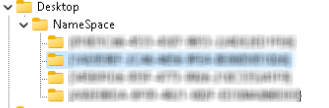
If duplication exists, rename the registry folders and launch again Desktop Connector.
Check for duplicate folder and files
Provide different names to folder & files present under a folder.