
Clash Checks
Save and reuse customized clash detection configurations with clash checks for faster, more consistent coordination workflows.
A clash check can include models, search sets, or both. The search sets you use in Selection A or B are saved as part of the clash check, along with the tolerance and grouping. If a search set changes later, clash checks that use it automatically use the updated definition.
Creating saved clash checks can help to:
- Eliminate repetitive setup by reusing saved clash configurations.
- Standardize clash detection, reducing the number of clicks to get to the 'right' information.
- Tailor clash checks to specific disciplines and project phases.
Create a clash check
To save a clash check configuration:
Open models or a view in the viewer, and click the
 Clashes panel button.
 Choose the content that you want to clash using the options in the Clashes panel.
Apply filters and grouping as required.
Click Save clash check.
The Save clash check dialog opens:
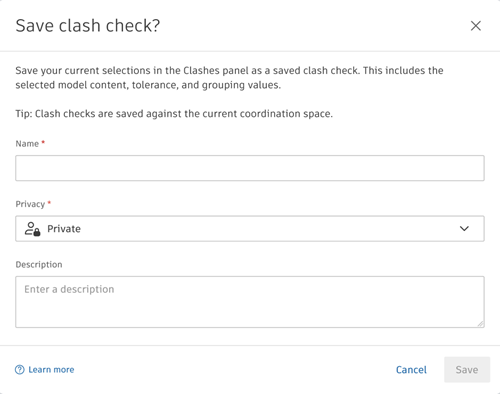
Enter a name for your clash check.
Select a privacy level from the drop-down list:
- Public: Viewable by all project members in the coordination space. Can only be edited by the creator and project administrators.
- Private: Viewable only by the creator and project administrators.
Optionally, add a description of the clash check.
Click Save.
Once clash checks have been created, they are displayed in a drop-down list at the top of the Clashes panel, and in the Clash checks tab.
Note: The Clash checks tab is currently in beta.
A clash check based on search sets isn't limited to the content currently loaded in the viewer. You can apply it to different content, and it finds different clashes depending on the models it's applied to. If the search sets are model-specific, you can apply the clash check to any models that match them. If the search sets aren't model-specific, you can apply it to any clash-enabled models in the coordination space.
View and share clash checks
Saved clash checks are listed in the Clash checks tab, where you can view, open, and share them.
To use the Clash checks tab:
Open the Clashes tool > Clash checks tab.
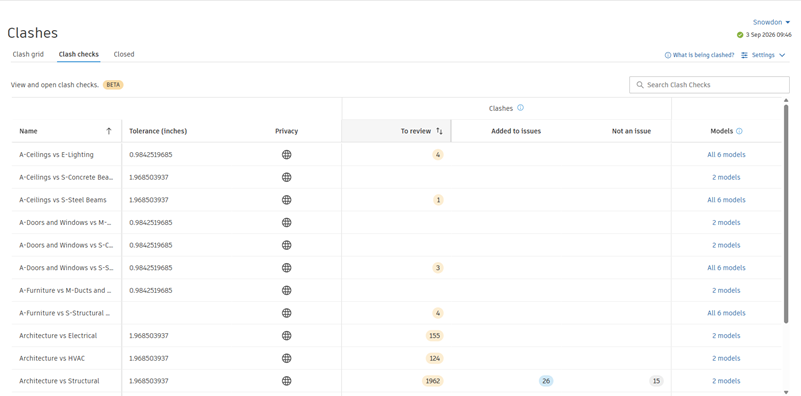
Public clash checks, as well as any you've created yourself, are listed for the coordination space. Details displayed include name, tolerance, privacy setting, and the counts of matching clashes and models.
Note: The Models column shows how many models match each clash check. For clash checks created based on search sets, if the search sets are model-specific, this number represents the clash-enabled models that match the search sets' model rules. If the search sets aren't model-specific, this number is all of the clash-enabled models in the space.Click a clash check row to open the details panel on the right.
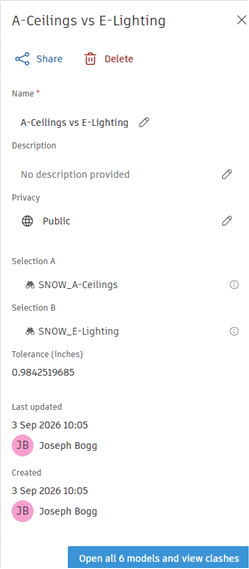
This displays more information about the clash content settings that were used to create the clash check.
Note: The Last updated field shown in the details panel reflects changes made to a clash check's configuration, such as the content in Selection A or B, the tolerance, or grouping options, or to the name, description, or privacy setting.Click the edit icons
 to edit the name, description, or privacy setting.
 Click Open models and view clashes at the bottom of the panel to open the models that match the saved clash check in the viewer, and review the associated clashes.
Tip: You can also click on the number shown in the Models column to open the models in the viewer. To avoid opening every matching model, open a view or specific models first, then apply the clash check from the Clashes panel.At the top of the panel, click Share to open the Share clash check dialog:
- If required, adjust the privacy setting of the clash check.
- Copy the shareable link and use it to share the clash check.
Clicking the shareable link opens the viewer with the clash check’s models loaded and the clash selections applied.
Click Delete at the top of the panel to delete the clash check.
Clash counts
The Clashes columns in the Clash checks tab show how many individual clashes each clash check finds, and categorizes them as one of the following:
- To review: Clashes not yet added to an issue or marked Not an issue.
- Added to issues: Clashes added to an issue, whatever the issue status.
- Not an issue: Clashes marked Not an issue.
The counts shown represent individual clashes, not clash groups. They cover every clash-enabled model in the coordination space that matches the clash check, not just the models open in the viewer. A category with no clashes shows an empty cell. The counts update after a clash test finishes.
Apply a clash check
When you first enter the Clashes panel in the viewer, no clash check will be selected. To apply a saved clash check:
Open the Clashes panel.
At the top of the panel, use the drop-down list to view the available clash checks:
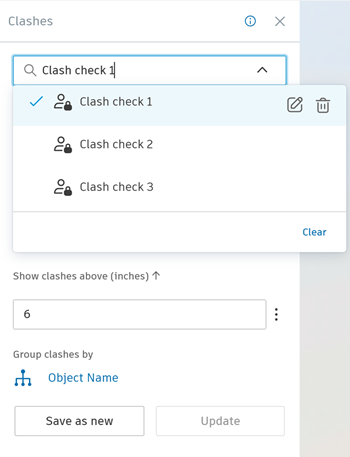 Note: Only clash checks relevant to the content in the viewer will be shown. You can see clash checks that you've created, and those that other project members have created and set as public. Project administrators can see all clash checks.
Select the desired clash check from the list.
Once selected, the saved configuration is applied automatically and the resulting clash results are displayed. The Save clash check button is replaced with Save as new and/or Update options based on permissions for the clash check.
Note: If a clash check selects models that aren't currently loaded, those models are loaded before the clash configuration is applied. If your clash check was created using search sets, the models relevant to the search sets aren't loaded. The clash check will apply only to the models already open in the viewer, even if the search set is model-specific. If the relevant models aren't open, the search set might not match anything.
Update a clash check
When you modify a clash panel configuration that has been saved as a clash check, for example changing the content in Selection A or B, the tolerance, or grouping options, a blue dot appears against the clash check in the drop-down list. You can either:
Click Update to save your changes to the existing clash check.
Note: Clash checks can only be updated by the creator or project administrators.Click Save as New to create a new clash check.
Edit clash check details
Clash check details can be edited by the creator, or a project administrator. To edit a clash check's name, privacy level, or description:
Open the Clashes panel.
At the top of the panel, click the drop-down list to view the available clash checks.
Hover over the clash check that you want to edit, and click the edit icon
.Edit the name, privacy, or description in the Edit clash check details dialog.
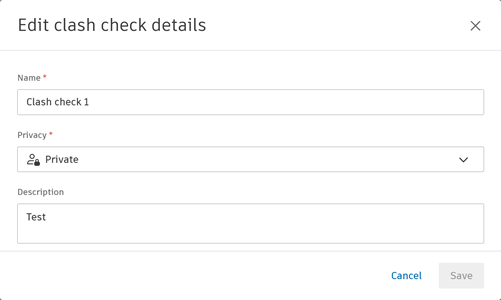
Click Save.
Delete a clash check
Clash checks can be edited by the creator, or a project administrator. To delete a clash check:
- Open the Clashes panel.
- At the top of the panel, click the drop-down list to view the available clash checks.
- Hover over the clash check that you want to delete, and click the delete icon
 .
. - Click Delete to confirm.