
Issue:
- You are seeing a 2-Factor Authentication (2FA) notice when activating software or signing in to your Autodesk Account, and would like to update the authenticator app use for security (OTP) codes.
- Please refer to the screenshots below, as you may encounter two different screens depending on the URL you access.
| Sign-in page URL contains https://accounts.autodesk.com | Sign-in page URL contains https://signin.autodesk.com |
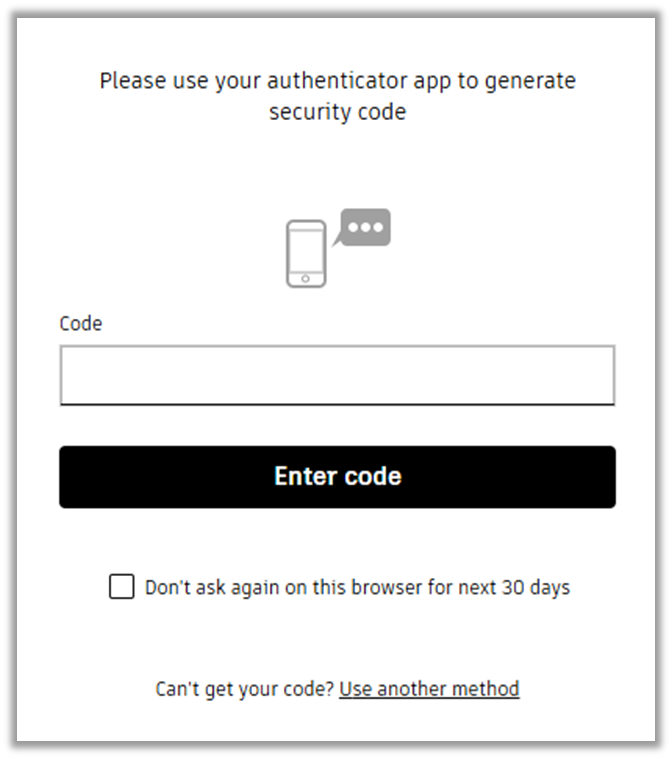 |
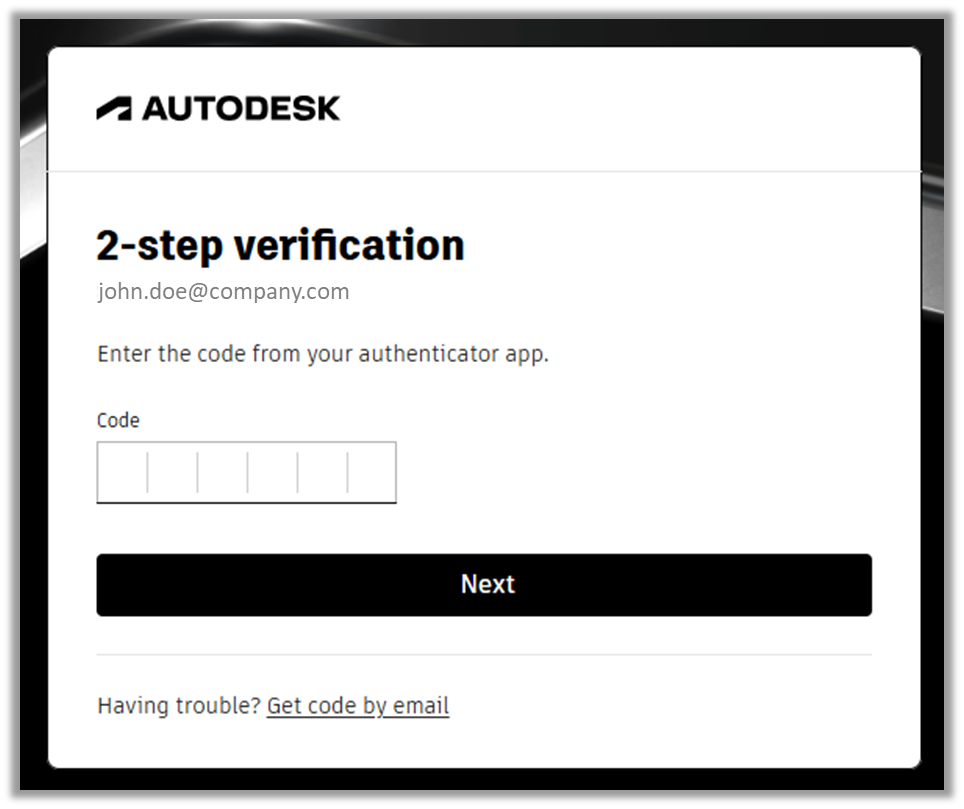 |
- If you cannot receive security code via Authenticator app, refer to article Unable to Sign In to Autodesk Account using Two Step Verification to receive OTP code via email.
Causes:
Email OTP (security codes sent to the email inbox) is applied to all the Autodesk Accounts that does not have 2FA (generating security code with Authenticator app) enabled, and 2FA can be updated by the user on their Autodesk Account.
Solution:
Enable / Update Authenticator app Settings
- On Autodesk Account Security page, click Set up in Authenticator app section.
- You will be asked to login once again with user email address, password, and OTP (Security code).
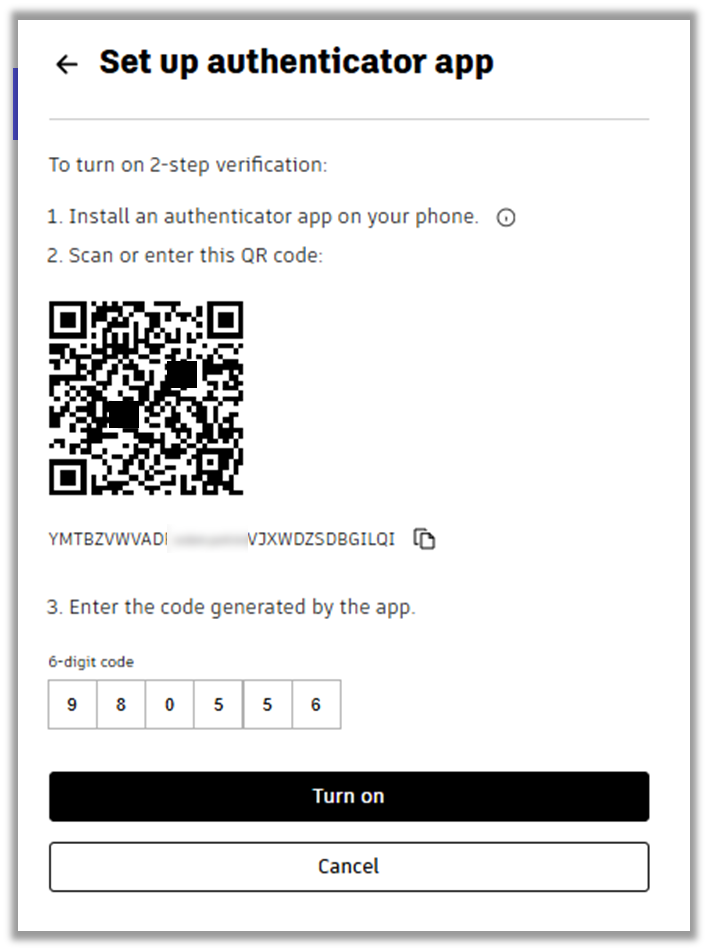
- On Set up authenticator app page, follow the instructions and complete the update:
- Install an authenticator app.
- Open the authenticator app and scan the QR code.
- Enter the code generated on the app.
- Click Turn on button.
Disable 2-Factor Authentication
- On Autodesk Account Security page, click Manage in Authenticator app section.
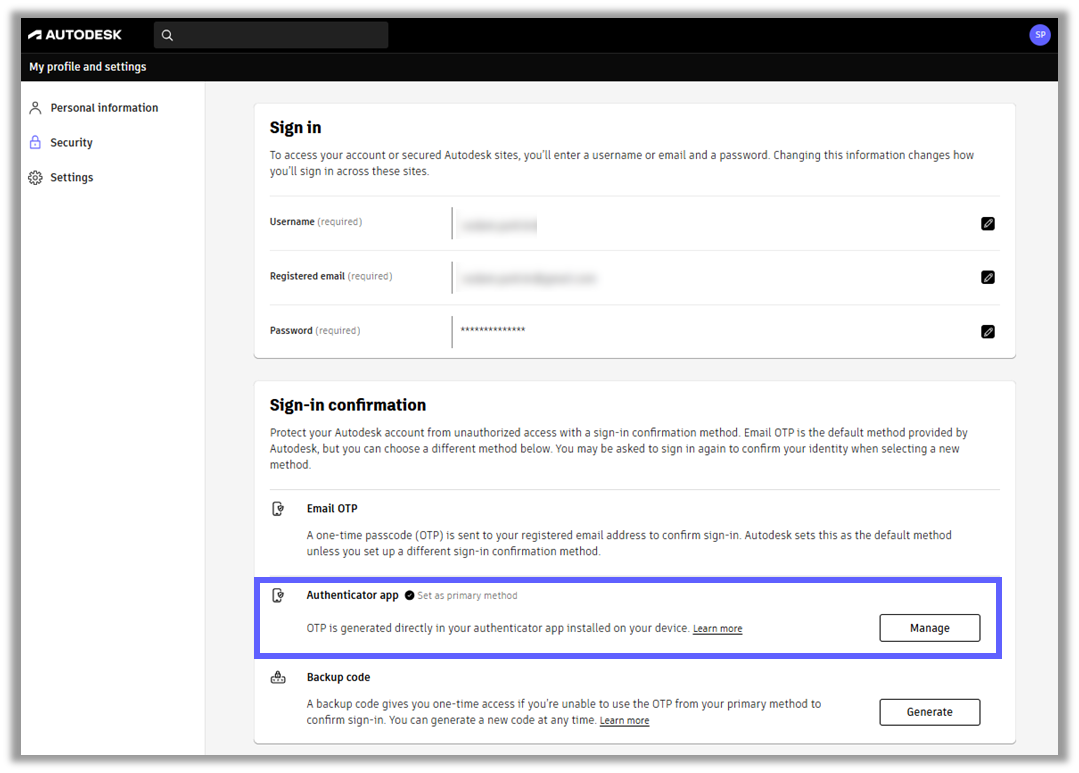
- You will be asked to login once again with user email address, password, and OTP (Security code).
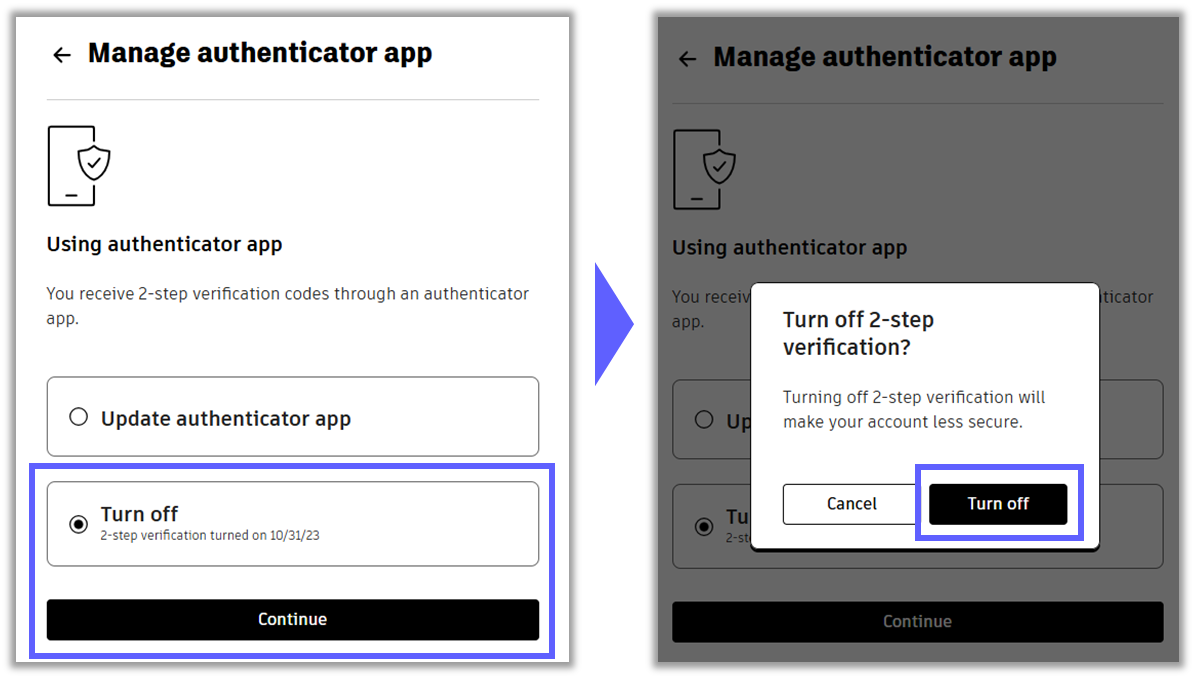
- On Manage authenticator app page, choose Turn Off and click Continue.
- A popup will appear with the attention message. Click Turn off if you are certain to turn off the authenticator app verification.
- Note: For your security, we strongly recommend not disabling 2FA (OTP via Authenticator app). Instead, please update your authenticator app settings to ensure continued access and protection of your account.
- Once done, you will be headed back to the Security page.
- Note: After disabling 2FA, OTP will be sent to the email on subsequent login by default.